Foreman's Cockpit: One Order, All Decisions On the Fly
3D product map, status of each batch, what's blocking the order, and foreman's actions: assign workers, replace defects, re-manufacture, change route, combine parts into an assembly.
The Foreman's Cockpit shows one production order in its entirety: how many pieces are already good, what's missing, and what's preventing the order from closing. Here, the foreman also makes decisions: who to assign work to, what to do with defects, how to combine parts for a welder.
The main idea of the cockpit is that nothing needs to be restarted. A part broke, the client asked for more, the machine stopped – all this is resolved within the same order, without creating a new one.
How to open the cockpit
Open Production → Production Orders and click the Foreman's Cockpit button next to the product name. Clicking on the order name on the production board does the same.
The cockpit is also convenient on a phone: blocks rearrange into a single column, and the most important information comes first.
Order Header
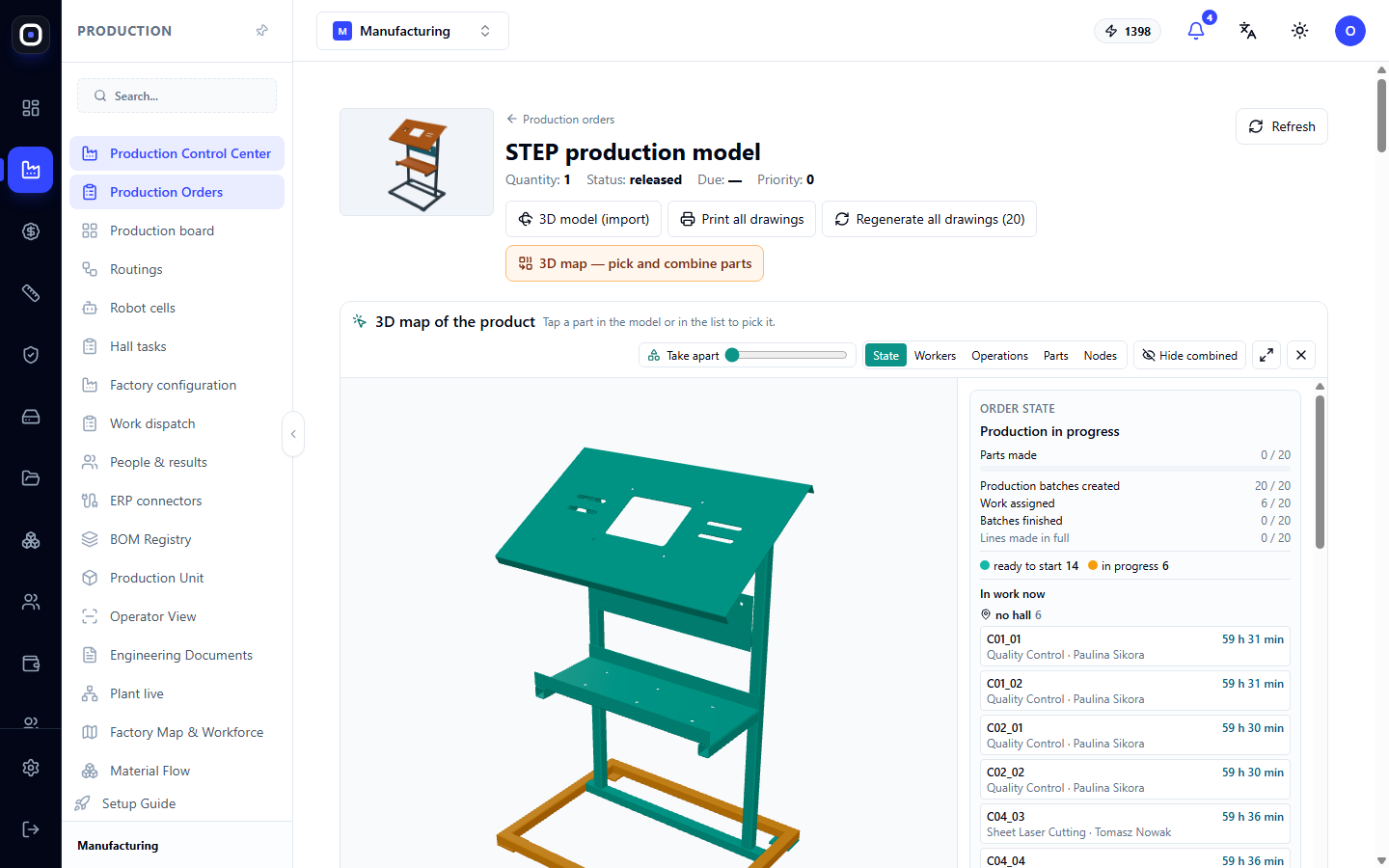
At the top, you see the product image, its name, quantity, status, deadline, and priority. The Production Orders link returns to the list.
Buttons below the name:
- 3D Model (Import) opens the full three-dimensional model of the product;
- Print All Drawings collects drawings of all parts into one document;
- Regenerate All Drawings rebuilds the drawings. The number in parentheses shows how many there are;
- 3D Map — Select and Combine Parts opens the map for creating assemblies;
- Refresh reloads the data.
3D Product Map
This is the main element of the cockpit. The product model is shown with each part colored according to its status. Click on a part in the model or in the list next to it, and it will be highlighted.
The toggle above the map changes what the colors represent:
- Status — ready to start, in progress, manufactured, blocked;
- Workers — who is making each part;
- Operations — which operation the part is currently on;
- Parts — individual parts;
- Assemblies — how parts are combined into assemblies.
The Unfold toggle spreads the parts apart to reveal those inside. The Hide Assembled button removes parts that have already been incorporated into assemblies.
Why this is needed. In a list of twenty rows, it's hard to understand that "C04_03" is the right upright. On the model, it's immediately clear. If half of the product is green and one leg is red, it's clear where the problem is.
The Mark Parts Ready to Start button highlights all such parts together. Marked parts appear in the bottom panel, where workers are assigned to them and cutting programs are prepared.
Order Status
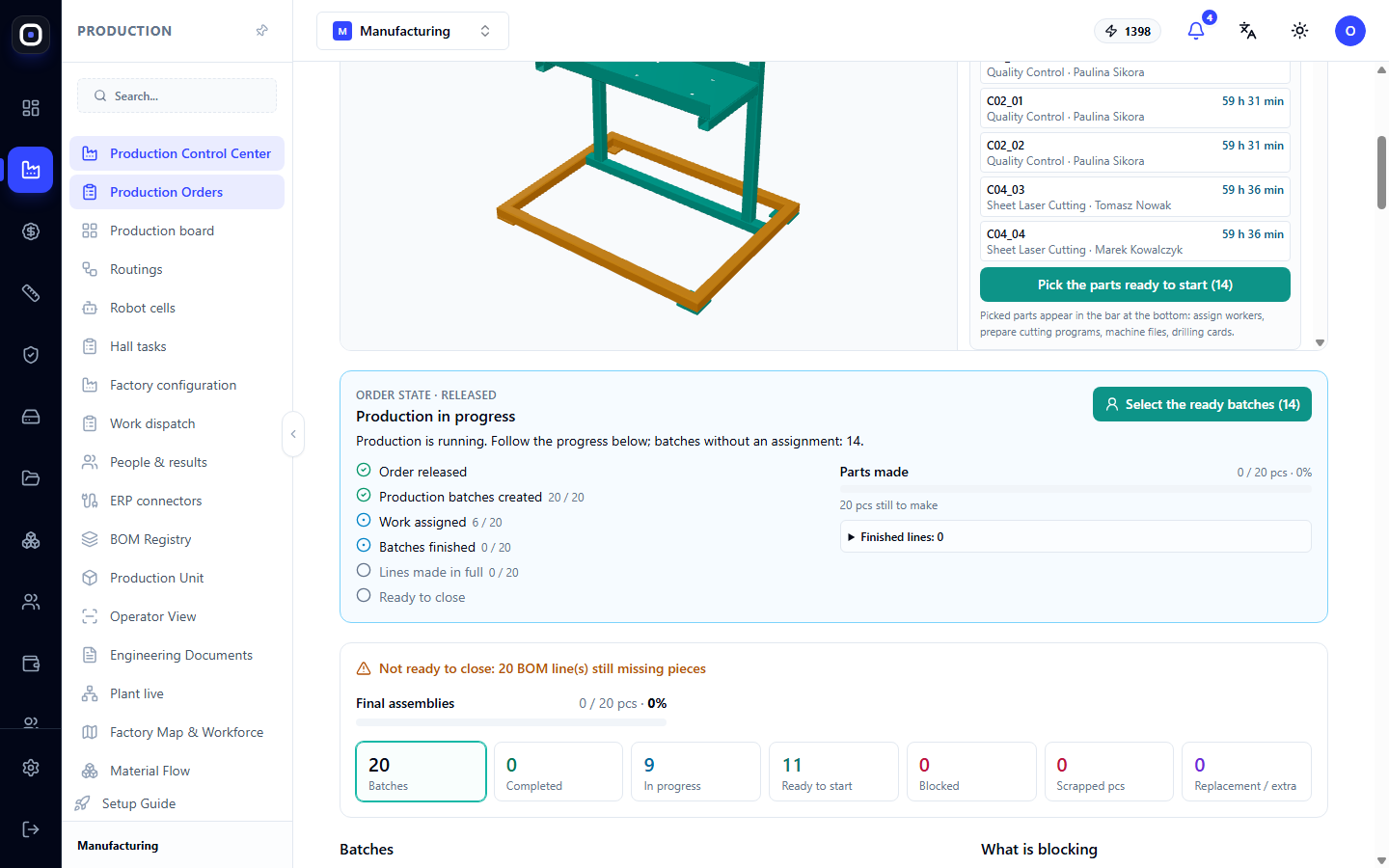
The "Order Status" block explains in one line what is happening, for example, "Production in progress," and shows five metrics in the "completed / total" format:
- Parts Manufactured;
- Production Batches Created;
- Work Assigned;
- Batches Completed;
- Items Fully Manufactured.
Progress is counted in good pieces, separately for parts and for final assemblies. One hundred finished parts and an unmade frame will not show "99%". This is more honest than counting operations.
Next to it is the "Currently in Progress" block: which parts are currently on which operations, who is doing them, and how long it's taking.
The message "Can Close" or "Cannot Close" explains how many specification lines still lack pieces.
Counters
Seven tiles: Batches, Manufactured, In Progress, Ready to Start, Blocked, Defects, pcs, Replacements / Extra. Each is a filter: click on a tile, and the list will show only those batches.
What's Blocking
The "What's Blocking" block shows the reason and the chain: part → assembly → order. On the phone, this block comes first because it's the first thing a foreman wants to know. Unreplaced defects can be replaced directly from here.
Batches
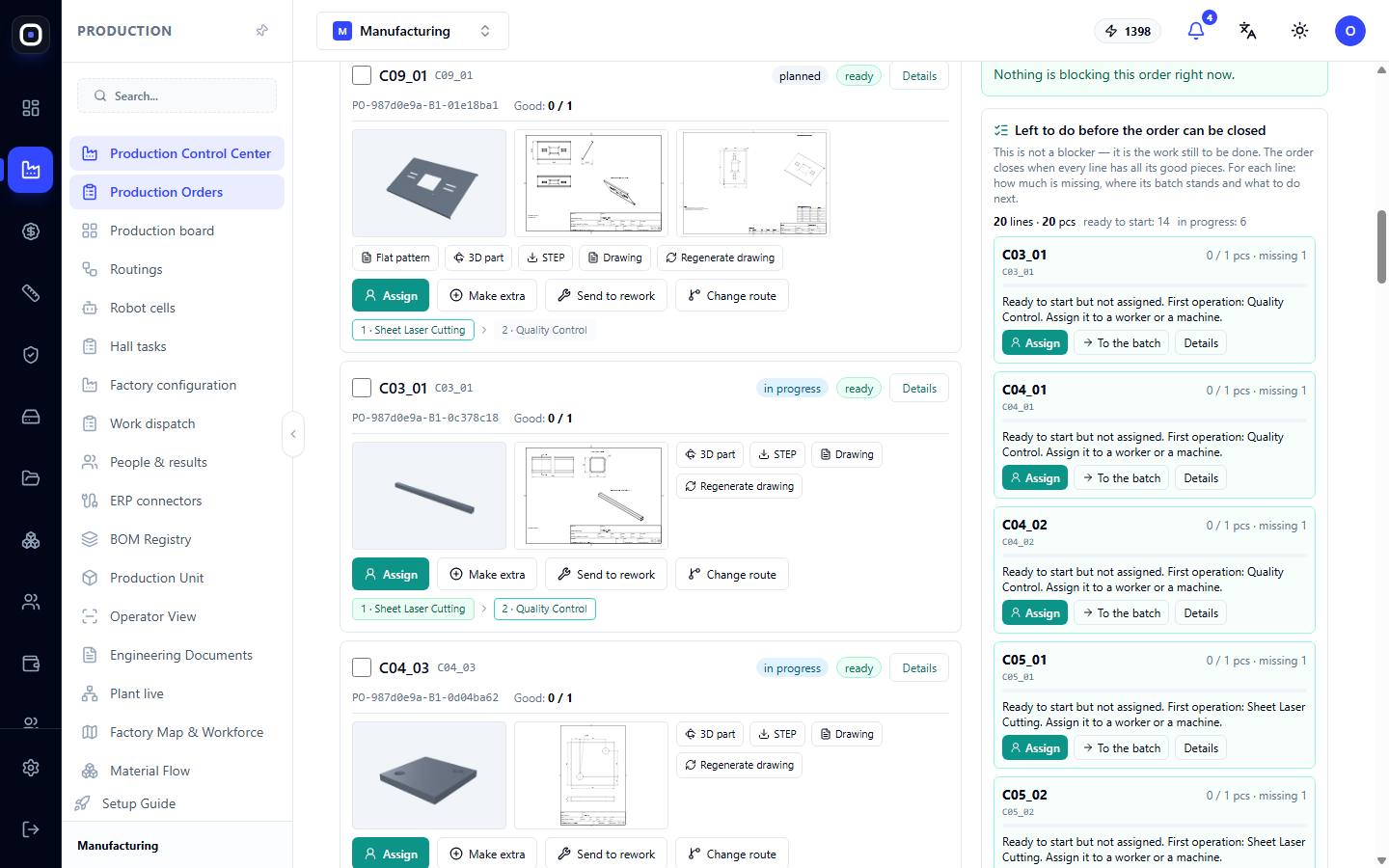
A specification line is produced in a batch. "Upright × 10" is one batch of ten pieces, not ten separate entries.
The list of batches can be shown as a tree (assembly, sub-assemblies, parts) or by status.
For each batch, you can see:
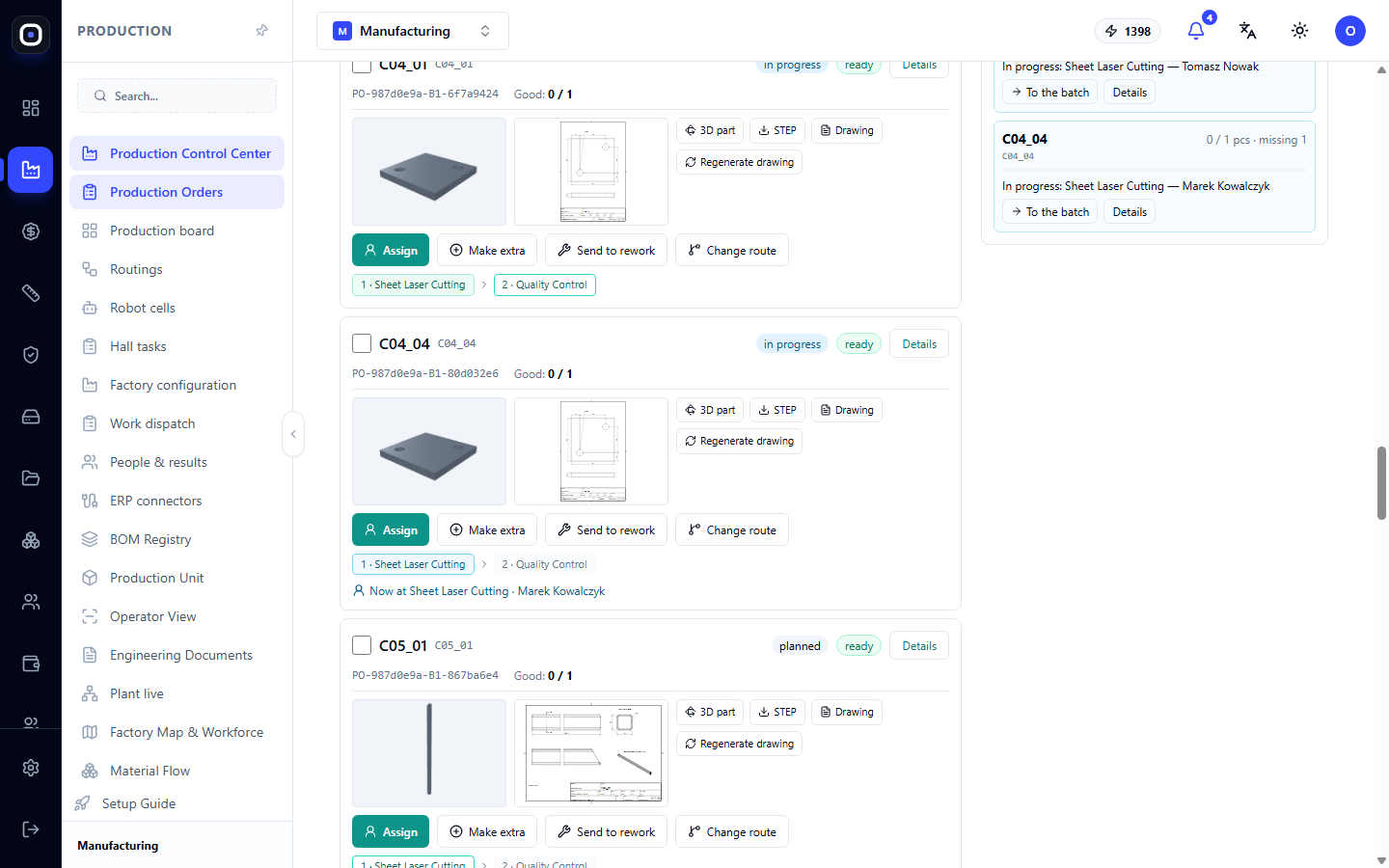
- part image and a small drawing;
- good and total pieces, defects, and how many defective pieces are still unreplaced;
- route steps: completed, currently in progress, next;
- marks R1, R2 for replacement batches, "Extra" for additional manufacturing, "Route Changed".
File buttons: Unfold, 3D Part, STEP, Drawing, Regenerate Drawing.
Action buttons: Assign, Manufacture Extra, For Rework, Change Route.
Foreman's Actions
Assigning Who Does What
Click Assign in a batch or check several batches and click Assign on the bottom panel. For each step, the system will show:
- stations that can perform this step, whether they are busy, and what their queue is;
- employees with the necessary qualifications and those who are absent today.
Assignment is a plan. The operator starts with it by default but can choose another station. What was actually used is recorded in the operation.
If someone changed an assignment while you were looking at the screen, the system will not overwrite it silently but will ask you to refresh the page.
Replacing Defects
The operator recorded that one piece out of ten was defective. Click Replace Defect. A new batch will be created exactly for the defective pieces. The rest of the batch does not change, and the assembly will wait for both it and the replacement.
The system will not allow replacing more than what was defective.
Manufacturing Extra
For pieces that were lost before accounting, were undercounted, or if the client wants more. The reason is selected from a list.
Only the reason "Client wants more" increases the quantity that the order must produce. Other reasons will never allow progress beyond 100%.
Taking from Stock
Instead of new manufacturing, you can take finished parts from stock if more were made at some point. The panel shows how many are available. Pieces are reserved, and the batch immediately becomes manufactured.
Changing the Route
The entire batch follows a different released route from the step you explicitly selected. Completed steps remain in history, and planned assignments for this batch are canceled.
While a batch is in progress at a station, the route cannot be changed: first, stop the operation.
Splitting a Batch
Before work begins on a batch, some pieces can be moved to a separate batch. For example, four out of ten can be made at a second station or by a different route.
The new part receives the mark "Part of...", inherits the current route, and is assigned separately. The quantity required by the order does not change.
For Rework
If a batch can be corrected, click For Rework and describe what needs to be done. The same batch is corrected; a new one is not created. The batch gets a "Rework #N" mark, and each subsequent rework gets the next number.
Start Without Waiting
A batch waiting for others is usually blocked. If the foreman knows that it can be started, the Start Without Waiting button removes this wait. The decision is recorded in history with the name of the person who made it.
Cutting and Bending Programs
Mark the batches and click Prepare for Cutting. The default quantity is how many are still needed for the order, but it can be changed.
- Pipes and profiles are laid out on bars, for example, six-meter ones, with minimal waste. Allowances at the beginning and end of the bar are taken into account. For each layout, one common file is created with a multiplicity, for example, "×33".
- Flat sheet parts are tightly laid out on sheets, rotated 90 degrees. For each sheet, a file is created with the actual contour of the parts and holes.
Even before generation, you can see the number of bars or sheets, the percentage of waste, and an image of the layout.
Ready programs appear in the "Cutting Programs" section at the bottom of the panel. There is a print option and a Regenerate button with different quantities.
The Bending button opens the selected parts one by one in the bending operator's center. A bent part cannot be laid out on a sheet until it is unfolded.
Assemblies: Combine Parts for Welder or Robot
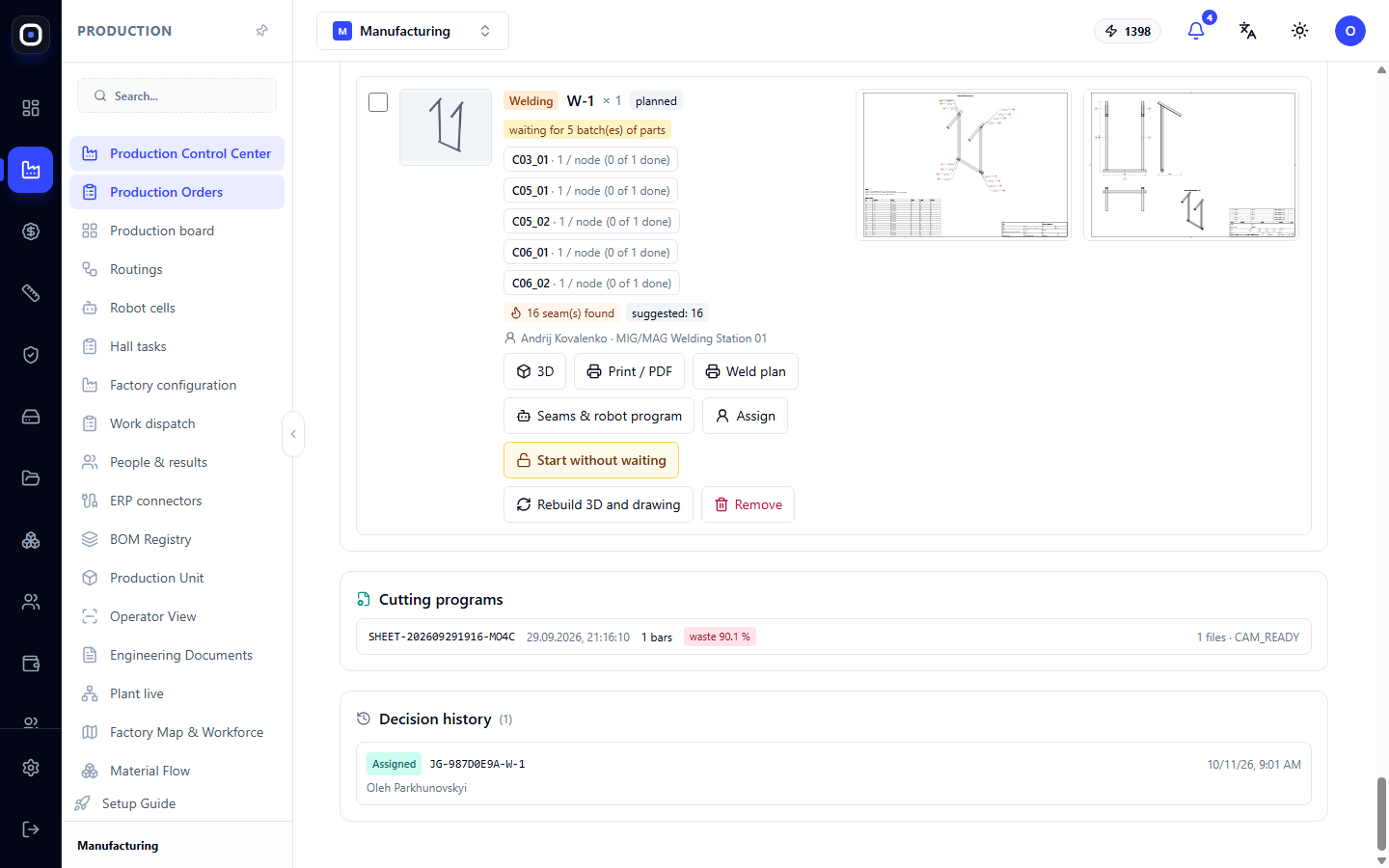
A welder should not decide what to weld with what. This is decided by the foreman, and he does it through assemblies.
- Mark the batches of parts on the 3D map or in the list.
- Click Combine.
- Select the connection method: welding, bolts, riveting, or assembly.
- Specify how many pieces of each part go into one assembly and how many assemblies to make.
The assembly receives a code (W-1, B-1, and so on) and its own batch. It is assigned to an employee or robot, like any other. It waits until its parts are ready: the assembly card says "waiting for N batches of parts" or "parts ready".
If the order is created from an imported 3D model, the system automatically finds these parts in their actual positions and creates a 3D model of the assembly and an assembly drawing: views, dimensions, item numbers, specification, and isometric view. This takes up to a minute.
Assemblies can be further combined: mark W-1 and W-2 and click "Combine" to get the final assembly.
An assembly that has not yet been worked on can be deleted. Its parts will remain in the order.
Welding Plan and Robot
For a welded assembly, the system automatically finds welds: contours where a smaller part touches a larger one. It builds a welding plan with isometric view, highlighted welds, marks according to ISO 2553 standard, and a list of welds.
The Welds and Robot Program button opens these welds in the robotic cells section. There, the technologist confirms them, and a program for the robot is built from the confirmed welds.
The Rebuild 3D and Drawings button updates the assembly model. After rebuilding, the welds must be reviewed and confirmed again.
Decision History
At the bottom of the panel is the "Decision History": every replacement, additional manufacturing, taking from stock, route change, assignment, and rework. It shows who, when, and why it was done.
Decision Safety
- Double-clicking will not create two batches: each action is performed exactly once.
- Every decision is recorded in a log: who, when, why, what was before and after.
- The AI assistant can suggest these actions, but each is confirmed by a human.
Typical Workflow
- Open the foreman's cockpit for the order.
- Look at the 3D map in Status mode.
- Read the What's Blocking block and remove the blockages.
- Click Mark Parts Ready to Start.
- On the bottom panel, assign workers.
- Prepare cutting programs for the marked batches.
- Combine parts into assemblies for welders.
- During the shift, respond to defects using the Replace Defect button.
Frequently Asked Questions
It says "Cannot Close" even though everything is done
Some specification line is missing good pieces. Most often, this is an unreplaced defect. Click the Defects, pcs tile and replace it.
The "Change Route" button is inactive
The batch is currently in progress at a station. Stop the operation and try again.
The welder doesn't see the assembly at the kiosk
The assembly appears for the welder only when all its parts are ready. Check the assembly card to see what it's waiting for.
After rebuilding the assembly, confirmed welds disappeared
This is expected. The geometry has changed, so the welds need to be reviewed and confirmed again.
I accidentally clicked "Replace Defect" twice
No worries: a second batch will not be created. Each action is performed once.