Work Dispatch: Who's Doing What Now and Who Gets the Next Operation
Foreman's workstation: alerts needing attention, employee cards with current operations, a pool of ready work, automatic dispatch, forward planning, and delay analytics.
Work Dispatch is the foreman's workstation. This page answers three questions simultaneously: who is doing what right now, what everyone will do next, and what ready work is not yet assigned to anyone.
Without this page, the foreman walks around the shop floor asking questions. With it, they see everything on one screen and assign work with a few clicks.
Where to find the page
In the left-hand menu, open Production → Work Dispatch. The page address ends with …/erp/production/dispatch.
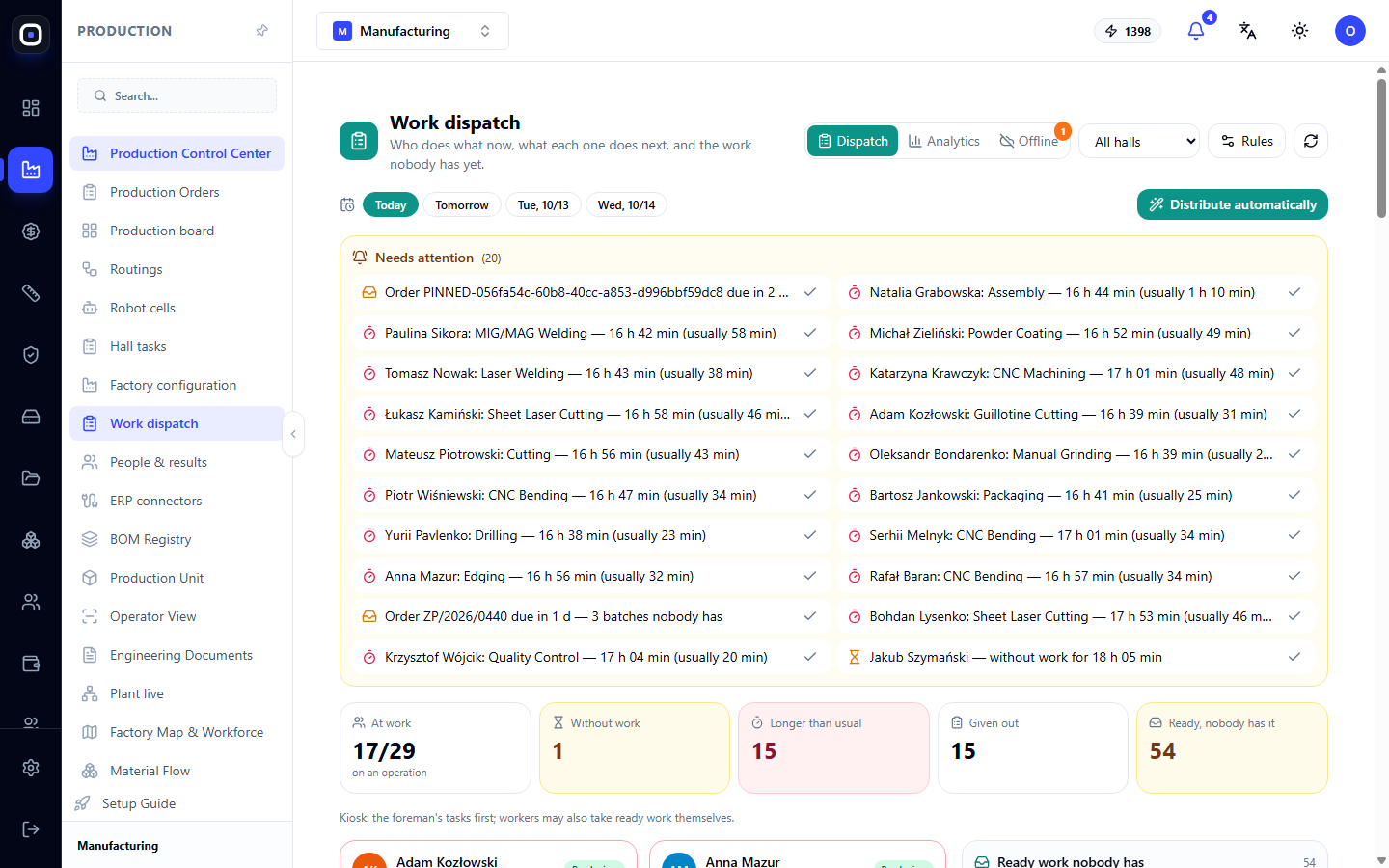
The foreman sees their own shop floor. A manager sees all shop floors and can select one from the All Shop Floors list in the top right.
Top row
- Tabs: Dispatch, Analytics, and Offline. The number next to "Offline" shows how many terminals are currently disconnected.
- All Shop Floors list to select a shop floor.
- Rules button leads to the factory configuration, where dispatch rules are set.
- The refresh button reloads the data.
Below it is a day switcher: Today, Tomorrow, and the next two days. To the right is the Dispatch Automatically button.
"Needs Attention" Block
The yellow block at the top shows alerts. The number in parentheses next to the title indicates their count. The system checks the situation every five minutes and displays three types of alerts:
- Urgent order without an assignee. For example: "Order ZP/2026/0440: due in 1 day — 3 batches unassigned." Little time remains until the deadline, and ready work is not yet distributed.
- Operation longer than usual. For example: "CNC Bending — 16 hr 47 min (usually 34 min)." Most often, this means the employee forgot to complete the operation; less often, there is genuinely a problem with the machine.
- Person without work. For example: "without work for 18 hr 05 min." The person has clocked in but has neither an operation nor a task.
A checkmark to the right of an alert means "seen": it stops repeated reminders. When the situation resolves, the alert closes automatically.
The same alerts are sent to the foreman's Oprela notification bell, and also to Telegram or email if configured.
Five counters
Below the alerts are five tiles:
- At Work — how many people have clocked in and how many of them are currently on an operation, e.g., 17/29;
- Without Work — who is present but doing nothing;
- Longer than usual — how many people have an operation that has run over;
- Dispatched — how many tasks are already in people's queues;
- Ready, unassigned — how much ready work is waiting for an assignee.
The last two tiles together show the main point: if "ready, unassigned" is high and there are people without work, assignments need to be made.
Employee Cards and Pool
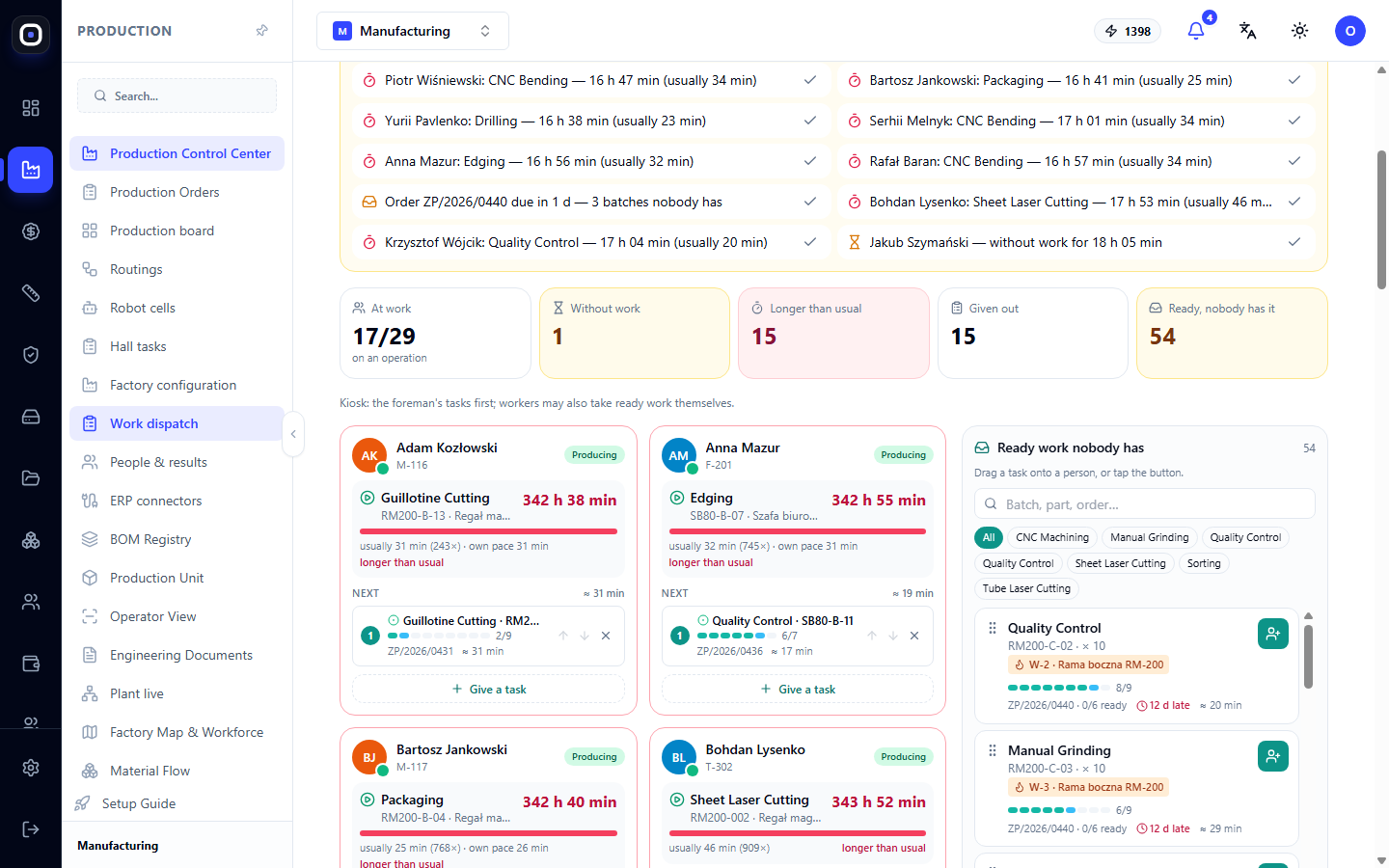
Below, the screen is divided into two parts: people on the left, pool on the right. On a phone, you switch between them using the "People" and "Pool" buttons.
Employee Card
The card shows:
- what the person is doing now and how much time has passed;
- a bar comparing it to the usual time;
- a hint like "usually 30 min (18×) · own pace 28 min." The number in parentheses indicates how many times this operation has been performed;
- the "Next" queue: upcoming tasks with the route step number (e.g., 3/9) and estimated time.
Arrows ↑ and ↓ change the order in the queue. The cross returns the task to the pool.
Pool
This is ready work without an assignee. For each item, you can see the operation, part, route step, how many order batches are already complete, the deadline, and the usual time.
Above the pool, there is a search field "Batch, part, order..." and a filter by operations: CNC Machining, Sheet Laser Cutting, Tube Laser Cutting, Quality Control, and others. The Not Available Now button shows work that cannot be assigned to anyone yet.
Three ways to assign work
- Drag and drop a task from the pool onto an employee's card.
- Click the button next to a task in the pool. The system will show people: those who can perform this operation and are currently free will be listed first. The "best match" indicator will be next to the most suitable candidate.
- Click "Assign Task" on an employee's card. The system will show work that matches their skills.
If an employee has their own machine, the task is immediately linked to it.
Where "usual time" comes from
Usual time is the median of the same operation for the same part, recalculated for the number of pieces in the batch. That is, the system looks at how long it actually took previously, not what is recorded in the standard.
The employee's own pace is shown separately. If there isn't enough history, the standard step time from the route is used.
This is fairer than a standard: some people work faster, some slower, and a person should be compared to themselves.
Automatic Dispatch
The Dispatch Automatically button suggests who does what. The system selects based on the following priority order:
- skills;
- who is currently free;
- own machine;
- the same operation as recently;
- lowest workload.
This is a suggestion, not a decision. The foreman unchecks what is not suitable and clicks Dispatch.
Forward Planning
The day switcher above the cards allows assigning work for tomorrow or the day after. For another day, only those who have a shift then are shown. A task assigned for a specific day will appear on the kiosk on that day.
How far ahead you can plan is determined by the "Plan ahead up to" rule.
"Analytics" Tab
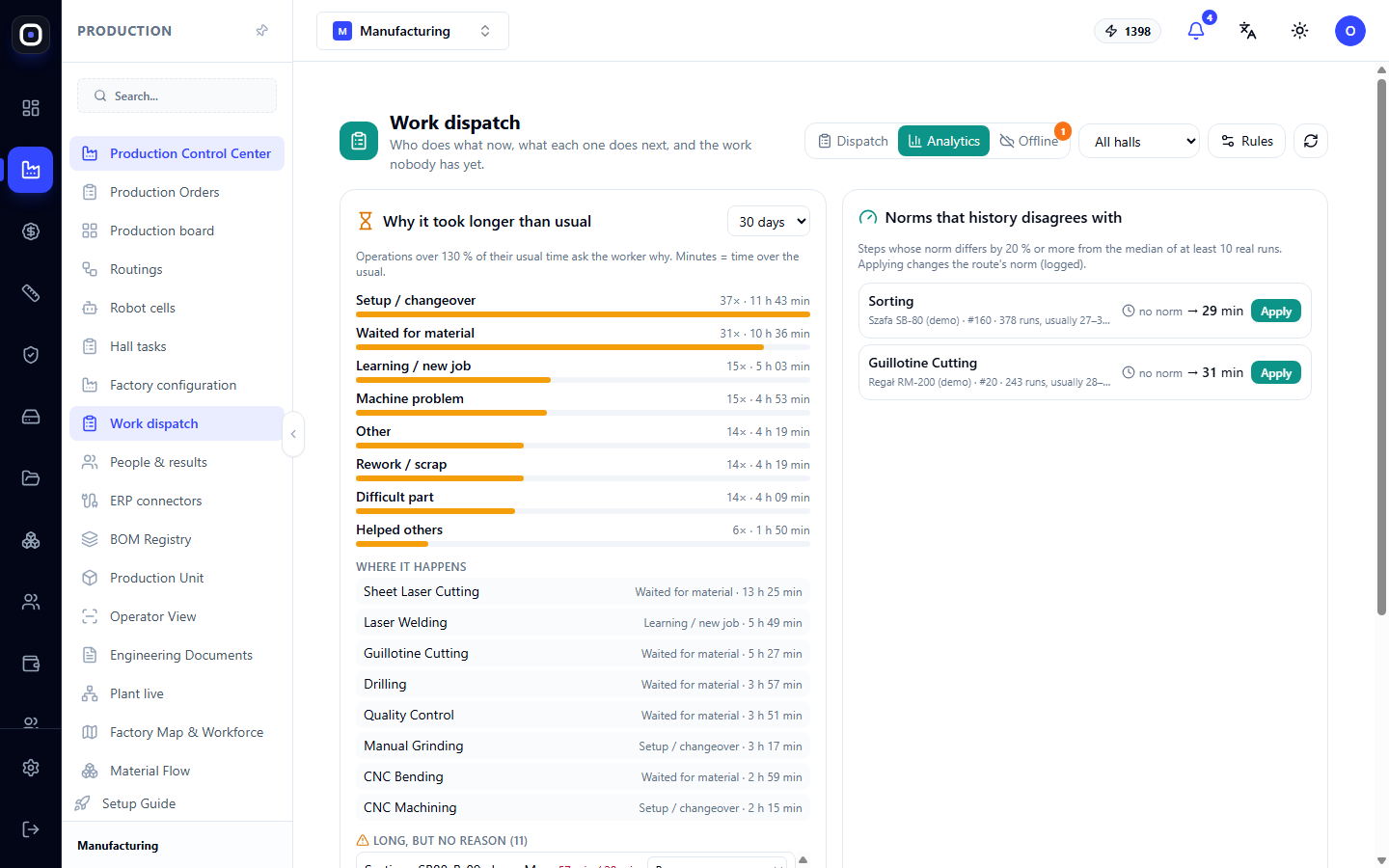
Analytics explains where time disappears. The period is selected from the list on the right, for example, 30 days.
Why longer than usual
If an operation took significantly longer than usual, the kiosk displays large buttons with reasons to the employee after completion. They choose one with a single tap.
On this tab, these responses are summarized in bars: Setup, Waited for material, Learning / new job, Machine problem, Rework / scrap, Complex part, Helped others. Next to each, you can see how many times it was cited and how much time it took.
Below is a breakdown of "Where this happens": on which operations each reason occurs most frequently.
This is the most valuable part of the page for a manager. If "waited for material" is constantly cited for laser cutting, the problem is not with the operator but with material supply to the machine.
Long, but without reason
A separate list shows long operations for which no reason was given. The foreman can add it.
Standards that history disagrees with
On the right, route steps are shown whose standard time significantly differs from reality. For example, the standard is 29 minutes, but the median of actual executions is completely different.
The owner or administrator clicks Apply, and the step's standard is updated. Each such change is recorded in the log.
What the employee sees
On the kiosk, the employee sees a large card "Your next task", and below it, the "Next" queue. Other ready work is shown collapsed: they can take it themselves, but tasks from the foreman always come first.
Whether an employee can take other work themselves is determined by a factory rule.
Settings
All rules are set in Factory Configuration → Rules for the entire business, factory, or a specific shop floor.
- Work Dispatch: whether an employee can take other ready work; how many tasks in the queue per person; from what percentage an operation is considered longer than usual; for how many days usual time is calculated.
- Notifications: after how many minutes without work to alert; how many days before the deadline to warn; to whom and via which channels to send.
- Delays and Standards: whether to ask for a reason; from what percentage to ask; whether the reason is mandatory.
- Automatic Dispatch: how many tasks per person; only to those who are skilled; preference for own machine; keep people on the same job.
Typical foreman workflow
- Open Production → Work Dispatch at the beginning of the shift.
- Go through the Needs Attention block and address each alert.
- Look at the "Without Work" and "Ready, unassigned" tiles.
- Click Dispatch Automatically, uncheck unnecessary items, and click Dispatch.
- Manually assign the rest from the pool.
- Before the end of the shift, switch to Tomorrow and assign work for the morning.
- Once a week, open Analytics and see what takes the most time.
Frequently Asked Questions
An operation is showing 16 hours. Is the employee really working that long?
Almost certainly not. They started the operation and did not complete it before leaving. Ask them to complete it or close the operation yourself, otherwise, usual time and efficiency will be distorted.
The pool is empty, although there are orders
The pool only shows ready work: work for which the previous step has been completed and everything needed is available. Check the order stage on the production board.
The system suggests the wrong person
Automatic dispatch relies on competencies. If a person is skilled in an operation but it's not recorded in the system, they won't be a candidate. Update competencies in the factory configuration.
Employees are taking the wrong work themselves
Disable the rule "Employee can take other ready work." Then, only tasks from the foreman will be visible on the kiosk.