Operator Workstation: How to Work with Batches at the Machine
The screen for the person at the machine: station selection, machine and batch scanning, work list, Start and Complete buttons, scrap accounting, pauses, drawings, and 3D.
The Operator Workstation is a screen for the person standing at the machine. It is designed to be used with gloves and a scanner in hand: large buttons, minimal text, all important information on one screen.
Here, the operator sees only their own work: what can be started, what is already in progress, and what to do next.
Where to find the page
In the left-hand menu, open Production → Operator Workstation. The page address ends with …/erp/production/operator.
On a tablet or kiosk in the workshop, the page is usually opened once and left open.
First step: specify your station
When the page is opened on a device for the first time, it asks you to select a station.
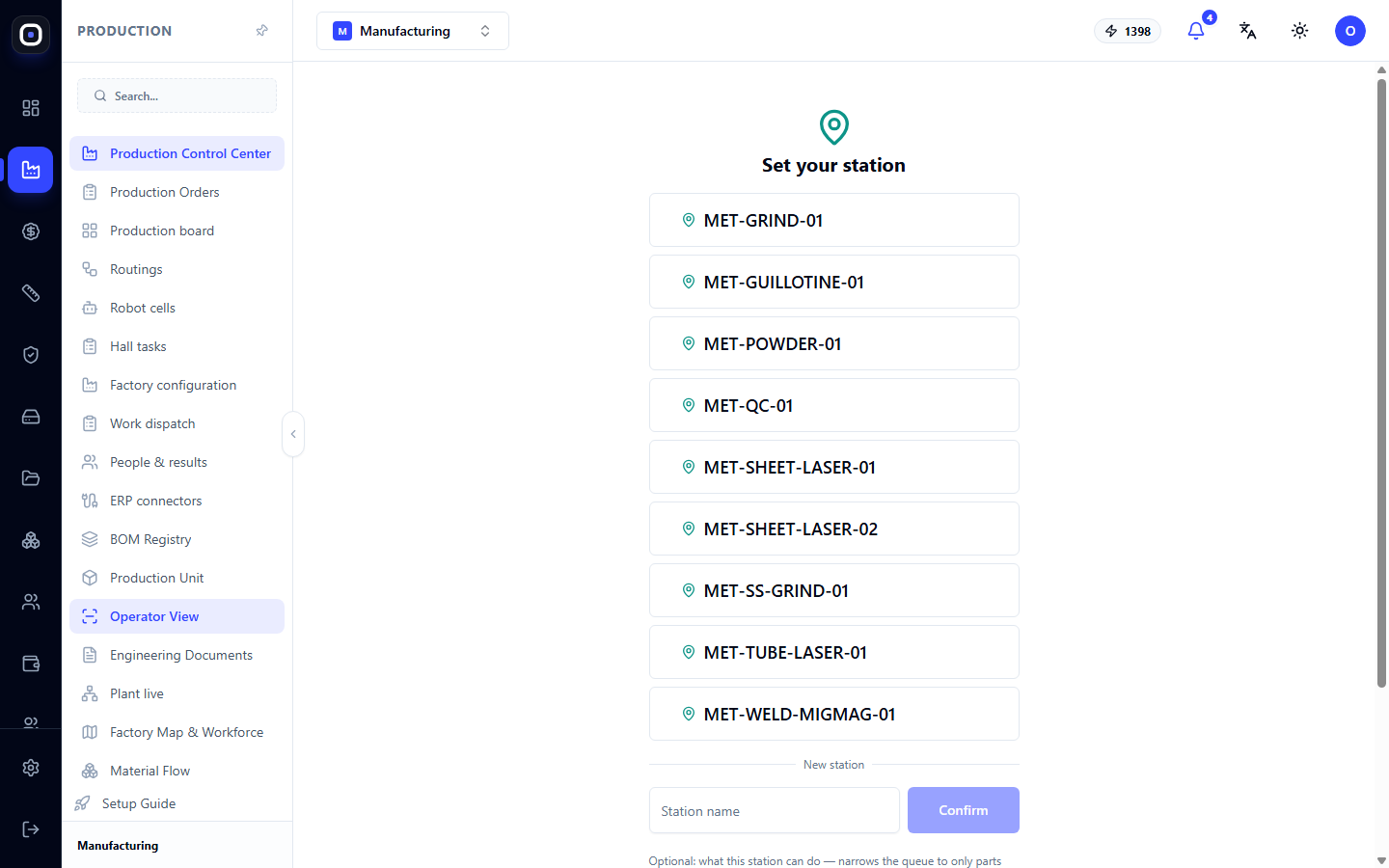
The screen contains:
- buttons with the names of available stations, for example,
MET-SHEET-LASER-01orMET-WELD-MIGMAG-01; - a Station Name field if the required one is not yet available;
- a list of operations this station can perform: cutting, bending, welding, painting, quality control, etc.
The list of operations is optional but useful. If you mark what the station can do, the queue will narrow down to parts whose next step is performed here. If left empty, all work will be visible.
Click Confirm. The selection is remembered on this device, so the question will not appear next time.
How to start work
At the top of the screen, three things are always visible: workstation, machine, and the scan field. The barcode scanner prints directly into this field; there's no need to click into it separately.
- Scan the machine label. Without this, the operation cannot be started. This tells the system which equipment the part is being made on.
- Scan the batch label or click the desired row in the list.
- Click Start.
A sound indicates the scanning result: one high beep means "accepted," two low beeps mean "error."
Four list views
- Work — each batch as a separate row. The row shows an image of the part, the next step (e.g., "Step 2/3 · Welding"), quantity, status, deadline, and who it's assigned to. Initially, work that can be started right now is shown.
- Orders — orders with product photos, progress, and their batches. The button opens the foreman's panel for this order.
- Gantt — planned and actual progress for routing steps.
- Board — orders by readiness.
For daily work, the operator needs the first view. The others are useful for the foreman.
Counters and filters
At the top are counters: Can Start, In Progress, Blocked, Overdue, Next 7 Days. Each also acts as a quick filter: click on a counter, and the list will show only those batches.
The Filters button opens a more detailed selection: by next operation, process, material, assignment ("Assigned to me"), deadline, and status. Filters are remembered.
The "Only work for my workstation" toggle only shows batches whose next step is required at this station. If the list appears empty, check this toggle.
Open batch
Click on a batch, and it will open on the right, or full screen on a phone.
At the top are four large buttons:
- Start — begin the operation;
- Complete — finish and record the result;
- Not OK — the part does not meet requirements;
- Problem — something is preventing work.
Below the buttons is everything needed for work:
- reasons for blocking, if the batch cannot be started;
- operation evidence — photos and notes;
- drawings and unfolds. Clicking opens them full screen, printing is available;
- 3D of the part and the entire product, which can be rotated;
- STEP, IGS, and DXF files;
- cutting programs that contain this part;
- bending instructions for bent parts.
Below, other batches of the same order are shown.
Completing an operation
The Complete button opens a window where you specify:
- how many good pieces;
- how much scrap;
- reason for scrap, if any.
Scrap is immediately visible to the foreman in the panel as "for replacement." If you have foreman rights, a replacement batch is automatically created.
Report scrap honestly. If everything is recorded as good, the next operation will receive fewer parts than expected, and the order will stop later when it's harder to determine the cause.
During the shift
- The operation timer shows how long the work has been ongoing, excluding pauses, and compares it to the step's standard time. When the standard is exceeded, the timer turns red.
- Pause requires a reason: break, no material, breakdown, waiting for quality control. A pause is recorded as machine downtime. The Resume button cancels it.
- The "Machine" tab, after scanning the machine, shows what is planned next on it, in the order of the scheduler.
- Kiosk opens the page full screen without the side menu, with larger buttons for a tablet.
- Take Photo opens the phone's camera. The photo becomes evidence for the operation and batch. If the "Photo before completion" rule is enabled at the factory, the operation cannot be completed without a photo.
Typical operator workflow
- Open the page and check that your station is indicated at the top.
- Scan the machine label.
- Find the work in the list or scan the batch label.
- Open the drawing and check what needs to be done.
- Click Start.
- If you need to step away, click Pause and specify the reason.
- Click Complete, specify the quantity of good and scrap pieces.
- Move to the next batch.
Frequently Asked Questions
The "Start" button doesn't work
Most often, the machine has not been scanned. Without the machine, the operation cannot be started. The second possible reason is that the batch is blocked: reasons are written below the buttons.
The work list is empty
Check the "Only work for my workstation" toggle and filters. If they are off and the list is still empty, there is truly no work ready.
I selected the wrong station
The station can be changed at the top of the screen: click on the workstation name and choose another.
I forgot to complete the operation and went home
Tell your foreman. An uncompleted operation "runs" all night, distorting actual time and efficiency. The foreman can close it themselves.
The scanner isn't inputting anything
Click into the scan field and try again. If that doesn't help, check if the scanner is connected and not out of battery.