Production Orders: How to Launch a Product into the Shop Floor and Track Each Unit
The page a production manager uses daily: a list of orders, readiness for launch, production units, nesting, and a link to the foreman's cockpit.
The Production Orders page answers three questions: what are we currently manufacturing, what can be launched into the shop floor now, and what stage is each part at. There's nothing superfluous here. This is a production manager's working list, not a report.
In this article, we'll go through the page from top to bottom: what each element shows, which buttons to click and in what sequence, and what to do when the system prevents an order from being launched.
Where to find the page
In the left menu, open Production → Production Orders. The page address ends with …/erp/production/orders.
First things first: what is an order and what is a unit
To make the page easy to read, it's important to distinguish between two concepts.
A production order is a decision to "manufacture a certain product in a certain quantity by a certain date." For example: "Clothing rack, 20 pieces, by October 30."
A production unit is a specific item physically made in the shop floor: an individual part, assembly, or finished product. Each unit has its own code, its own status, and its own history. It is the unit that an operator scans, and it is by the unit that you can see where the work is currently.
One order consists of many units. The order shows the big picture, units show the details.
Top part of the page
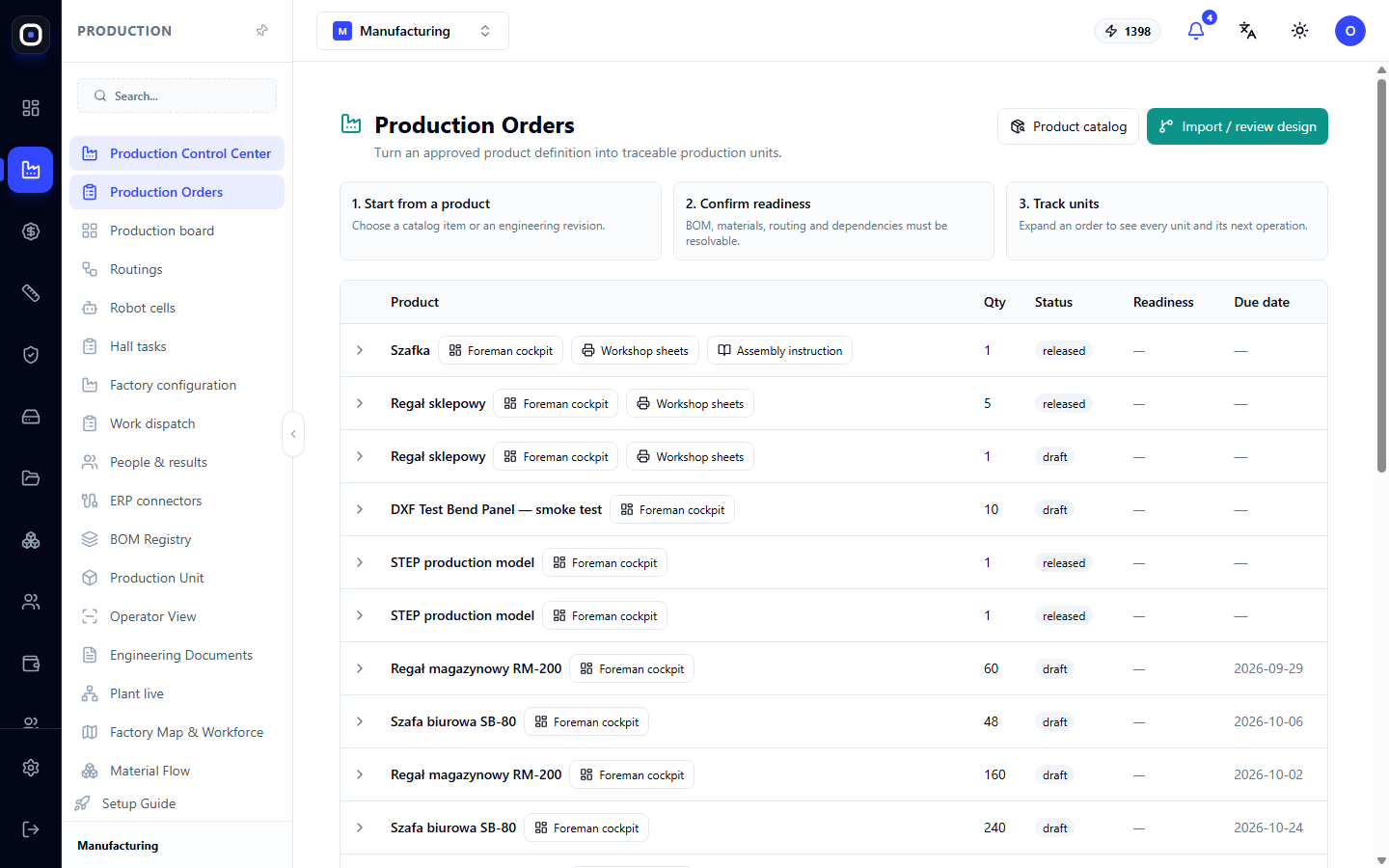
To the right of the title, there are two buttons:
- Product catalog opens the product catalog. This is where you go when you need to find an already described product.
- Import / review design opens 3D intake. This is where you go when the product is not yet described and you only have a model from the designer.
Below the title are three hint cards. They describe the path of any order:
- Start from a product — an order always begins with a product: a catalog item or an approved engineering revision.
- Confirm readiness — before launch, the specification, materials, routing, and dependencies between parts must be known.
- Track units — after launch, expand the order and view each unit and its next operation.
Some labels on this page are currently displayed in English even in the Ukrainian interface. In the article, they are shown as you see them on the screen.
Order table
Each row in the table is one order.
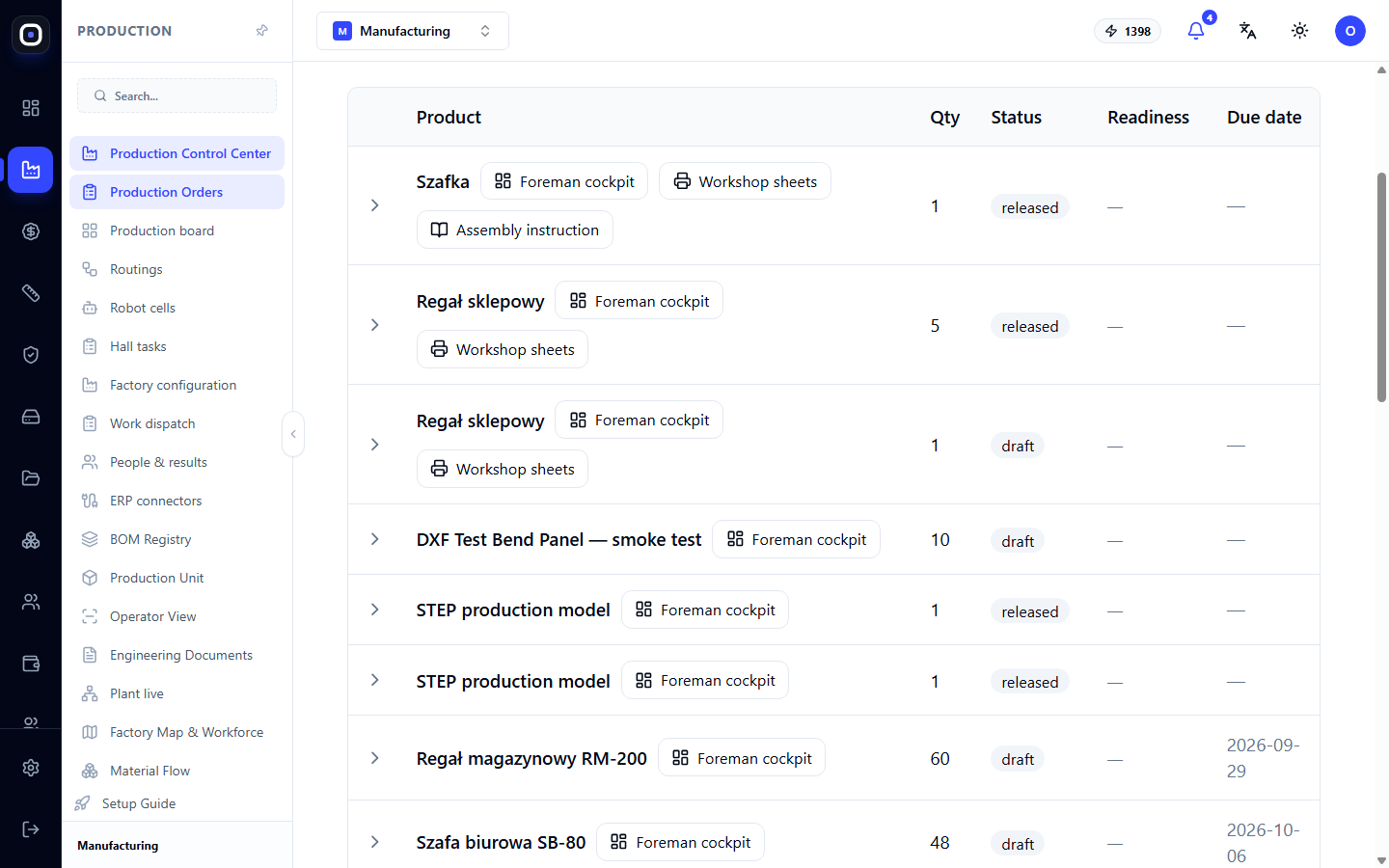
- Product — product name and quick access buttons (more on them below).
- Qty — how many products need to be manufactured.
- Status — the current stage of the order itself.
- Readiness — whether the order can be launched into the shop floor right now.
- Deadline — the date by which the order must be ready.
The "Readiness" column is the most important
Status tells you what has already happened with the order. Readiness tells you if you can continue working with it. It is color-coded:
- READY (green) — everything is available, can be launched. What to do: create units and plan nesting.
- NEEDS_DATA (yellow) — data is missing. What to do: complete the specification, material, or routing.
- NEEDS_REVIEW (blue) — data is available, but needs human review. What to do: review and confirm.
- BLOCKED (red) — launch is impossible. What to do: open the foreman's cockpit and resolve the issue.
If there's a dash in the column, readiness for this order has not yet been calculated.
Buttons in the "Product" cell
There are up to three buttons next to the product name. They are placed here, not in a separate column, so you don't have to scroll the table sideways on a phone.
- Foreman's cockpit is available for every order. It opens a separate screen showing the entire order: what's ready, what's in progress, what's on hold, and why.
- Shop floor documentation only appears for orders created from a design studio project. It opens sheets for printing to the shop floor.
- Assembly instructions appears if there are instructions for the project. It opens them for printing.
If the document doesn't open, a message "Failed to open document" will appear. This usually means that the project from which the order was created is unavailable.
How to expand an order
Click anywhere on the order row. A panel with two sections will open below it: units and nesting. Clicking again collapses the panel.
Production units
If there are no units yet
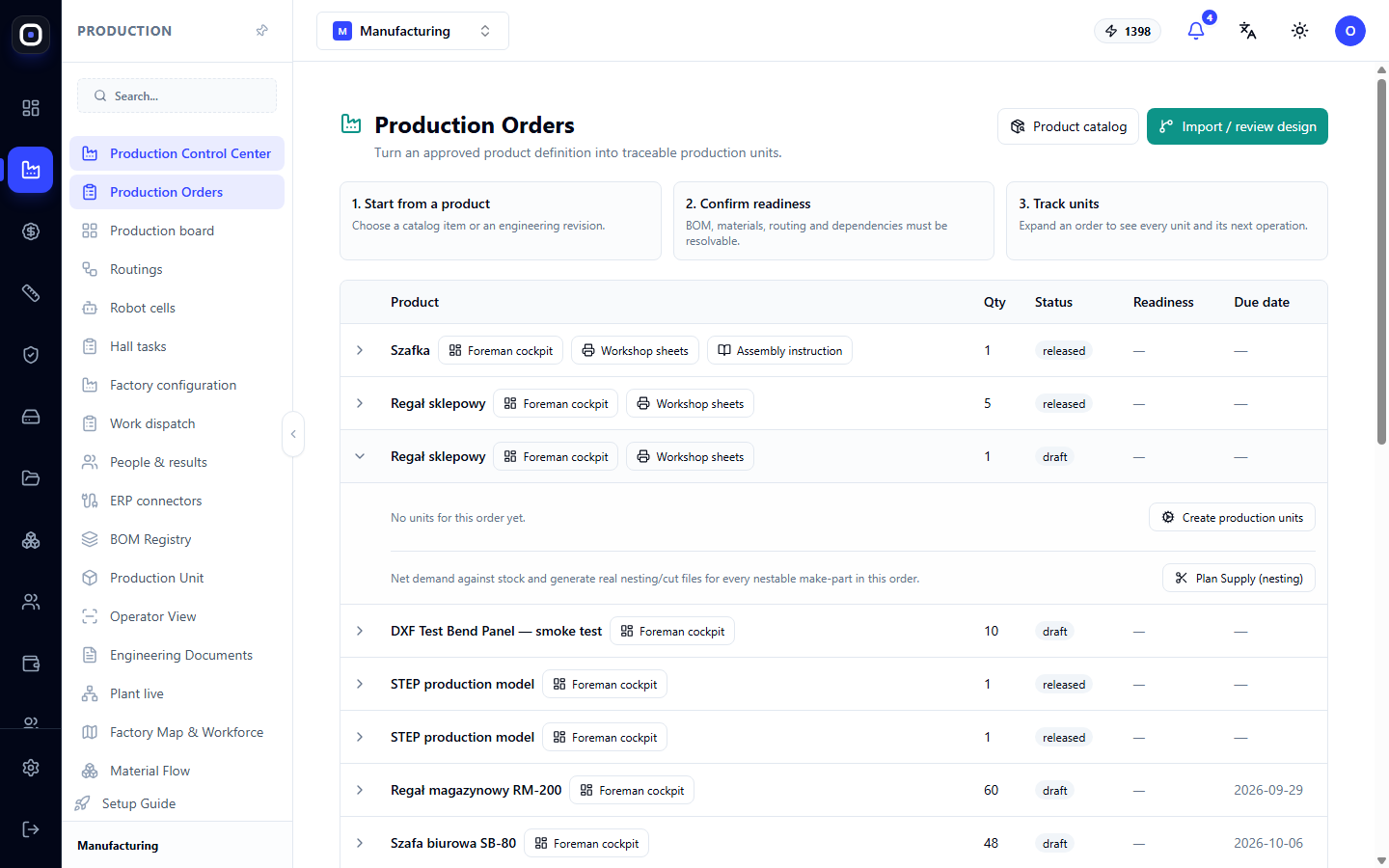
You will see the message "No units yet for this order" and the Create production units button. Click it. The system will break down the order into individual units and display them as a list.
The button will only work if the order is truly ready for launch. Four conditions are checked:
- the order has been released for work;
- an approved technical package is attached to it;
- a specification for execution is attached to it;
- for each type of part you manufacture yourself or outsource, there is an approved routing.
If at least one condition is missing, units will not be created, and the error message will list what is missing. The system does not guess or create "half an order."
Clicking the button a second time is safe. No duplicates will appear, and you will see the message Production units already exist with the number of existing units.
If units already exist
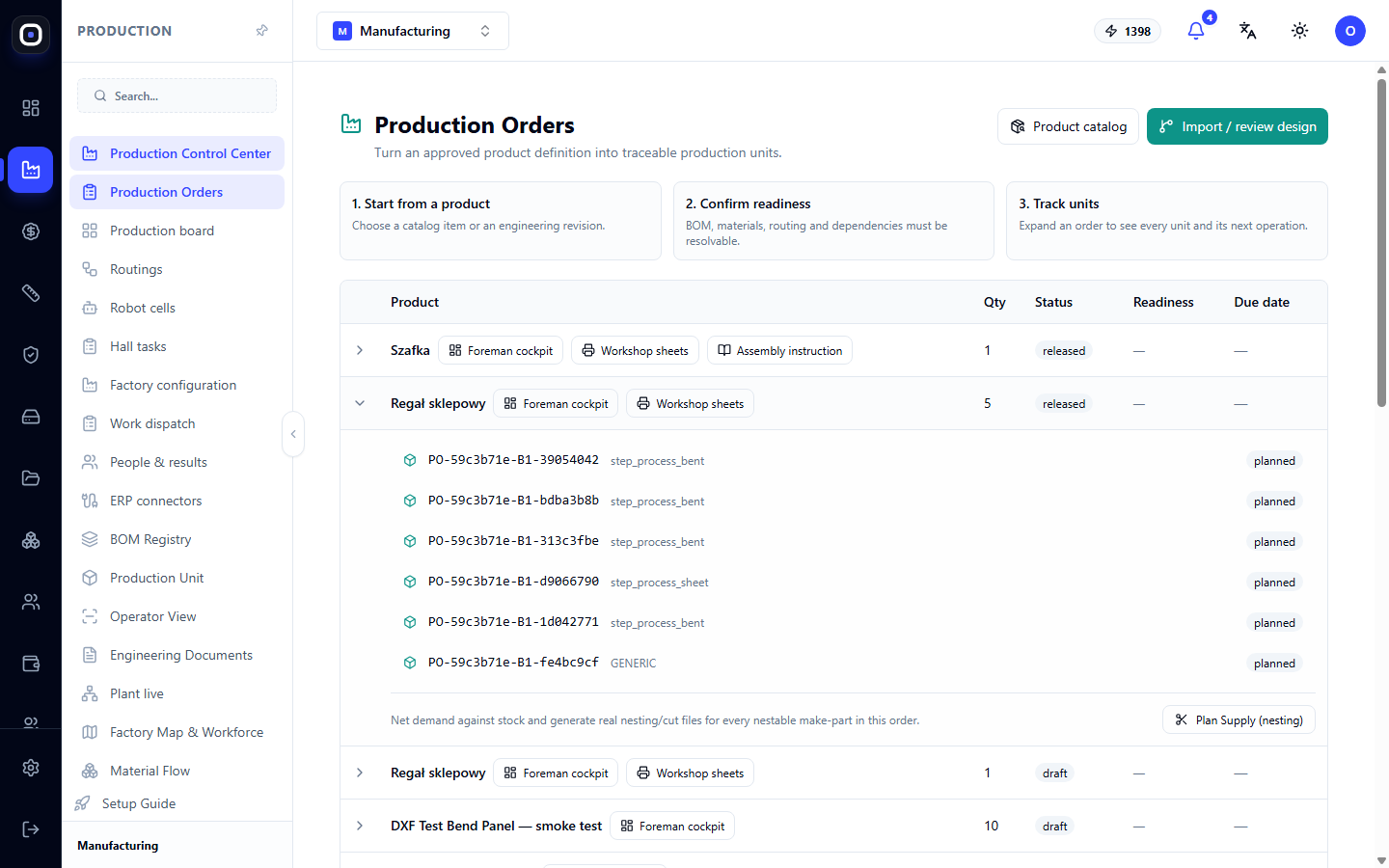
Each row in the list is one unit. From left to right:
- unit code — unique, also printed on the label and scanned in the shop floor;
- unit type — part, assembly, or finished product;
- status — what is happening with the unit now;
- readiness — the same color indicator as for the order, but for a specific unit.
Click on a row, and the unit card will open with its full history: operations, who performed them and when, quality control.
Tip: If the order is yellow or red, expand it and look for units with the same indicator. Usually, the problem is with one or two parts, not the entire order.
Nesting: "Plan Supply (nesting)" button
In the lower part of the expanded panel, there is a Plan Supply (nesting) button. It does two things at once for all parts of the order that you manufacture yourself from sheet or tube:
- compares the need with the warehouse to avoid cutting what is already ready;
- for the rest, it creates nesting tasks with cutting files.
Parts are grouped by nesting method. There are two such groups:
- TUBE_1D — tube and profile cut by length;
- SHEET_2D — sheet material laid out on a plane.
A separate result row will appear for each group. A green row means success and contains one of three explanations:
- nesting job created — a new nesting task has been created.
- existing job reused — such a task already existed, no new one was created.
- stock already covers demand — there are enough ready parts in stock, no cutting needed.
Next to it is an Open nesting link, which leads to the nesting page where you can view the layout and retrieve the files.
A red row means that nesting has not been planned for the group and contains the reason.
Skipped items
Below the result, a line like 5 item(s) not included may appear. Click on it, and a list will unfold. This is not an error. This includes items that do not need nesting: purchased items (bolts, fittings), those made by a contractor, and parts that are not cut from sheet or tube. For each, the code, supply method, and profile are indicated.
Review this list at least once for a new product. If it contains a part that you actually cut yourself, it means that the wrong supply method is specified in its specification.
When there are no orders yet
On an empty page, there will be a message "No production orders yet" and an Open Engineering BOM intake link. It leads to 3D intake. The logic is simple: an order is impossible without a described product, so you must first upload a model or approve an engineering description.
Typical workflow
- Open Production → Production Orders.
- Find the desired order and look at the Readiness column.
- If the indicator is not green, open the Foreman's cockpit and resolve the issue.
- Expand the order by clicking on the row.
- Click Create production units and wait for the list of units.
- Click Plan Supply (nesting) and check the result for each group.
- Review the list of skipped items.
- Go to the Open nesting link to retrieve the cutting files.
- Subsequently, track units: expand the order and open the card of the desired unit.
Frequently Asked Questions
Why is there no "Create order" button on the page?
Because orders are not created from scratch. They always originate from a product: a catalog item or an approved engineering revision. Start with the Import / review design or Product catalog button.
The "Create production units" button gives an error. What should I do?
Read the error message: it lists what is missing. Most often, it's an unapproved routing for one of the part types or an unattached specification. Resolve the issue and click the button again.
After "Plan Supply (nesting)", it says "No nestable make-parts found for this order". Is this an error?
No. This means that there are no parts in the order that you cut yourself from sheet or tube. This happens, for example, when the product consists only of purchased parts.
What does "No active resource with capability ..." mean?
The system did not find a machine that can perform this type of nesting. Open the factory configuration and check if there is an active machine for cutting tube or sheet.
Can I click "Plan Supply (nesting)" multiple times?
Yes. If a nesting job already exists, the system will reuse it and write existing job reused.
Why are the "Shop floor documentation" and "Assembly instructions" buttons not next to my order?
These buttons are only available for orders created from a design studio project. For other orders, look for documents on the production documents page.