Nesting: tasks for cutting pipes and sheets, supply, and remnants
How the Nesting page works: task statuses from draft to release, supply planning considering stock, returning remnants, reconciling plan with actuals, and nesting policies.
Nesting is the arrangement of parts on a blank to minimize waste. For sheets, parts are placed on a flat surface; for pipes and profiles, they are arranged along the length.
The "Nesting" page tracks cutting tasks from their creation until the parts are cut and the remnant is returned to stock. It is essential for the technologist who prepares programs for machines and the warehouse manager who accounts for remnants.
Where to find the page
In the left menu, open Production → Nesting. The page address ends with …/erp/production/nesting. The Open nesting link after nesting planning on the production orders page also leads here.
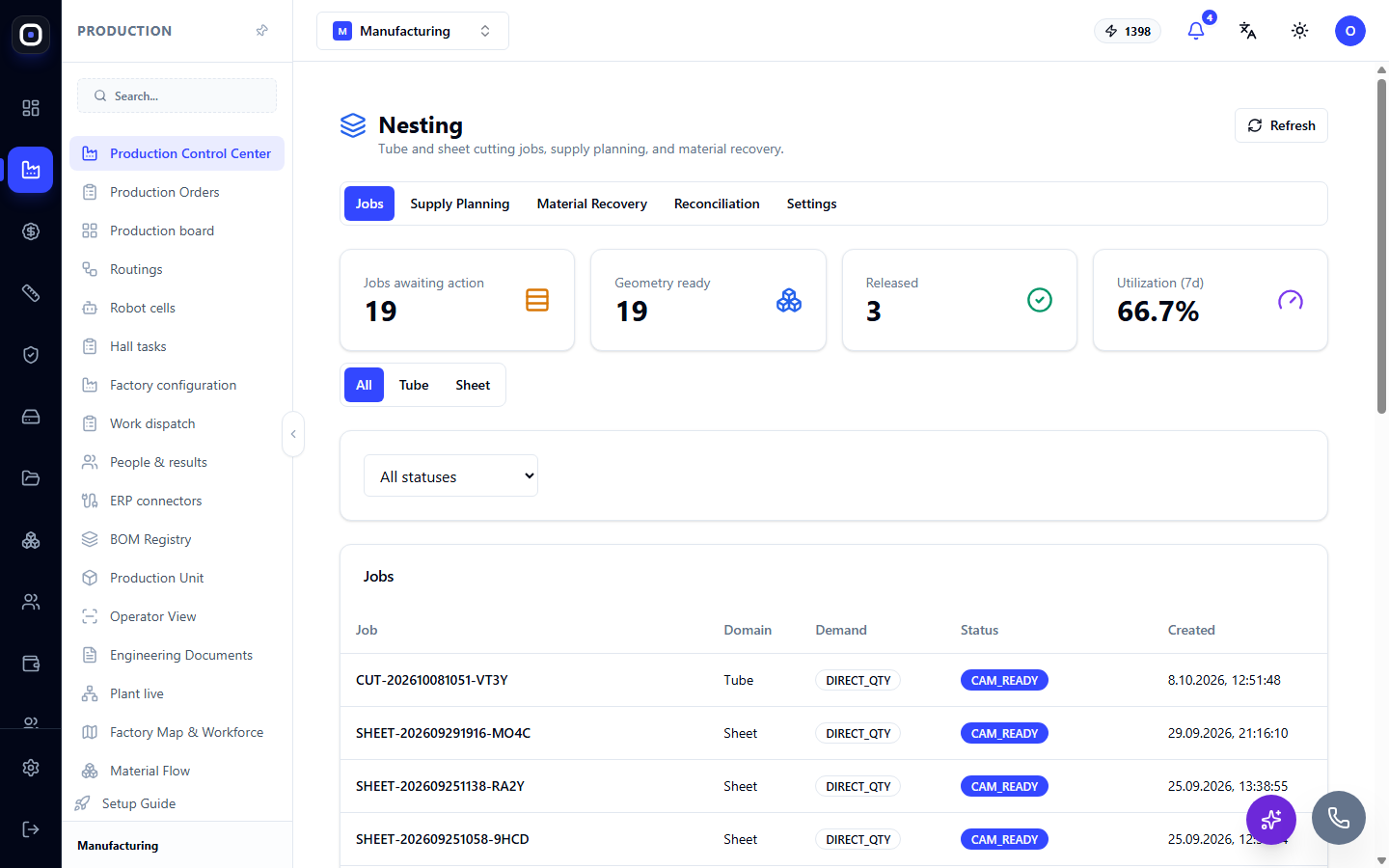
The page has five sections: Tasks, Supply Planning, Material Return, Reconciliation, Settings. The Refresh button on the right reloads the data.
"Tasks" section
Four counters
- Tasks awaiting action — how many tasks are waiting for human intervention.
- Geometry ready — in how many tasks the parts have already been nested.
- Released — how many tasks have been released to production.
- Utilization (7d) — what percentage of material went into parts over the last seven days. The rest is waste and remnants.
Utilization is the main indicator of nesting quality. If it drops, it's worth checking if small batches are being cut separately when they could have been combined.
Filters
The All, Pipe, Sheet buttons filter tasks by material type. The list next to them filters by status.
Task list
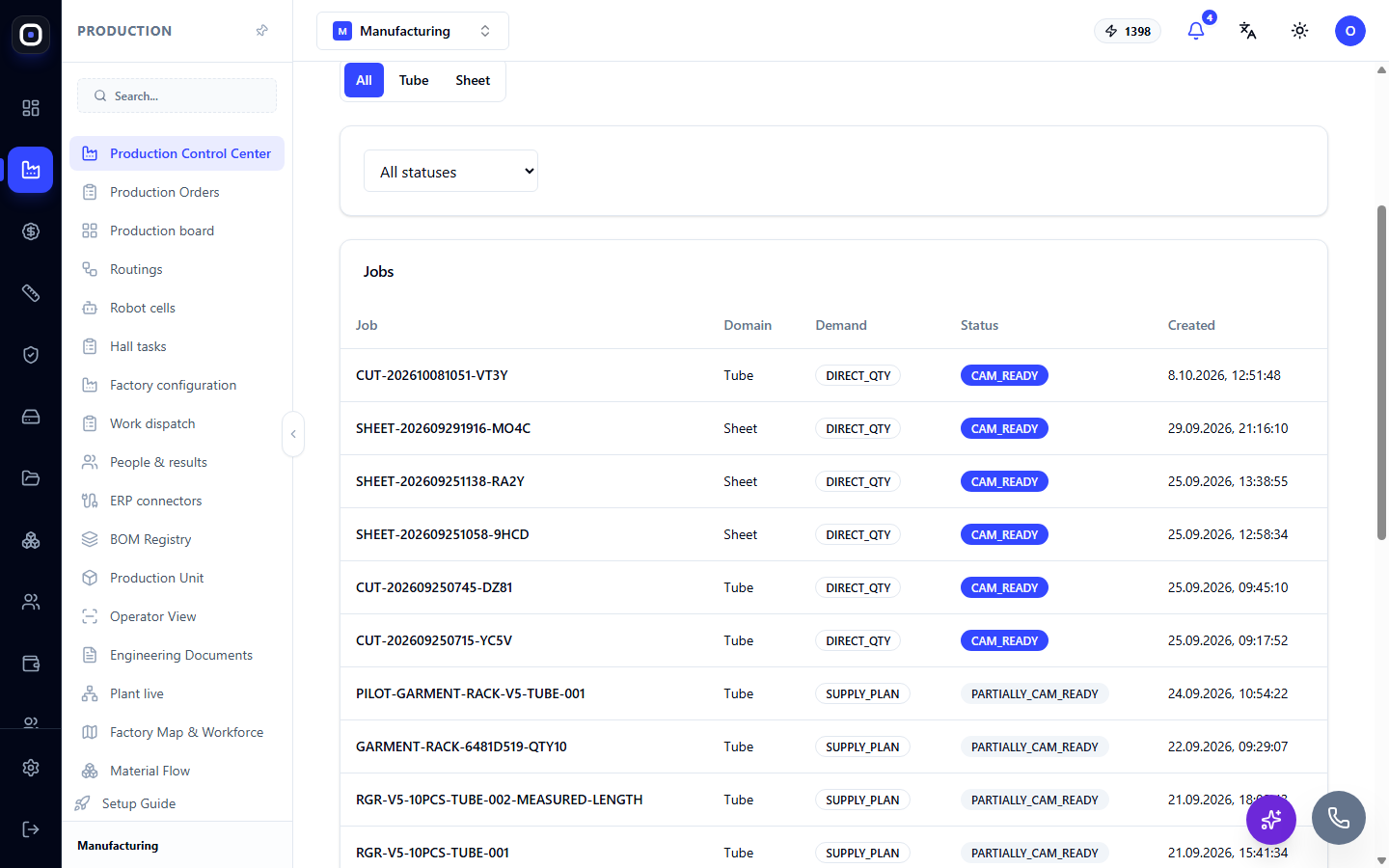
Table columns:
- Task — code. For pipes, it starts with
CUT-, for sheets withSHEET-. - Domain — Pipe or Sheet.
- Requirement — where the task originated.
DIRECT_QTYmeans the quantity was set directly.SUPPLY_PLANmeans the task was created by supply planning considering stock. - Status — the current stage of the task.
- Created — date and time.
Clicking on a row opens the task with the layout and files for the machine.
Task path by statuses
A task goes through the following stages:
- DRAFT — draft. The task is created, but nothing has been calculated yet.
- MATERIALIZED — specific parts and quantities are linked to the task.
- GEOMETRY_READY — geometry is ready: parts are nested on blanks.
- CAM_READY — machine files are ready. PARTIALLY_CAM_READY status means files are ready only for a portion of the blanks.
- RELEASED — the task has been released to production.
A separate FAILED status means something went wrong. Open the task to see the reason.
"Supply Planning" section
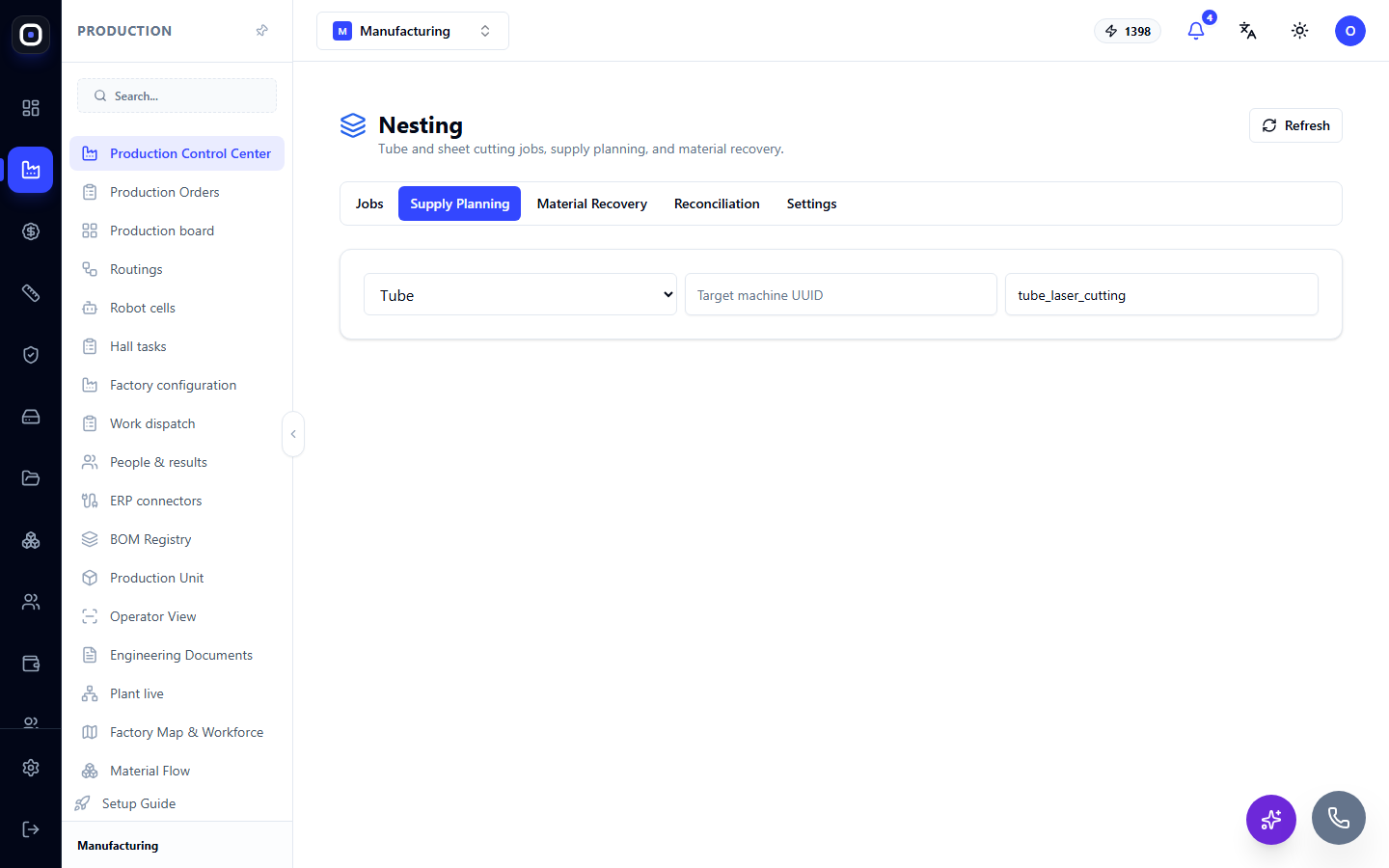
Here, nesting tasks are created not "head-on," but considering the stock. You choose the material type (pipe or sheet), specify the target resource and capability, for example, laser pipe cutting.
The system compares the demand with what is already in stock as finished goods and plans to cut only the difference. This is the same mechanism triggered by the Plan Supply (nesting) button on the production orders page, but here it can be called separately.
"Material Return" section
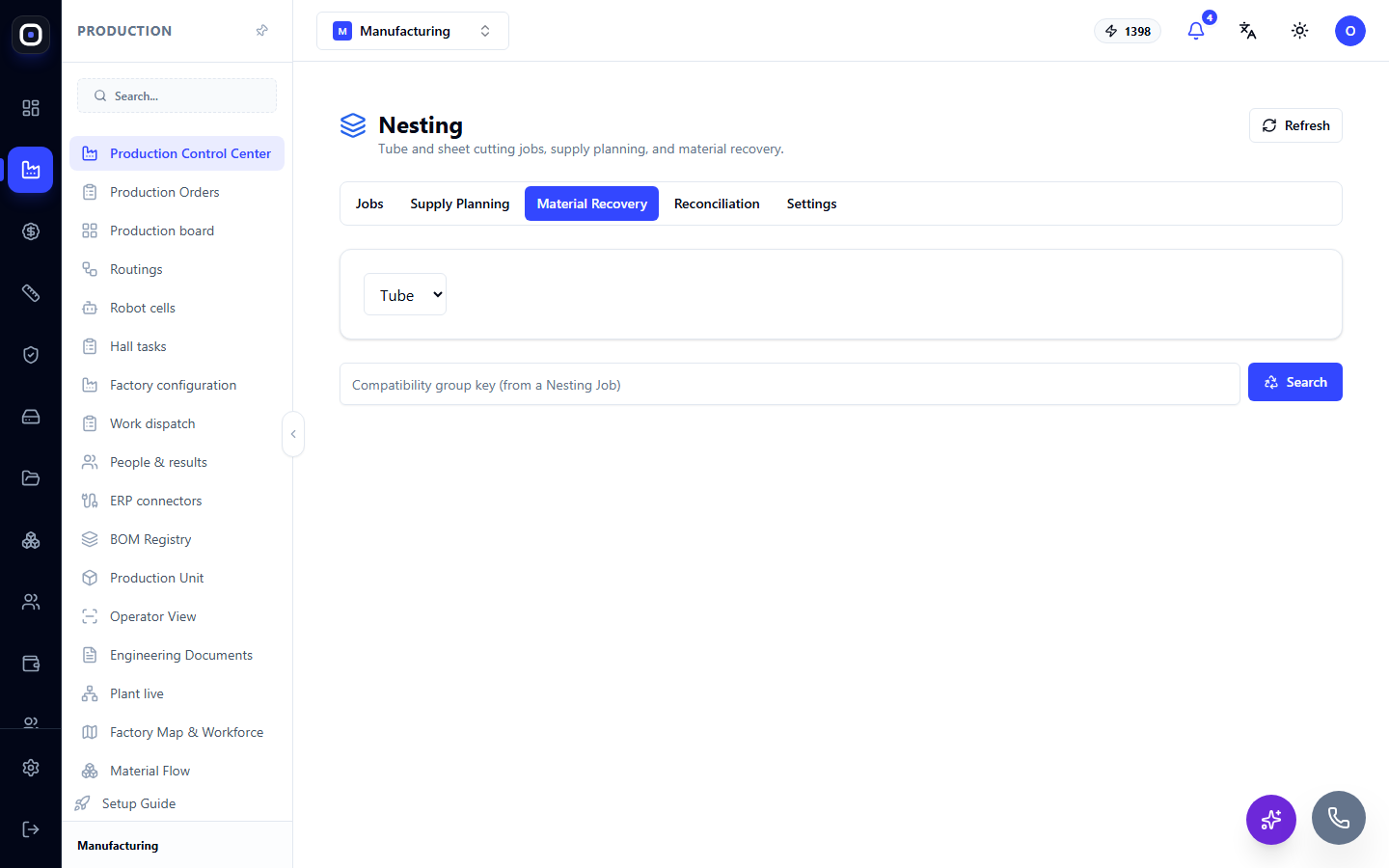
After cutting, there is almost always a remnant: half a pipe or part of a sheet. If it's just left in a corner, next time a new blank will be cut for the same part.
In this section, the remnant is returned to inventory. Select the material type, enter the compatibility group key from the nesting task, and click Search. The system will find the corresponding remnants, and they can be recorded as suitable for further use.
The recorded remnant will be used first in the next nesting.
"Reconciliation" section
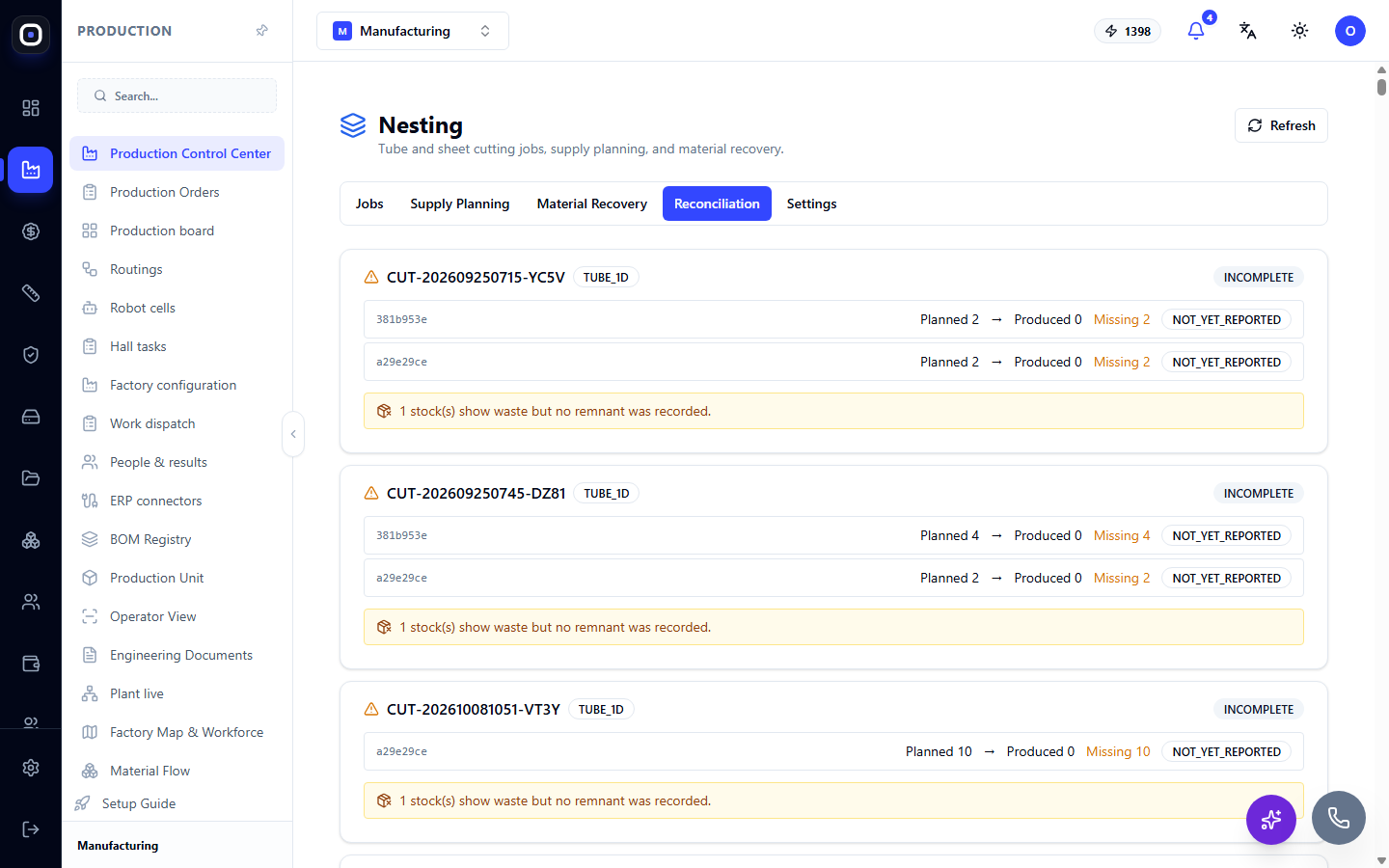
Reconciliation compares the plan with the actuals for each task. This is the most important section for the person responsible for accounting.
Each task is shown as a card. The header contains the code, material type, and overall status, for example, INCOMPLETE. Inside, each part has a row:
- Planned — how many pieces were supposed to be cut;
- Produced — how many were actually reported;
- Missing — the difference;
- row status, for example, NOT_YET_REPORTED: no one has reported on this part yet.
A yellow warning below the rows indicates a material accounting problem. For example: "1 blank(s) have waste, but the remnant is not recorded." This means a piece should have remained after cutting, but it was not registered in the "Material Return" section.
If there are many incomplete tasks with old dates in reconciliation, the reason is usually one of two: operators are not reporting on what was cut, or the task was created and forgotten.
"Settings" section
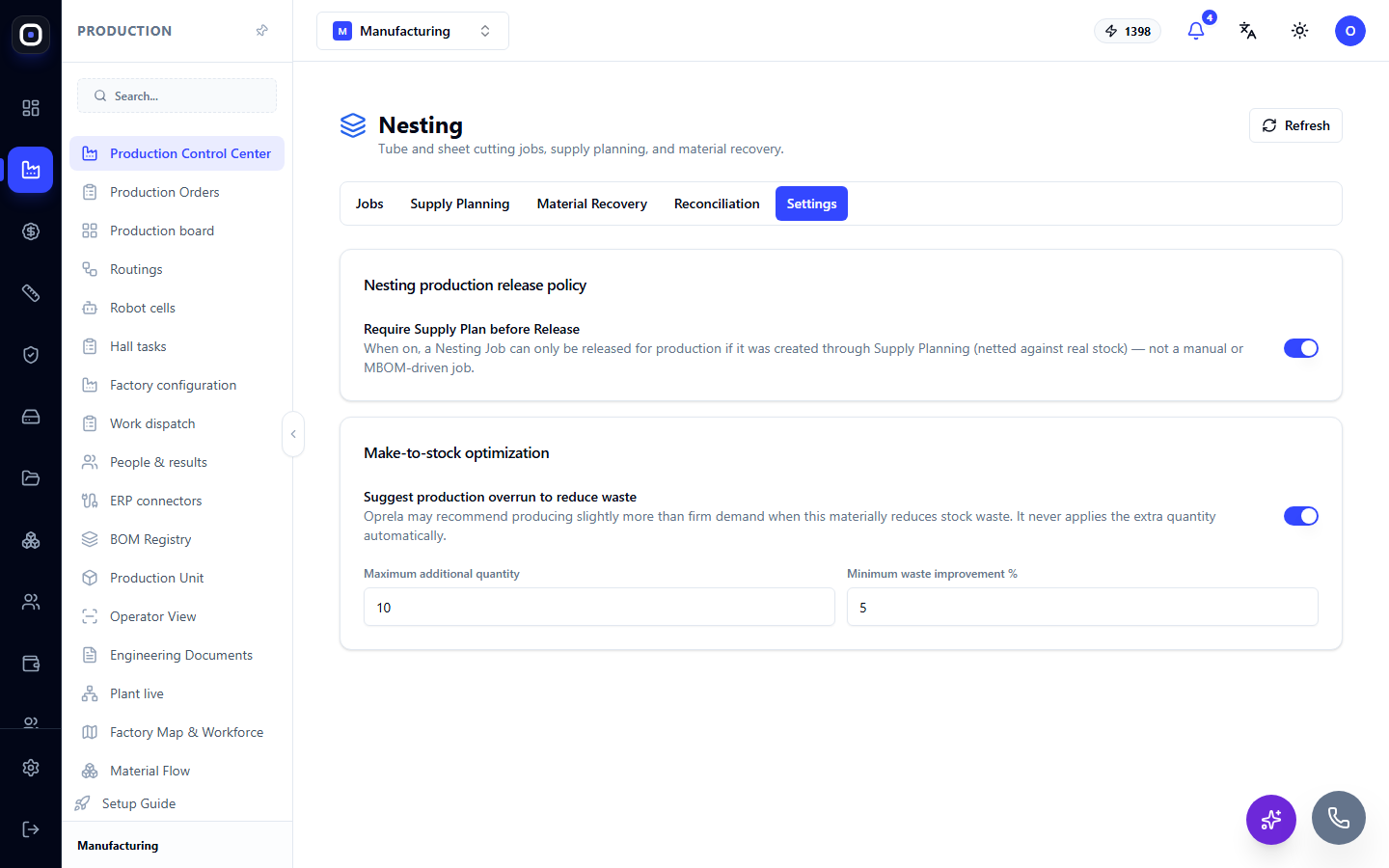
There are two policies here.
Nesting release to production policy
Toggle "Require supply plan before release". When enabled, a task can only be released to production if it was created through supply planning, i.e., by comparing with stock. A task created manually or directly from a specification cannot be released.
This protects against unnecessary work: no one will cut what is already in stock.
Production optimization for stock
Toggle "Suggest overproduction to reduce waste". Sometimes it is more profitable to cut a few more parts than needed, because otherwise the remnant will go to waste. The system can suggest such an additional quantity.
Two fields set the limits:
- Maximum additional quantity — how many pieces beyond the requirement the system is allowed to suggest;
- Minimum waste improvement in % — by how much the waste should decrease for the suggestion to appear.
The additional quantity is never applied automatically. It's just a suggestion; the decision is made by a person.
Typical workflow
- Plan nesting from a production order or in the Supply Planning section.
- Open Tasks and find the new task.
- Wait for CAM_READY status and retrieve the machine files.
- Release the task to production.
- After cutting, the operator reports on what was cut.
- Register the remnant in the Material Return section.
- Check Reconciliation: planned should equal produced, there should be no warnings.
Frequently Asked Questions
Task stuck in GEOMETRY_READY status
Geometry is nested, but machine files are not yet created. Open the task and start file preparation. If the status is FAILED, the reason will be written in the task.
Cannot release task to production
The "Require supply plan before release" policy is enabled, and the task was created manually. Create it through supply planning.
In reconciliation, everything is "Missing" even though parts are cut
No one reported on what was cut. The NOT_YET_REPORTED status means exactly that.
What is 66.7% utilization?
Two-thirds of the material went into parts, one-third into waste and remnants. The higher the percentage, the better.
The system suggests cutting more than needed. Should I agree?
If additional parts will be needed soon, yes: you will save material. If it's a rare part, it's better to refuse to avoid tying up material in stock.