Robotic Cells: A Welding Robot Under System Control
How to describe a robotic welding cell, set up the welding procedure and fixtures, register and verify a program, and release a job to production.
The "Robotic Cells" page is for factories where welding is performed by a robot: laser, laser with wire, MIG/MAG, or TIG. It gathers everything related to robotic welding in one place: the cell itself, technology, tooling, welds, programs, and tasks.
Let's start with the main principle to avoid false expectations. Oprela prepares and tracks, but never initiates the robot itself. The system verifies that the program matches the part, tooling, and calibration, and then transmits it to the cell. The cycle is always initiated by the operator on-site.
Where to find the page
In the left-hand menu, open Production → Robotic Cells. The page URL ends with …/erp/production/robot-cells.
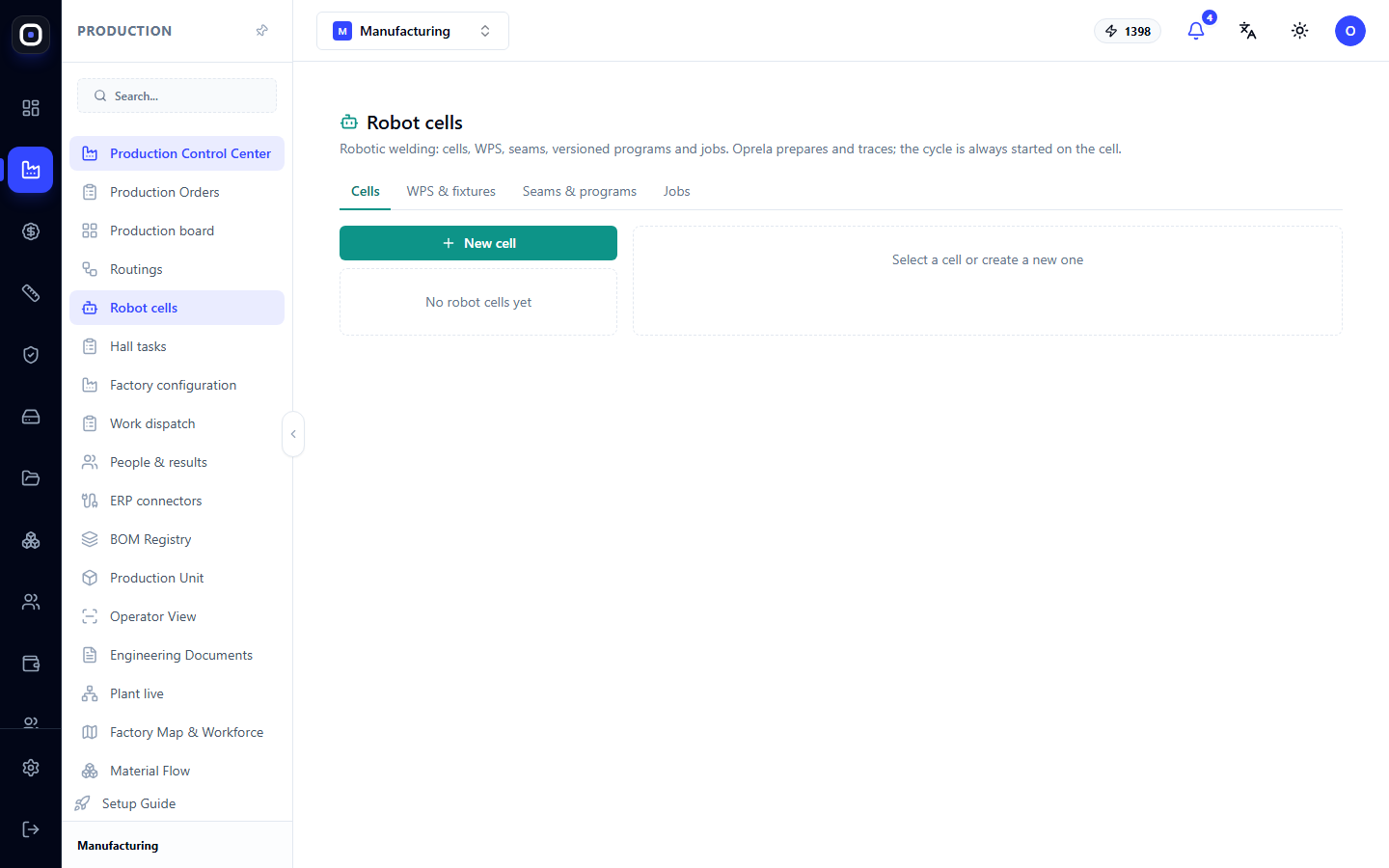
The page is divided into four tabs. They follow the order in which a cell is put into operation:
- Cells — what kind of robot it is and how it's connected;
- WPS and Tooling — what technology and fixture are used for welding;
- Welds and Programs — what is being welded and with which program;
- Tasks — what has been assigned to production.
If there are no cells in the workspace yet, you will see the message "No robotic cells yet" and the hint "Select a cell or create a new one."
"Cells" tab
This is where cells are created and configured. Click New cell and fill out the profile.
Cell Profile
Required fields: production resource, robot adapter, manufacturer, and robot model. The cell cannot be saved without them.
- Production resource links the cell to a machine in the factory configuration. You can select an existing resource or immediately enter a new name.
- Robot adapter determines the language the system uses to communicate with the controller.
- Controller, firmware, and serial number are needed for accounting and support.
- Cell Status: Commissioning, Active, or Inactive.
- Cell welding processes — what it can do: laser welding, laser with wire, MIG/MAG, TIG.
After saving, a message with the configuration version number will appear, for example, "Cell saved (configuration v3)".
Equipment and Connection
A separate field describes the cell's equipment in JSON format: laser source, head, input/output card, preset card, coordinate system numbers, and controller dialect. It is filled in once during commissioning according to the cell's schematics.
Two important caveats:
- passwords and keys are not entered here. Credentials are stored only on the local cell gateway;
- changing this field increments the configuration version and revokes program approvals. This is intentional: if the equipment has changed, previously verified programs must be re-verified.
Capabilities
A list of what the cell can do, with the status of each capability: available, unavailable, or not checked. Only capabilities with "available" status are included in the operation readiness check. That is, an unchecked capability will prevent a task from being assigned.
Calibration
Each calibration is a coordinate system and a pose of six numbers: x, y, z in millimeters and rx, ry, rz in degrees. For a laser head, focus offset is additionally specified.
Without two calibrations, TOOL_TCP (tool) and WORK_FRAME (part coordinate system), a program cannot be approved.
When you record a new calibration, the system warns: programs that used the previous one must be re-approved.
Cell Gateway
The gateway is a small computer near the cell through which it communicates with Oprela. To connect it, click Issue token. The token will be shown once: copy it to the gateway immediately, the system will not show it again.
Next to each token, the time of the last connection is visible. The Revoke button immediately stops the gateway's operation with that token. Use it if the gateway has been replaced or the token might have fallen into the wrong hands.
"WPS and Tooling" tab
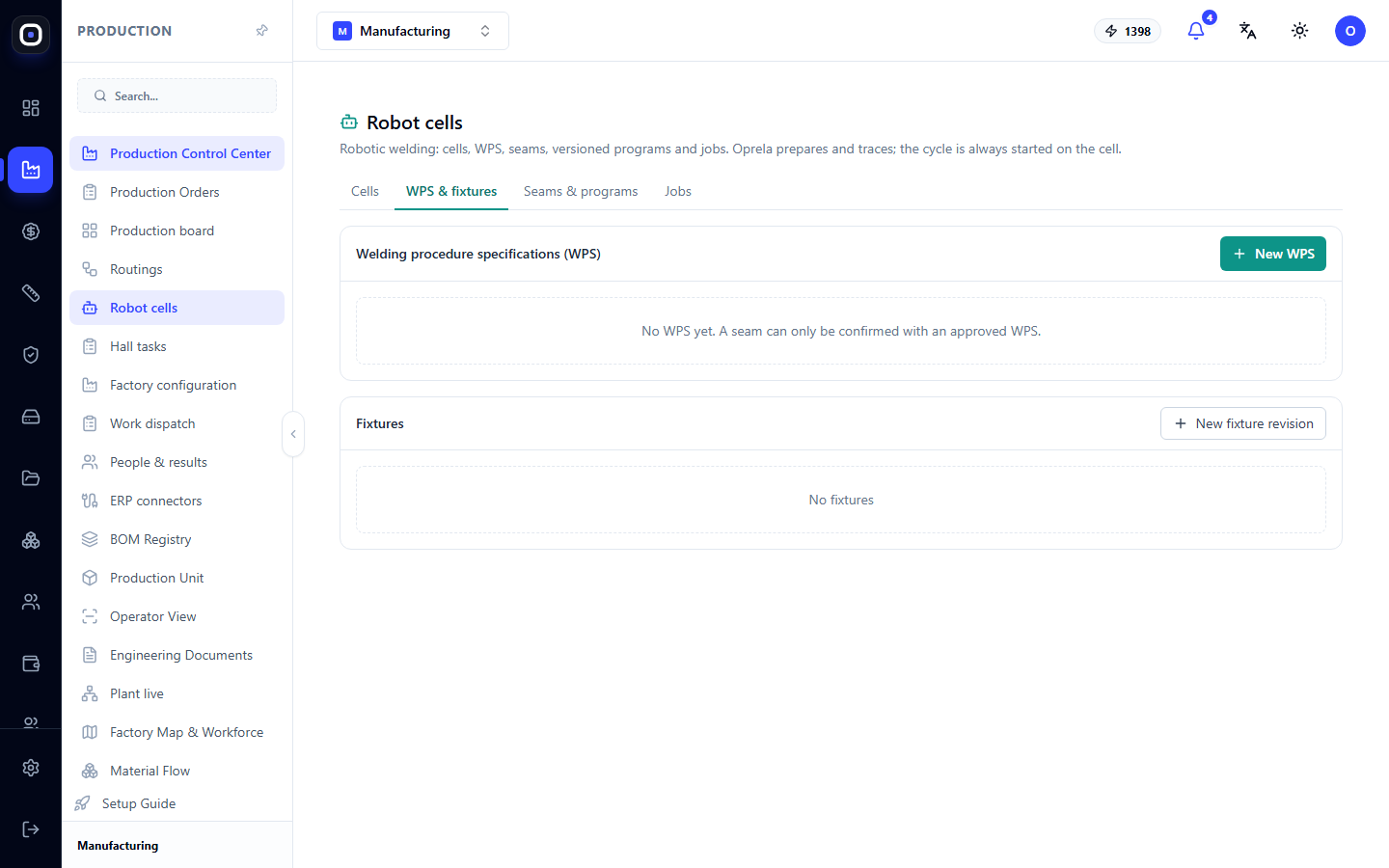
WPS is an approved welding technology: for which material, thickness, and joint to weld with what parameters.
Tooling is the fixture in which the part is secured during welding. Each tooling has a code, name, and revisions with statuses Draft, Active, Retired. For tooling, a "clamp closed" signal can be specified, which the cell uses to understand that the part is fixed.
WPS → Equipment Presets
Here you map each WPS to a program number in the equipment itself: in the laser source, beam oscillation controller, or arc source.
Confirm the mapping only after you have verified the preset content against the WPS. Mapping statuses: unconfirmed, content checked, confirmed.
"Welds and Programs" tab
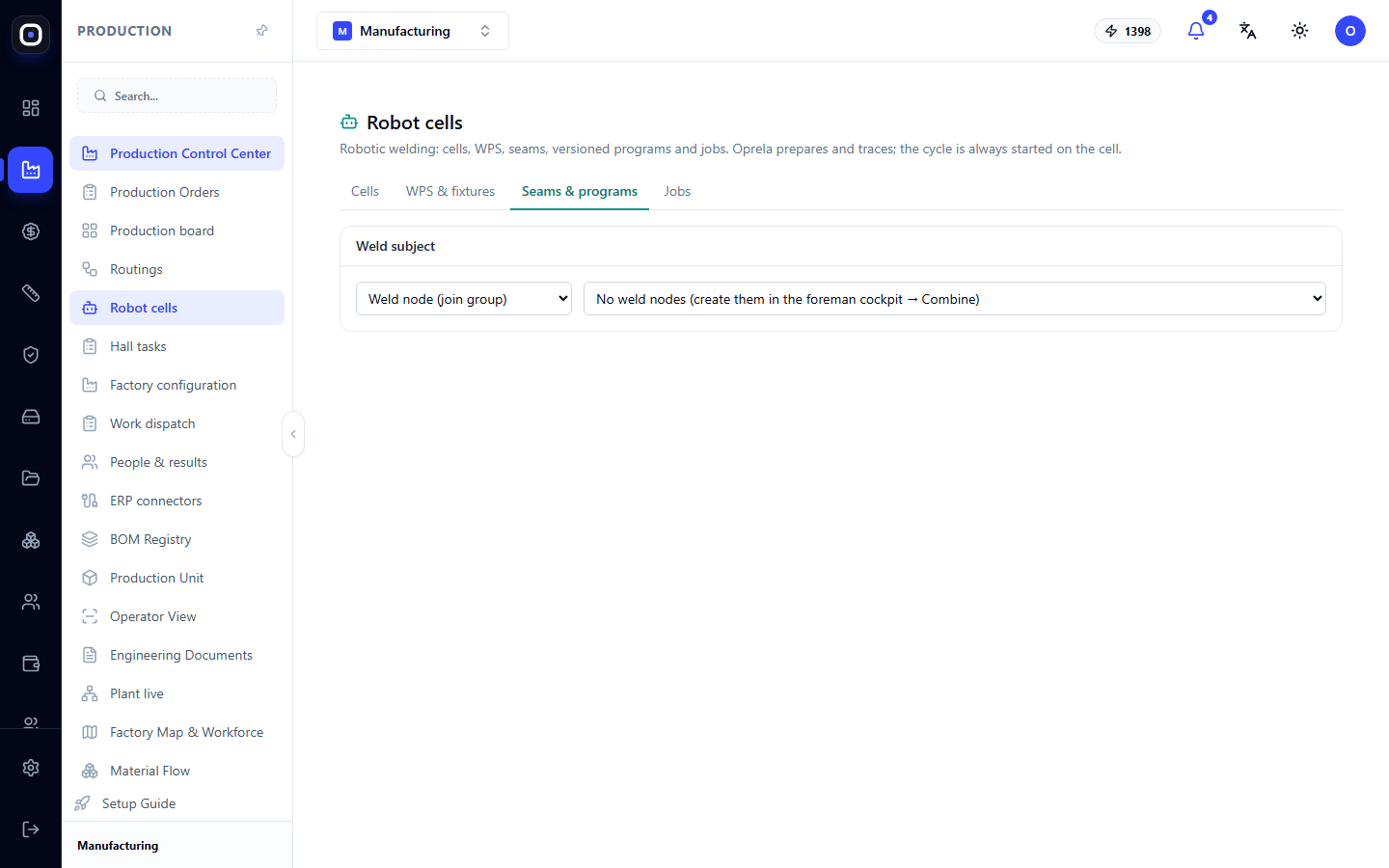
This is the heart of the page. It describes which welds need to be performed and stores versions of robot programs.
Program Workflow
- Confirm welds. Only confirmed welds are included in the program.
- Register revision. Requires a cell, program key, and at least one confirmed weld. The system will respond, for example: "Revision r2 registered — attach file next."
- Add the program itself. It can be generated in the system or a file exported from the teach pendant or offline planner can be inserted. For an attached file, the server calculates the SHA-256 checksum, so it cannot be replaced unnoticed.
- Record checks. For each check, the result and proof or note are specified.
- Approve revision. It will replace the previous approved revision of this program on this cell.
Pre-Approval Checks
The program undergoes eight checks: program check, post-processing, simulation, reachability, collision check, dry run, first sample, deviation.
The result of each: checked, error, or not checked.
A dry run means a full cycle on the cell with the laser off, only with a pilot beam. The system specifically emphasizes: missing geometry or calibration are never considered "checked".
If checks are missing, the revision will be registered, but approval will be blocked with a list of reasons.
Is the program current?
The program is tied to its input data: geometry, welds, tooling, calibration, cell configuration. If any of these have changed, the system will show: "Program no longer matches input data" and state what has changed. Such a program must be re-verified and re-approved.
If nothing has changed, you will see: "Input data has not changed — program is current."
Teach Pendant Edits
Sometimes, a setup technician adjusts points directly on the robot's teach pendant. Such an edit is registered with the Register touch-up button, describing what was changed, who did it, and why. Otherwise, the system will assume that the program being executed on the robot is not the one that was verified.
"Tasks" tab
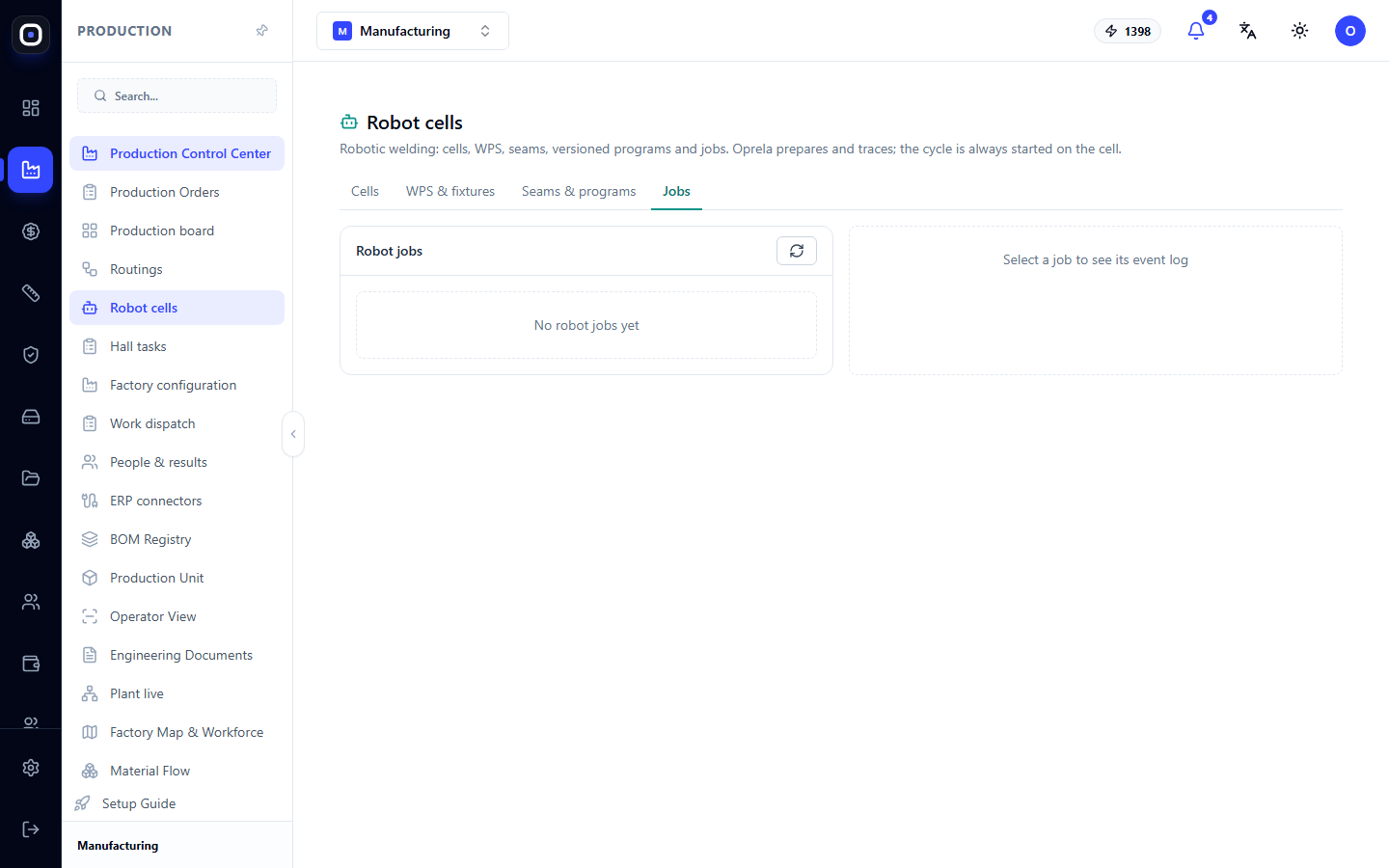
This is where work is assigned to production. For assignment, the production unit, the route step performed by the robot, and the operator (if the step requires qualification) are specified.
The Assign to production button initiates the route operation through a standard readiness check, similar to manual operations. If the check passes, a message appears: the task has been assigned, the cell gateway will retrieve it, and the operator initiates the cycle on-site.
The following then occurs:
- The gateway retrieves the task and uploads the verified program to the robot;
- The operator secures the part in the tooling and starts the cycle on the cell;
- The result is returned to the system and recorded in the unit's history.
Typical Cell Commissioning Workflow
- Create the cell and fill out the profile.
- Describe the equipment and connection.
- Record TOOL_TCP and WORK_FRAME calibrations.
- Check capabilities and mark them as available.
- Issue a token and connect the gateway.
- Set up tooling and map WPS to equipment presets.
- Confirm welds, register program revision, pass checks, approve.
- Change the cell status from "Commissioning" to "Active".
- Assign the first task to production.
Frequently Asked Questions
Can the system launch the robot itself?
No. This is a fundamental safety limitation. The system prepares the program and transmits it to the cell, but the operator initiates the cycle.
Why did the program lose approval, even though no one touched it?
Something it was based on changed: calibration, equipment configuration, tooling, or part geometry. The system will show what exactly changed. Re-verify and re-approve the program.
I can't approve the program. What's missing?
Most often, TOOL_TCP and WORK_FRAME calibrations are missing, or not all checks have a "checked" result. The list of reasons is in the blocking message.
Where should I store controller passwords?
Only on the local cell gateway. They should not be entered into the page fields.