Scenario: From Customer Request to Price Quote
An end-to-end example for a sales manager: a customer sends a photo or model, you estimate the cost, check if the price and deadline are reliable, and send a quote.
This scenario walks through one specific case from start to finish. A customer sent an email: "I need twenty of these racks, photo attached. How much does it cost and when will it be ready?"
The goal is to respond the same day with a price you trust and a deadline the factory can actually meet.
The scenario touches on four pages. Each has a separate detailed article, and here we show how they work together.
What needs to be ready in advance
The scenario will work if the system already has the foundation:
- prices for the materials you use to make products;
- rates for people and machines;
- routes with time standards.
If any of this is missing, the estimate will still be calculated, but based on assumptions, and the system will honestly state this. The foundation is configured in Costing Studio.
Step 1. Create a request
Open Customer Requests and click New Request. Add what the customer sent: a photo, description, and if available, a model file or drawing. Specify the quantity and customer contact.
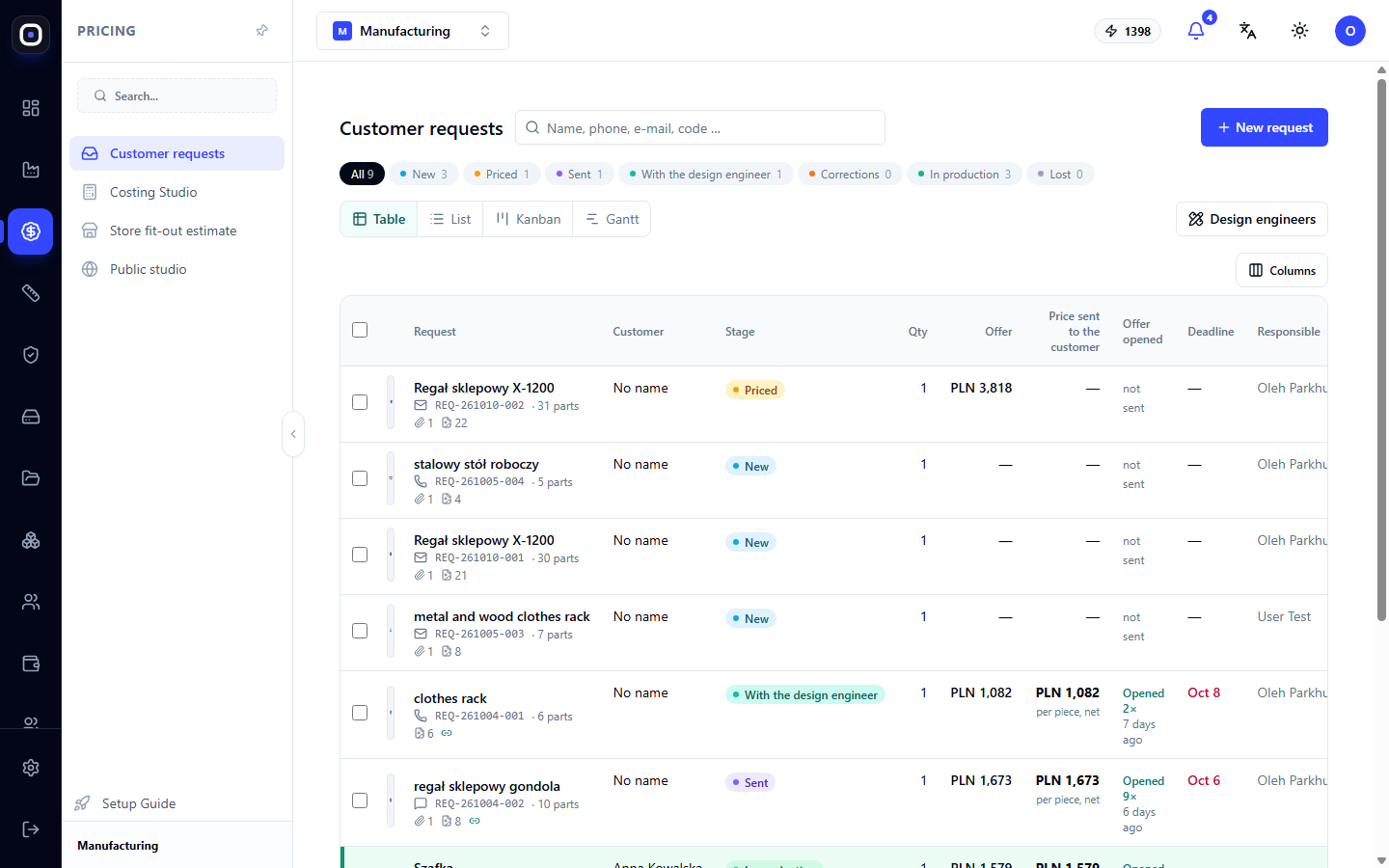
The request will appear in the "New" stage.
Fill in the contact immediately. A "Nameless" request will be forgotten in a week.
Step 2. Get the design
Next, the path depends on what you have.
Only a photo. The system initiates a quick estimate. The assistant suggests what the product consists of: how many uprights, shelves, from which profile and sheet. You correct it if it made a mistake, and the system builds a 3D model.
A model is available. It is broken down into parts, similar to 3D import. This is more accurate and faster.
A paper drawing is available. Simple profile parts will be handled by drawing recognition.
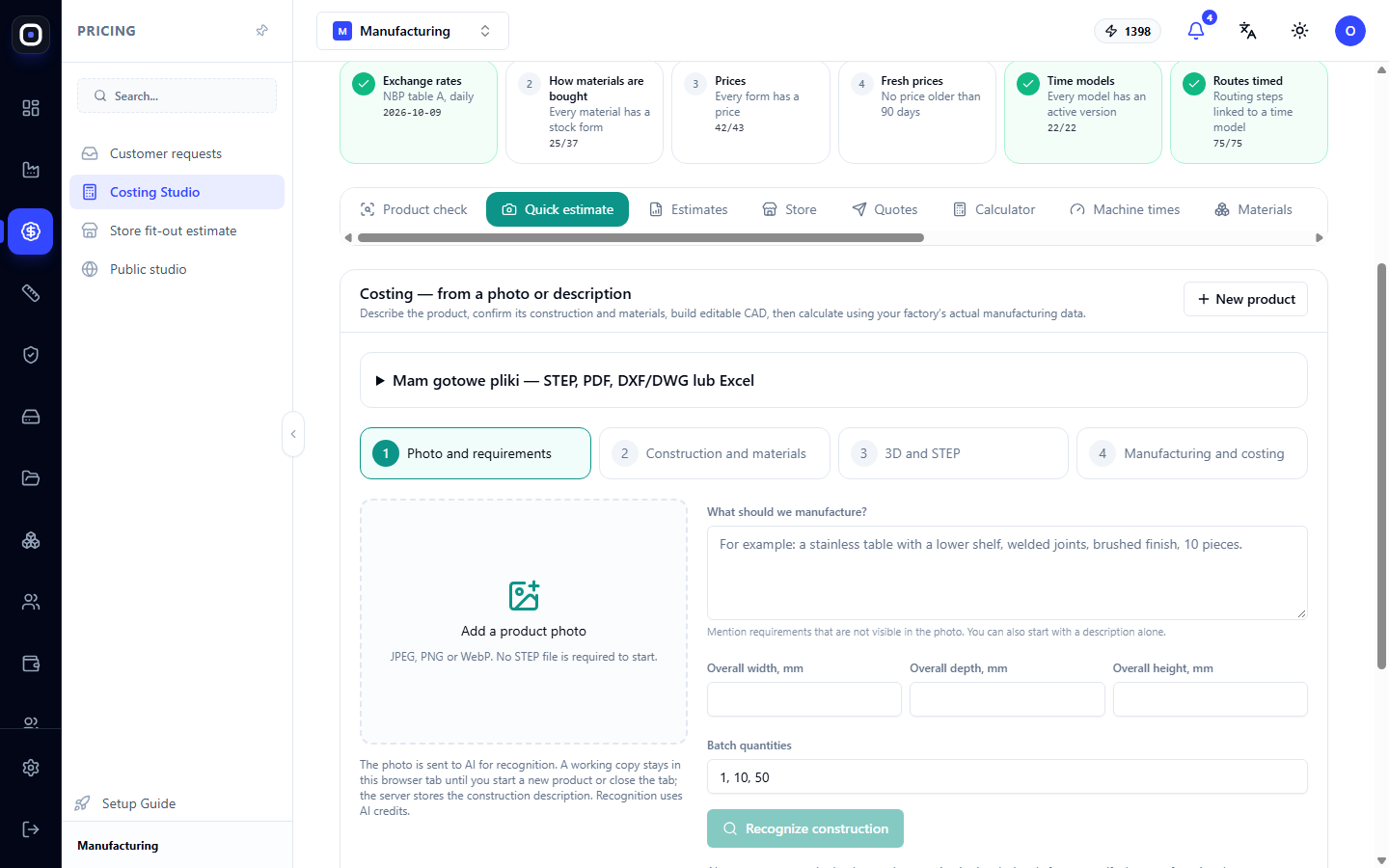
At this step, don't strive for millimeter accuracy. You need a list of parts sufficient for pricing. The exact design will be agreed upon after the customer says "yes."
Step 3. Calculate the cost
The system calculates the cost based on your data: material at supplier prices, operation time based on time models, labor and machines at rates, plus overhead and scrap reserve.
Calculate several quantities at once, for example, 10, 20, and 50 pieces. Customers often ask "what if I order more?", and it's good to have an answer ready.
The request will move to the "Estimated" stage, and the price will appear in the "Quote" column.
Step 4. Check if the price is reliable
This is the step most often skipped, and for good reason. Open the estimate in Manufacturing Advisor.
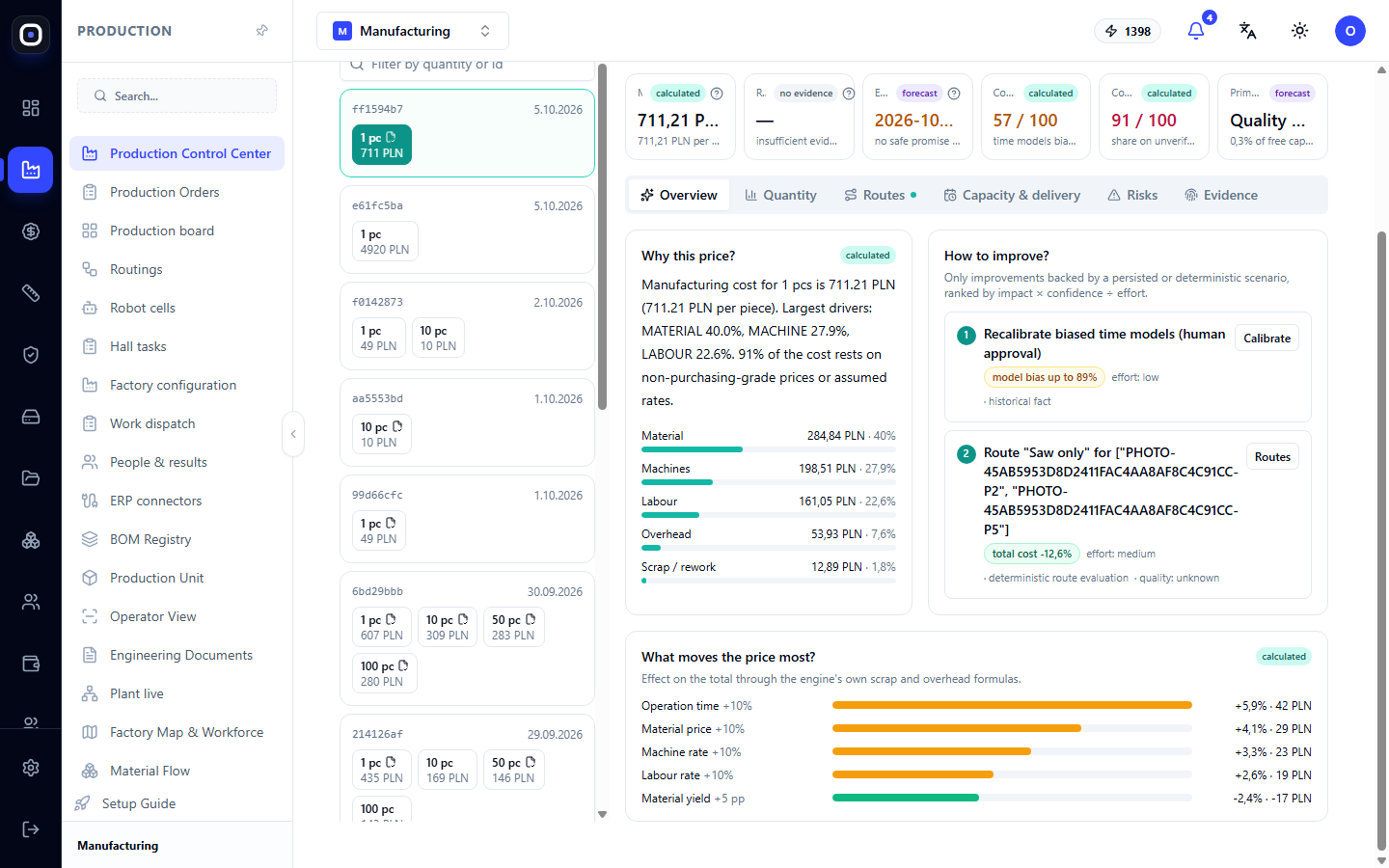
Look at three things.
Yellow row at the top. If it says that the price is not yet ready for a customer quote, some prices are assumptions. Confirm them.
Share of cost at unconfirmed prices. If it's high, call the supplier and clarify the price of the main material. One call is usually enough.
Cost structure. If material accounts for half the price, its price needs to be known accurately. If labor predominates, check the time standards.
Also, review the advice block. Sometimes the system finds a cheaper route, which gives you room for a discount.
Step 5. Check the deadline
In the same advisor, open the "Capacity and Deadline" tab. Specify the date the customer wants and see if the factory can meet it, considering already planned work.
The system will show the earliest possible date and a safe date. Tell the customer the safe date.
If the customer asks for an earlier date than the factory can meet, it immediately shows what is limiting: which machine is overloaded. This is now a matter for discussion with production, not a guess.
Step 6. Formulate and send the quote
Return to the request. Decide which price to offer: calculated, rounded, or with a discount. Formulate the quote and send the customer a link.
Via the link, the customer sees the product, price, quantity options, and terms. They can agree, ask for revisions, or ask questions.
The request will move to the "Sent" stage.
Step 7. Monitor the response
In the requests table, there is a column "Quote Opened". It shows whether the customer opened the quote and how many times.
- Not opened. Remind them in a day or two. Perhaps the email got lost.
- Opened and silent. They are thinking or comparing. It's time to call.
- Requested revisions. The request will move to the appropriate stage. Make changes and send a new version.
- Agreed. Proceed to the next step.
Step 8. Transfer to production
The agreed request is transferred to production. A draft production order is created from it with the same design and quantity that the customer saw.
Then another scenario begins: from order to finished product.
How long does it take
For a simple product from a photo, the entire path from request to sent quote fits into one working day, and with a well-established foundation, into a few hours. Most of the time is spent not on calculation, but on clarification: a call to the supplier, questions to the customer.
Typical mistakes
Sent a price without looking at warnings
If the advisor says the price is based on assumptions, and you sent it anyway, the risk is yours. Confirm at least the price of the main material.
Named the earliest date instead of the safe date
The earliest date is only realistic if everything goes perfectly. This rarely happens.
Calculated only one quantity
The customer will ask for a discount for a larger volume, and you will have to recalculate. Calculate three quantities immediately.
Forgot about the request after sending
The "Quote Opened" column exists precisely for this. Review the "Sent" stage daily.