Manufacturing Advisor: What a Batch Really Costs and How to Make it Cheaper
The Advisor breaks down the cost into material, machines, labor, and overhead, shows what most affects the price, suggests cheaper routes, and assesses whether it's safe to promise a delivery date to a client.
Calculating the price of a product is not difficult. What's difficult is calculating it in a way that you won't regret later: accounting for actual machine time, actual scrap, actual workshop load, and at the same time understanding how much these numbers can be trusted.
Manufacturing Advisor is a cost advisor. It answers four questions: what a batch really costs, what influences it, how to make it cheaper or faster, and whether a promise to a client is safe. Below the page title are words that well describe its approach: every number is backed by evidence.
Where to Find the Page
Open the Production Control Center and click the Manufacturing Advisor button in the top right corner. The page address ends with …/erp/production/advisor.
List of Quotes
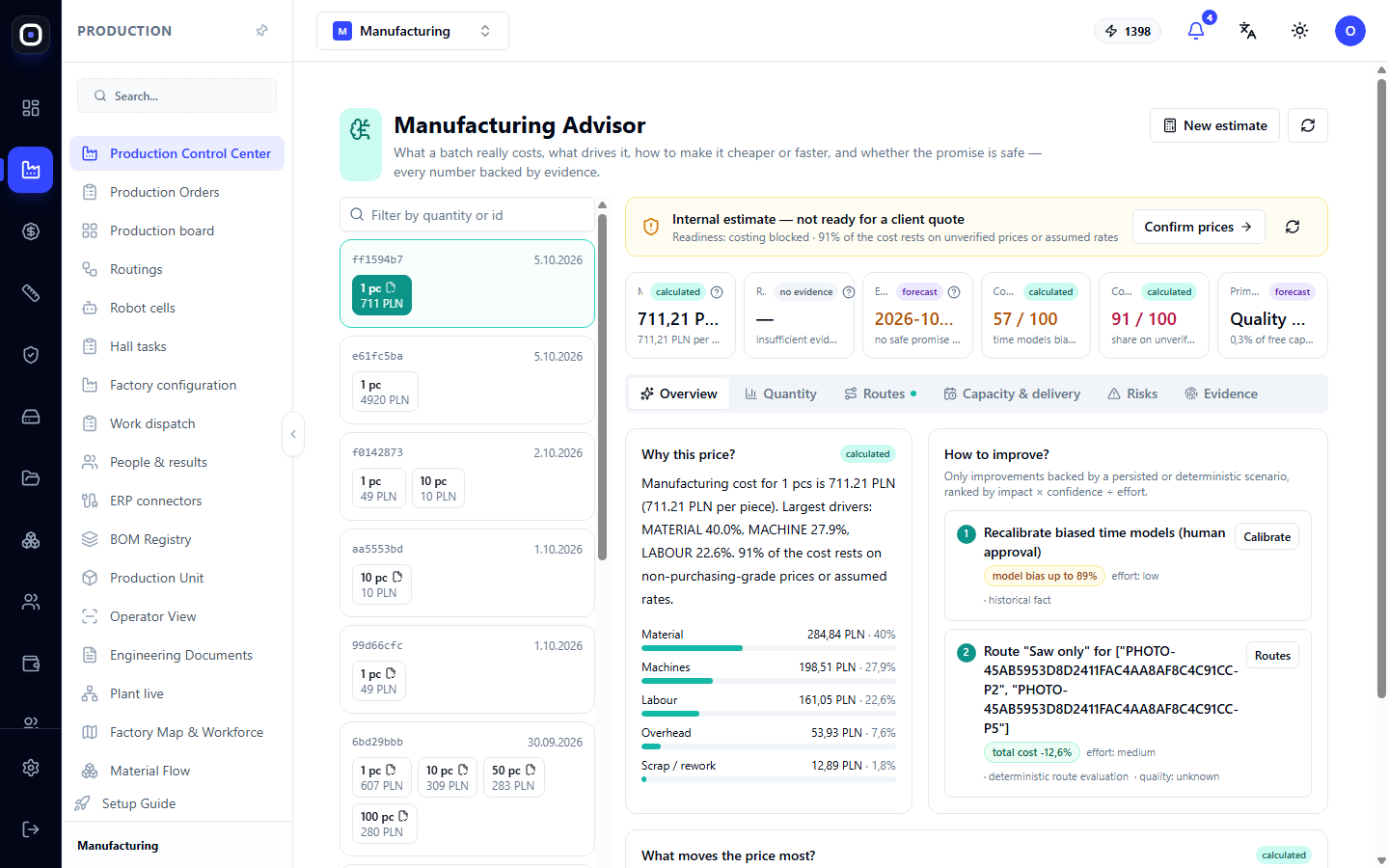
On the left is a list of all calculations. Each card represents one quote: its short code, date, and prices for different quantities. For example: "1 pc — 607 PLN", "10 pcs — 309 PLN", "50 pcs — 283 PLN", "100 pcs — 280 PLN".
Even from this list, the main pattern of serial production is clear: one piece costs twice as much as each of ten, because machine setup time is divided across the entire batch.
Above the list is a "Filter by quantity or ID" field and a New Quote button, which starts a new calculation.
Click on the quantity in the card, and a detailed breakdown of that specific option will open on the right.
Readiness Warning
Above the breakdown, a yellow line may appear: "Internal quote — not yet ready for client proposal". Next to it, the reason is stated.
This is a fair warning. The calculation has been performed, but some input data are assumptions: material prices are not confirmed by the supplier, rates are typical. Such a price can be used for internal assessment, but should not be sent to a client.
The Confirm Prices button allows you to confirm assumed prices and change the quote's status to suitable for a proposal.
Six Metrics
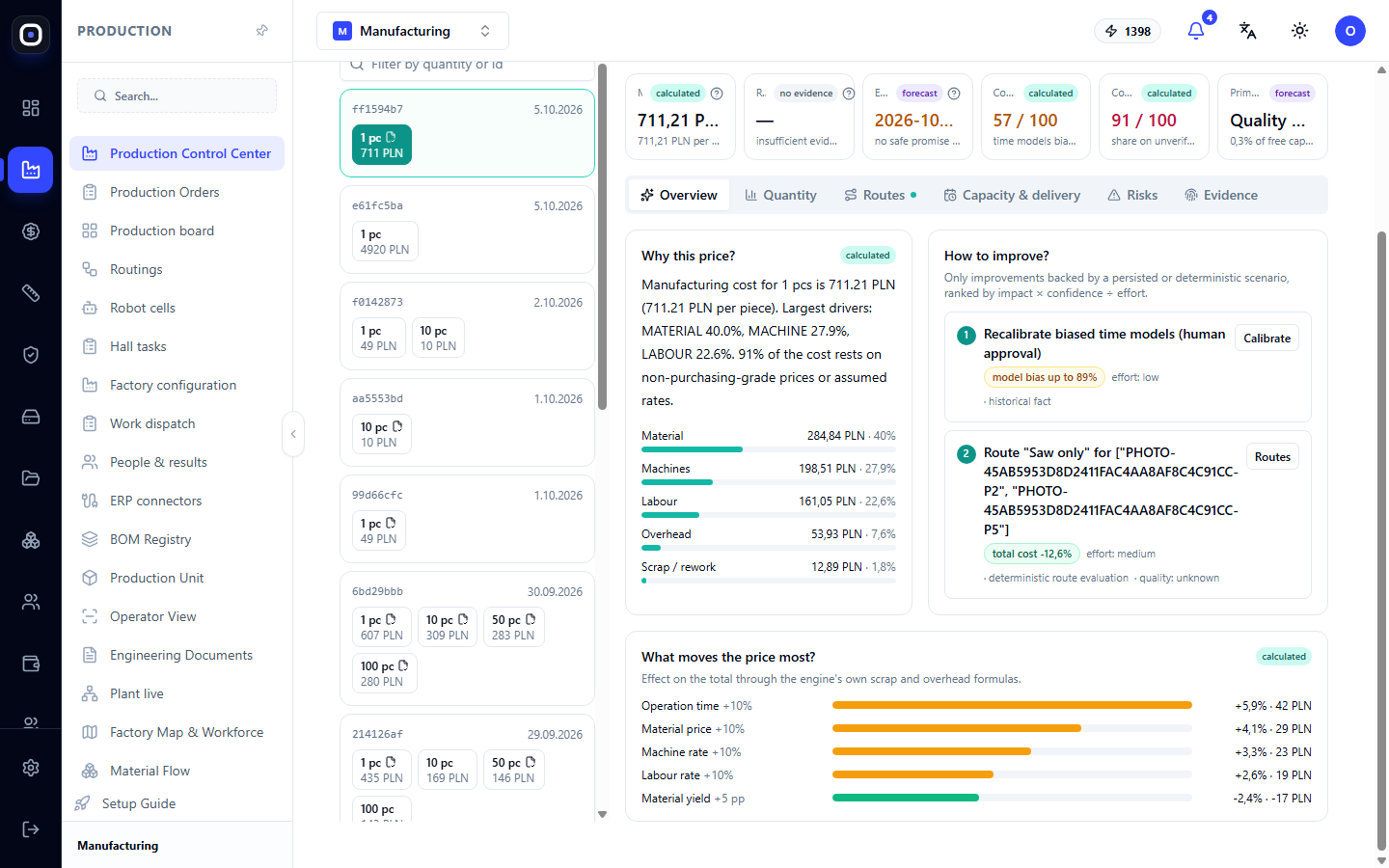
At the top of the breakdown are six tiles. Each has a label indicating how much the number can be trusted: calculated (computed from data), forecast (estimate), or missing data.
- Cost of the batch and a single piece.
- Recommended price. If it says "missing data," the system lacks sufficient evidence to recommend it.
- Safe date — when the order will actually be ready, considering workshop load.
- Trust in time models on a scale of 1 to 100. A low number means that operation times are roughly estimated.
- Share of cost based on unconfirmed prices — what portion of the cost relies on prices or rates that no one has confirmed.
- Bottleneck — where the least free capacity is.
These tiles should be read together. A good price with a trust score of 57 out of 100 and ninety percent of the cost based on unconfirmed prices is a guideline, not a figure for a contract.
"Overview" Tab
Why this price
This block explains the cost in words and breaks it down into components with bars:
- Material;
- Machines — equipment operating time;
- Labor;
- Overhead;
- Scrap and rework.
Next to each component is the amount and its percentage share. If material accounts for forty percent and labor twenty, it's clear where to look for savings first.
How to improve
On the right is a list of tips, ordered by the formula "effect × confidence ÷ effort". That is, at the top are those that yield the greatest results with the least effort and in which the system is most confident.
Each tip has an estimated effect, effort, and an action button. For example:
- Recalibrate time models with the Calibrate button. If actual operation times consistently differ from calculated ones, the model should be adjusted. This is done only with human approval;
- Different route for parts with the Routes button. For example, sawing instead of laser cutting for simple pipes can reduce the total cost by several percent.
The system only shows tips confirmed by previous savings or a calculated scenario.
What most affects the price
The sensitivity block answers the question "what if". Each row shows how the price will change if one parameter increases by ten percent:
- operation time;
- material price;
- machine rate;
- labor rate;
- material yield.
The longest bar shows the most influential parameter. This is the one that needs to be known most accurately. If the price depends most on operation time, and trust in time models is low, the first step is obvious: refine the standards.
"Quantity" Tab
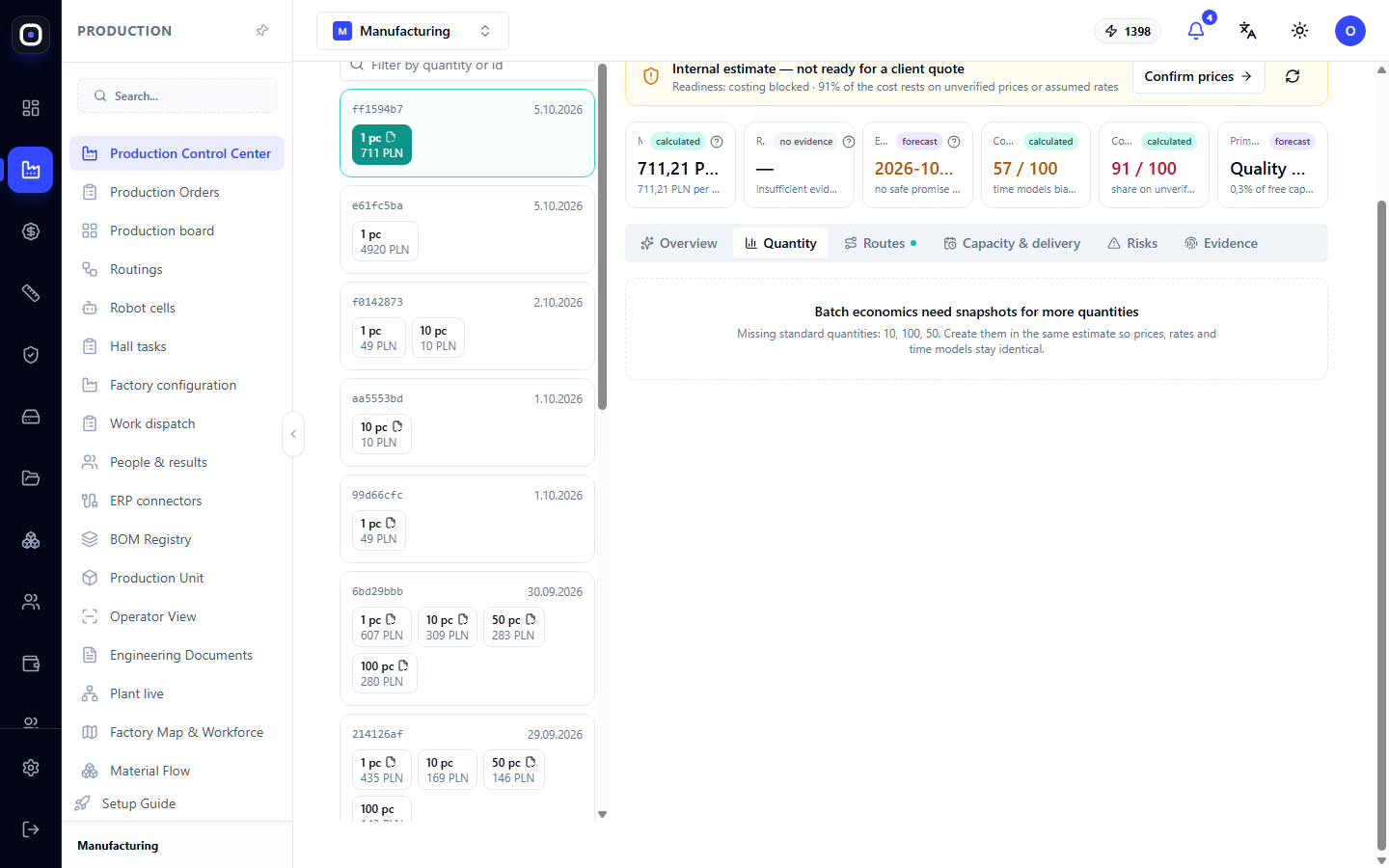
Shows how the price per piece depends on the batch size. To build the curve, a quote for several quantities is needed. If only one has been calculated, the tab will suggest adding others.
This tab is useful in negotiations: you can immediately show the client how much they will save by ordering fifty instead of ten.
"Routes" Tab
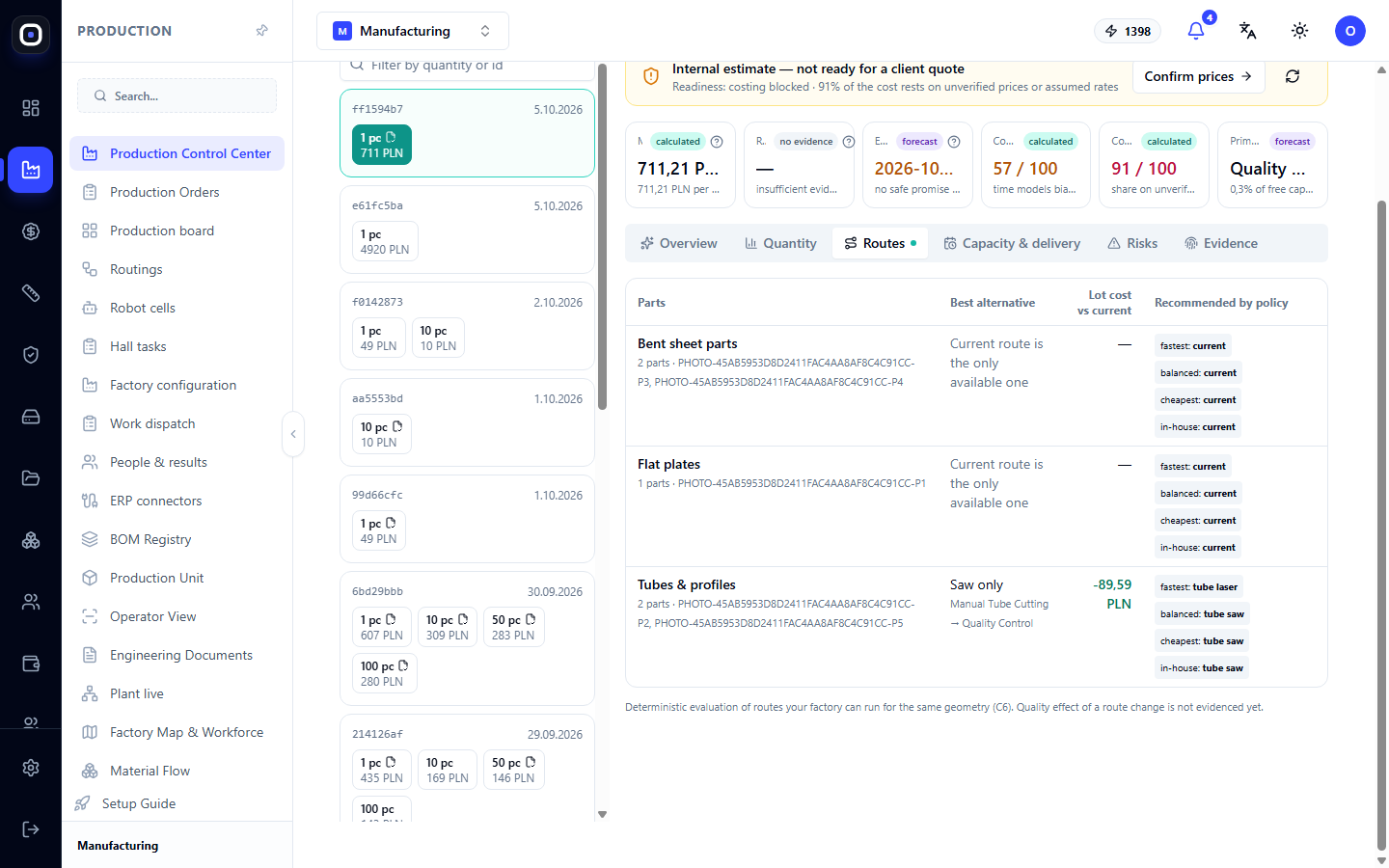
The same part can often be made in different ways: laser cut or sawn, bent or welded from two parts. The tab compares route options for groups of parts and shows how much each costs and how much the total cost changes.
A green dot next to the tab name means the system has found a more advantageous option.
"Capacity and Lead Time" Tab
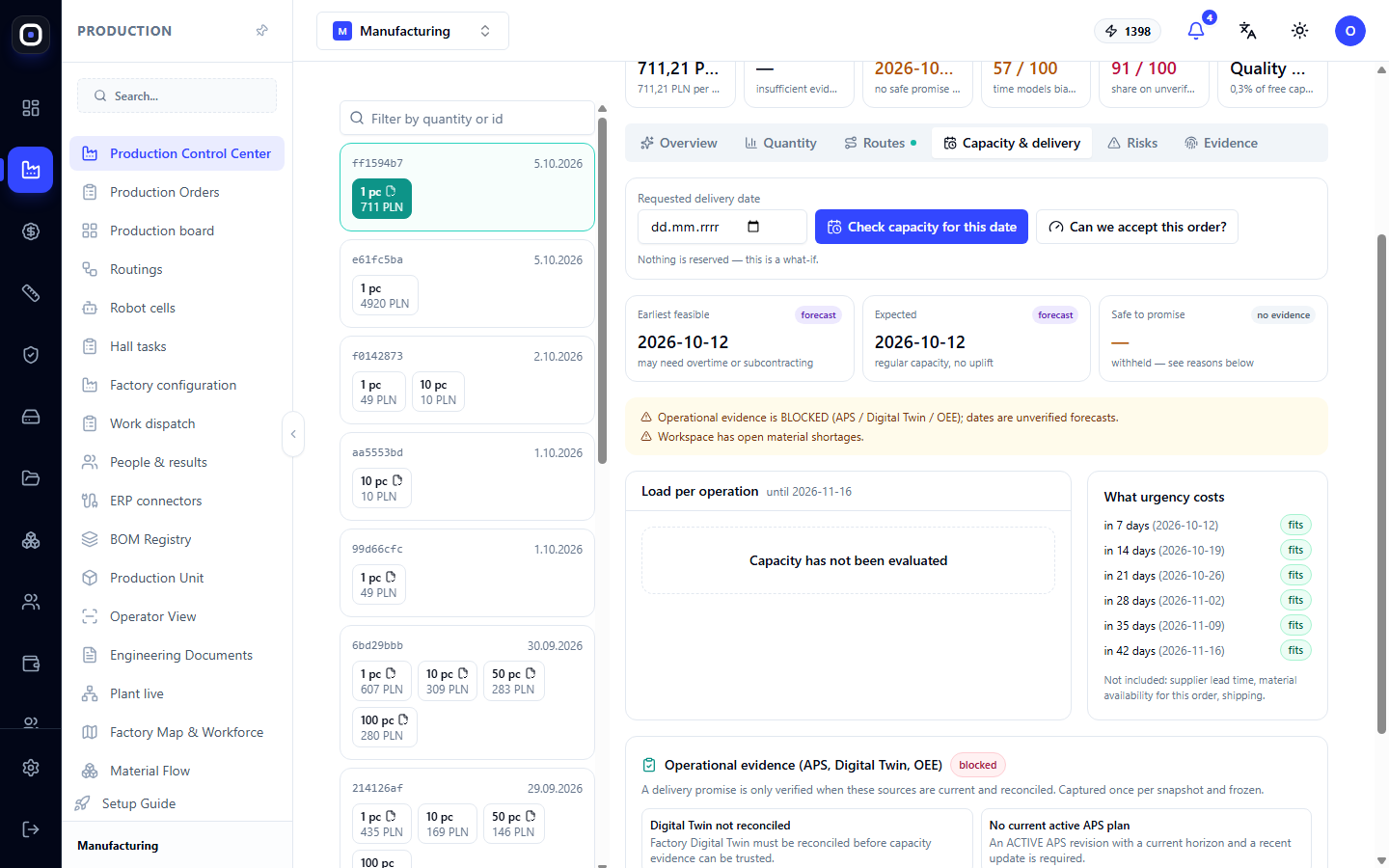
Answers the question "when will it be ready if the order is taken". You specify the desired date and get a check: whether the factory can meet it, considering what is already planned.
Here you can see the earliest possible date, the safe date, and which operations and machines limit the lead time. You should promise the client the safe date, not the earliest.
"Risks" Tab
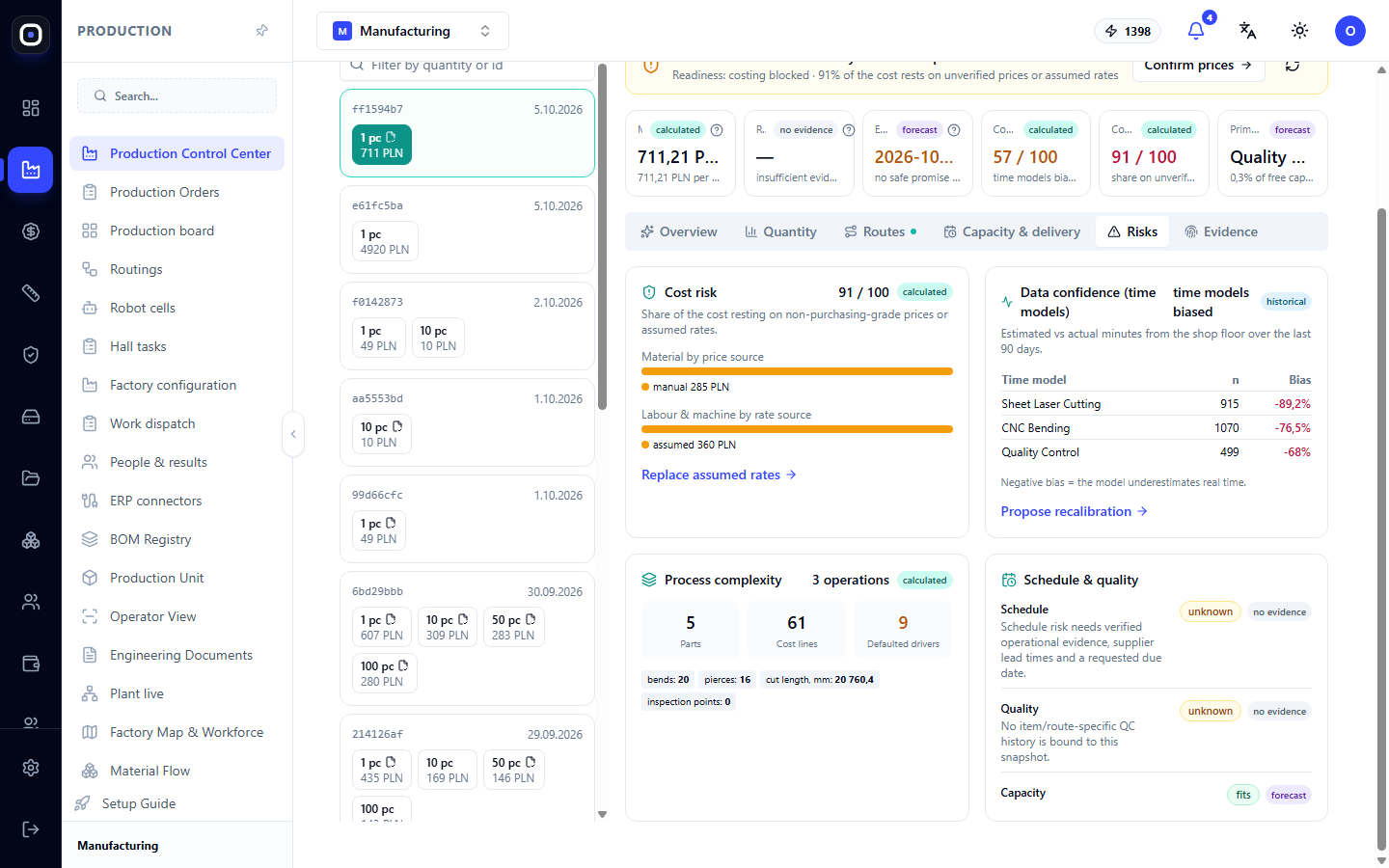
A list of what can make the actual cost higher than the calculated one: material price risk, process complexity, quality, capacity bottlenecks. For each risk, an assessment is shown and what it is based on.
"Evidence" Tab
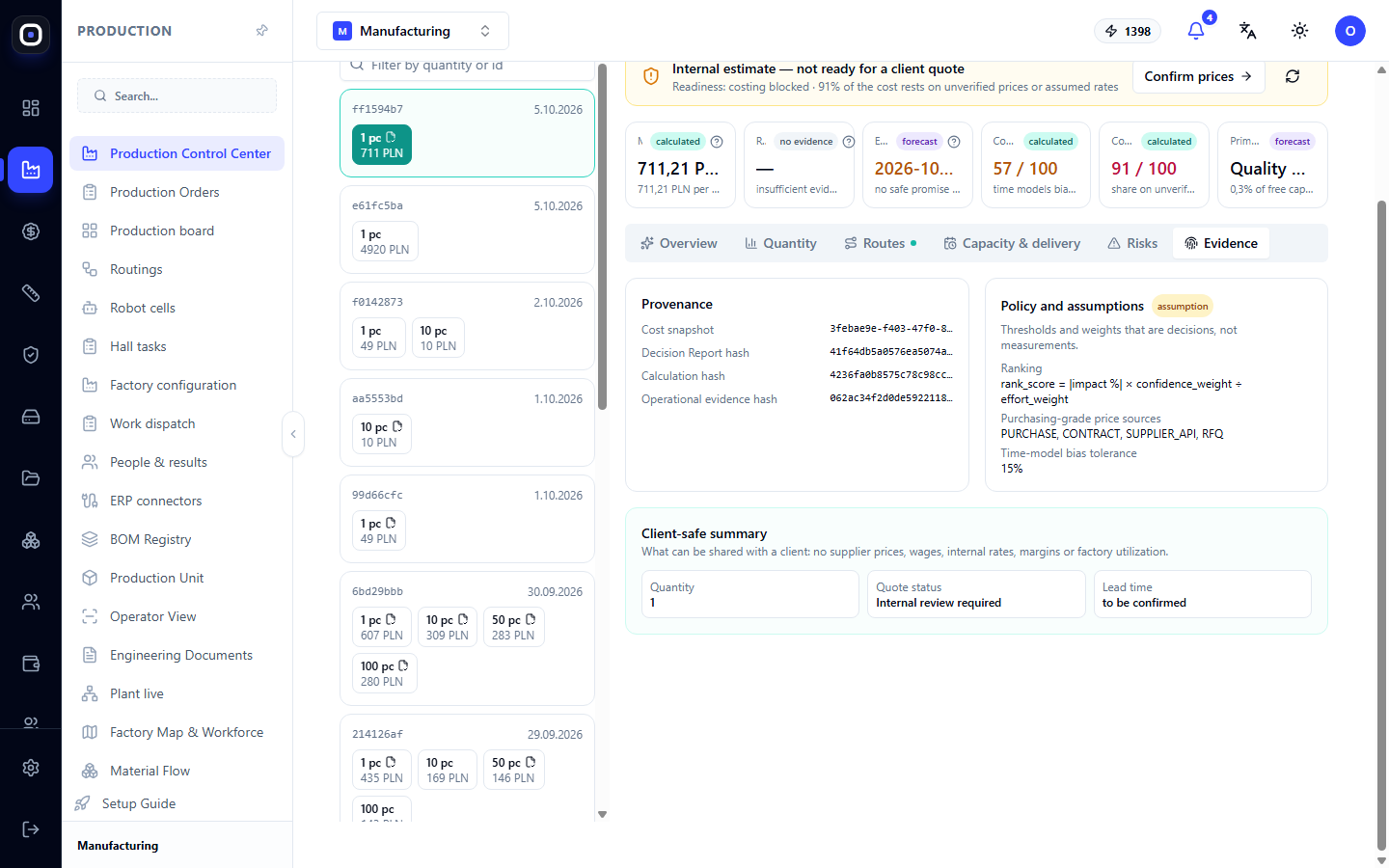
This is what distinguishes the advisor from a regular calculator. The tab shows where each number comes from: which specification, which prices, which time standards, which revision of the route.
If a manager or client asks "why this price," the answer is here, with links to sources.
Typical Workflow
- Open Manufacturing Advisor and click New Quote.
- Select the product and several quantity options.
- Read the six metrics, especially trust and the share of unconfirmed prices.
- On the Overview tab, look at the cost structure.
- Review the tips in the How to improve block.
- On the Capacity and Lead Time tab, check the safe date.
- Confirm prices with the Confirm Prices button.
- Only after this, formulate a proposal for the client.
Frequently Asked Questions
It says "not yet ready for client proposal". What should I do?
Some prices or rates are assumptions. Confirm material prices and click Confirm Prices.
The price for one piece is much higher than for ten. Is this an error?
No. Machine setup, program preparation, and initial adjustment take the same amount of time for one piece and for a hundred. In a small batch, these costs are fully borne by each piece.
Trust in time models is 57 out of 100. Can the price be trusted?
As a guideline — yes, as a final price — cautiously. Trust can be increased by calibrating models against actual operation times.
Recommended price shows "missing data"
The system lacks sufficient evidence to recommend it. Usually, the markup is not set or material prices are not confirmed.
How does the advisor differ from the cost studio?
The cost studio is where input data is set: prices, rates, standards. The advisor analyzes the completed calculation and explains it.