Costing Studio: What Makes Up Cost and How to Get Your Pricing in Order
Everything that underpins cost estimation: material purchasing forms, prices with sources, exchange rates, operation time models, rates, and policies. Six readiness fundamentals and fourteen studio sections.
Cost is not a single number, but the result of multiplying dozens of others: how much a sheet costs, how many minutes a laser cuts, how much a welder is paid, what percentage goes to scrap. If even one of these is pulled out of thin air, the total will also be pulled out of thin air.
Costing Studio is where all these input numbers are stored. The page header states the main point: every number is traceable, every change is versioned. This means that for any price, you can tell where it came from, when it was recorded, and by whom it was changed.
Where to Find the Page
In the sidebar menu, open the Pricing section and select Costing. The page address ends with …/erp/pricing/costing.
Top Panel
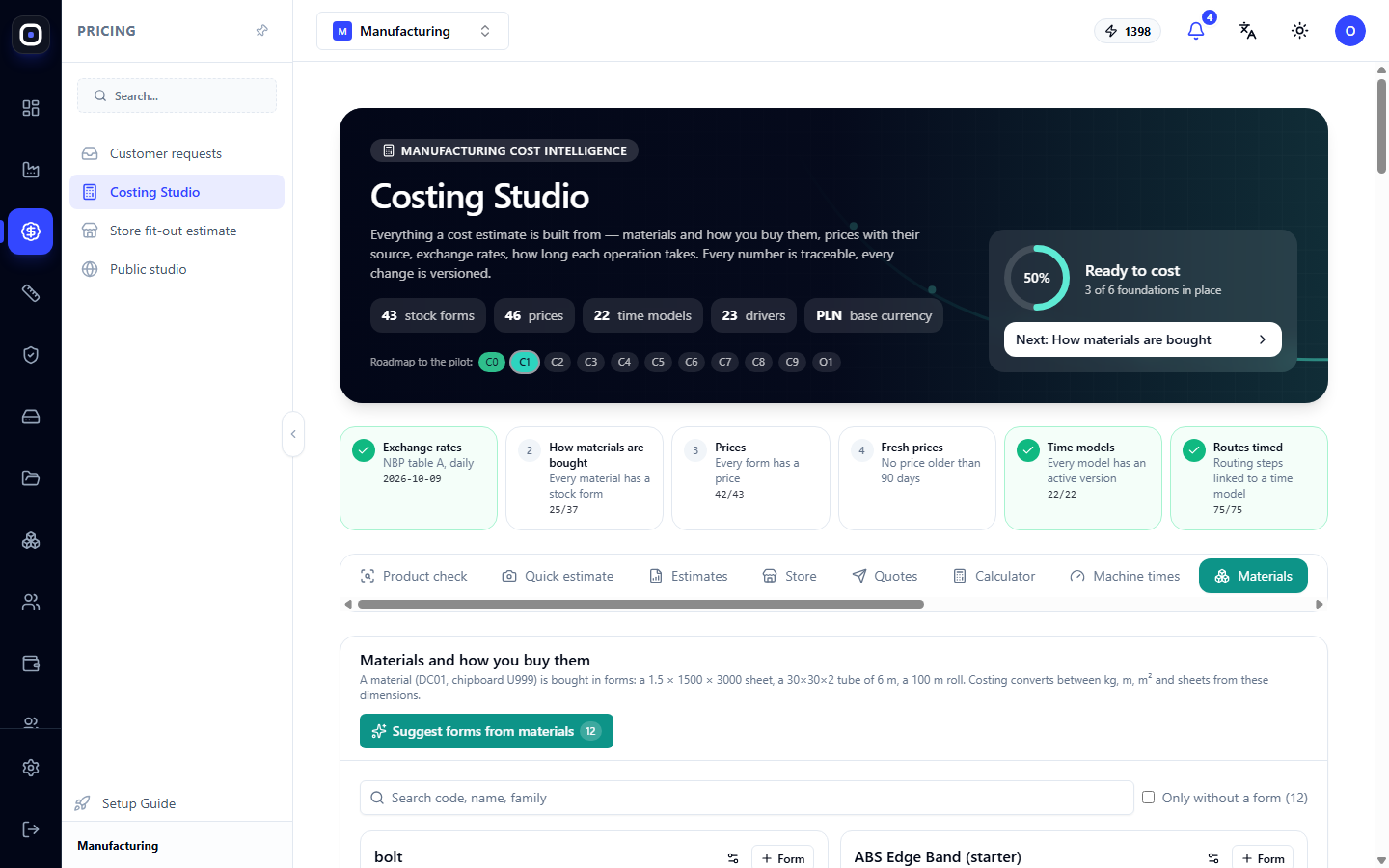
The dark panel shows five counters: how many purchasing forms, prices, time models, and drivers you have, as well as the base currency in which costs are calculated.
To the right is the "Readiness for Calculation" ring with a percentage and a caption like "3 of 6 fundamentals in place". The Next button below it leads to the first missing fundamental.
Six Readiness Fundamentals
Below the panel are six cards. These are the things without which a calculation cannot be trusted. Ready ones are marked with a green checkmark, and each shows how many have been completed out of the total.
- Exchange Rates. Automatically retrieved daily from the National Bank of Poland's table. The card shows the date of the latest rate.
- How Materials Are Purchased. Every material must have a purchasing form. For example, 25/37 means that twelve materials still lack a form.
- Prices. Every form must have a price.
- Fresh Prices. No prices older than 90 days.
- Time Models. Every model has an active version.
- Routings with Time. Every step of the routing is linked to a time model.
Go through the cards in order. There's no point in clarifying rates until a third of your materials have their purchasing form specified.
Fourteen Sections
Below the cards is a row of buttons. You can scroll it sideways. The sections can be conveniently divided into three groups.
- Input Data: Materials, Prices, Market, Machine Time, Time Models, Rates & Policy, Settings.
- Calculations: Product Check, Quick Estimate, Estimates, Calculator, Shop, Quotes.
- Control: Accuracy.
We will look at the most important ones below.
Materials: How You Purchase Them
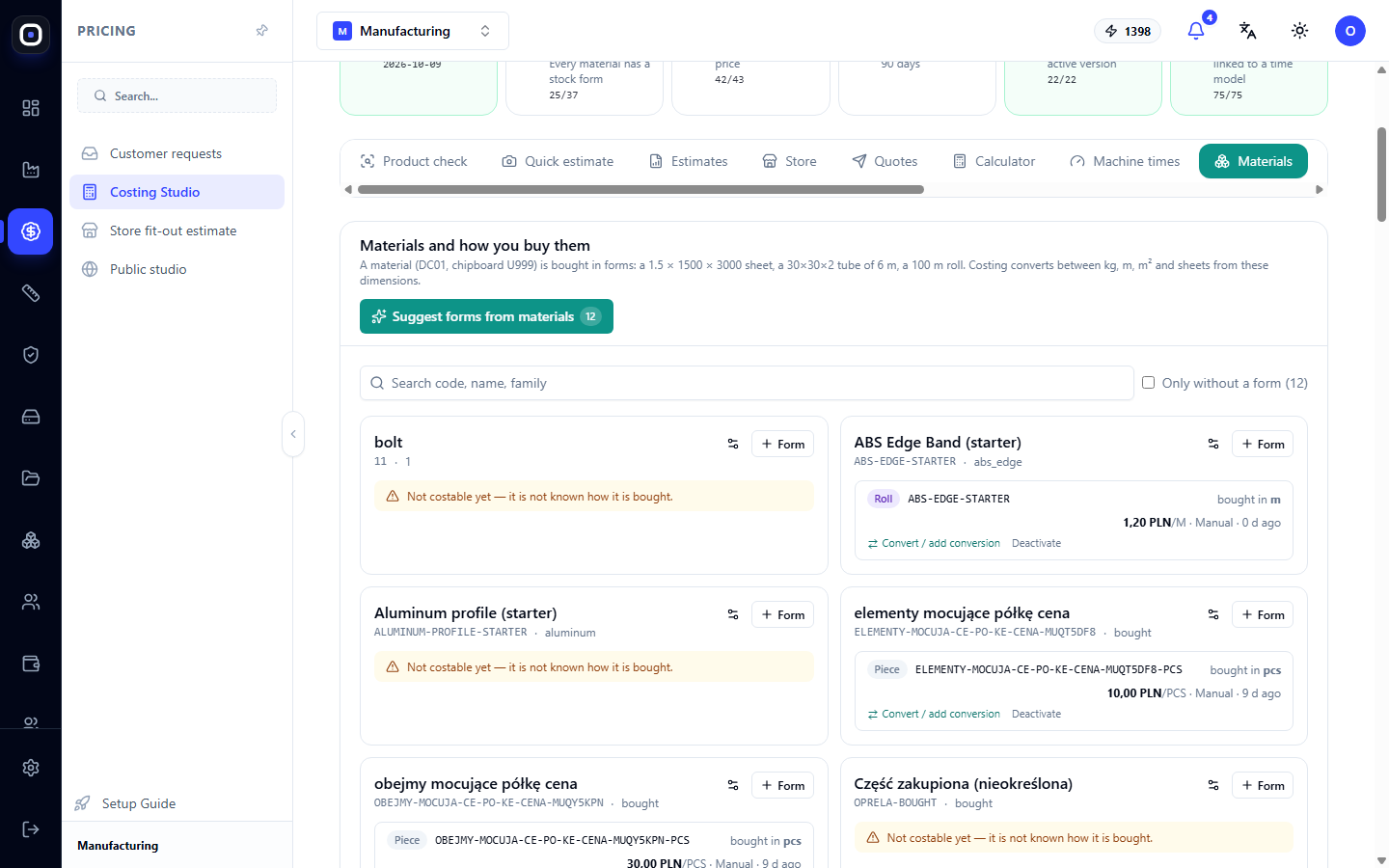
This is the first thing to understand in the studio. A material and the form in which it is sold are different things.
DC01 steel is a material. But you buy it as a 1.5 × 1250 × 2500 mm sheet or a 40 × 40 × 2 mm tube 6 meters long. This is the purchasing form. The price is always tied to the form, because the supplier sells sheets and tubes, not "steel in general."
What's in the section:
- search field by code, name, or group;
- checkbox that only shows materials without forms;
- Suggest Forms from Materials button. The number on it shows how many materials the system can find a form for automatically, based on their dimensions;
- for each material, a Form button to add a form manually, and a conversion calculation between units: meters to kilograms, sheets to square meters.
Prices
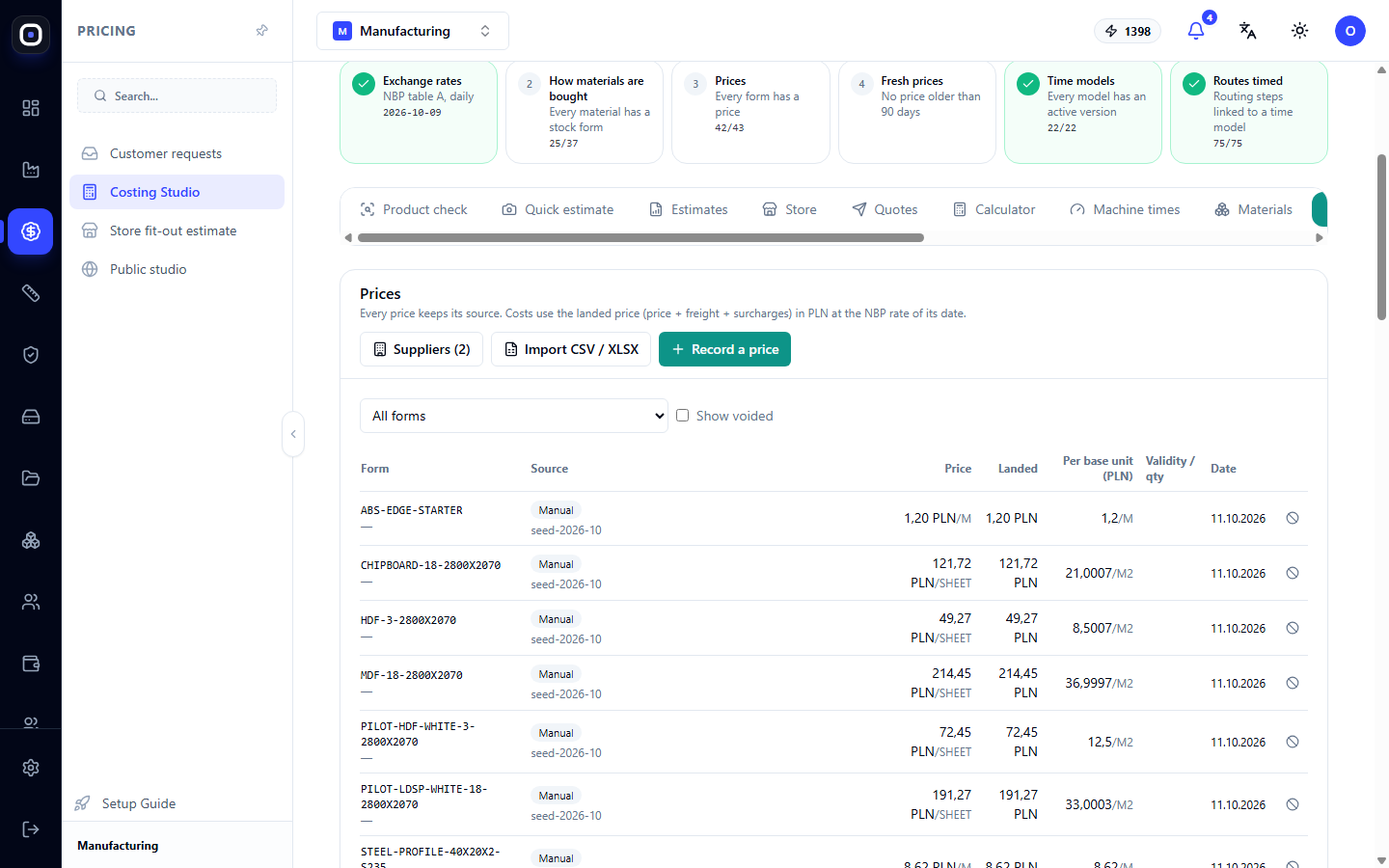
In the price table, each row answers the question "how much, from whom, and when." Columns: form, price source, price in supplier's currency, price per base unit in base currency, and the effective date of the price.
Above the table are three buttons:
- Suppliers — a list of those you buy from;
- Import CSV / XLSX — upload a price list file;
- Record Price — manually enter a single price.
A new price does not overwrite an old one. The old one remains in history with the date it was valid until. Therefore, a calculation made a month ago can always be reproduced using the prices from that time.
A price with a source (supplier's price list, invoice) is considered confirmed. A price without a source is an assumption, and the costing advisor will honestly show what portion of the cost relies on such assumptions.
Market
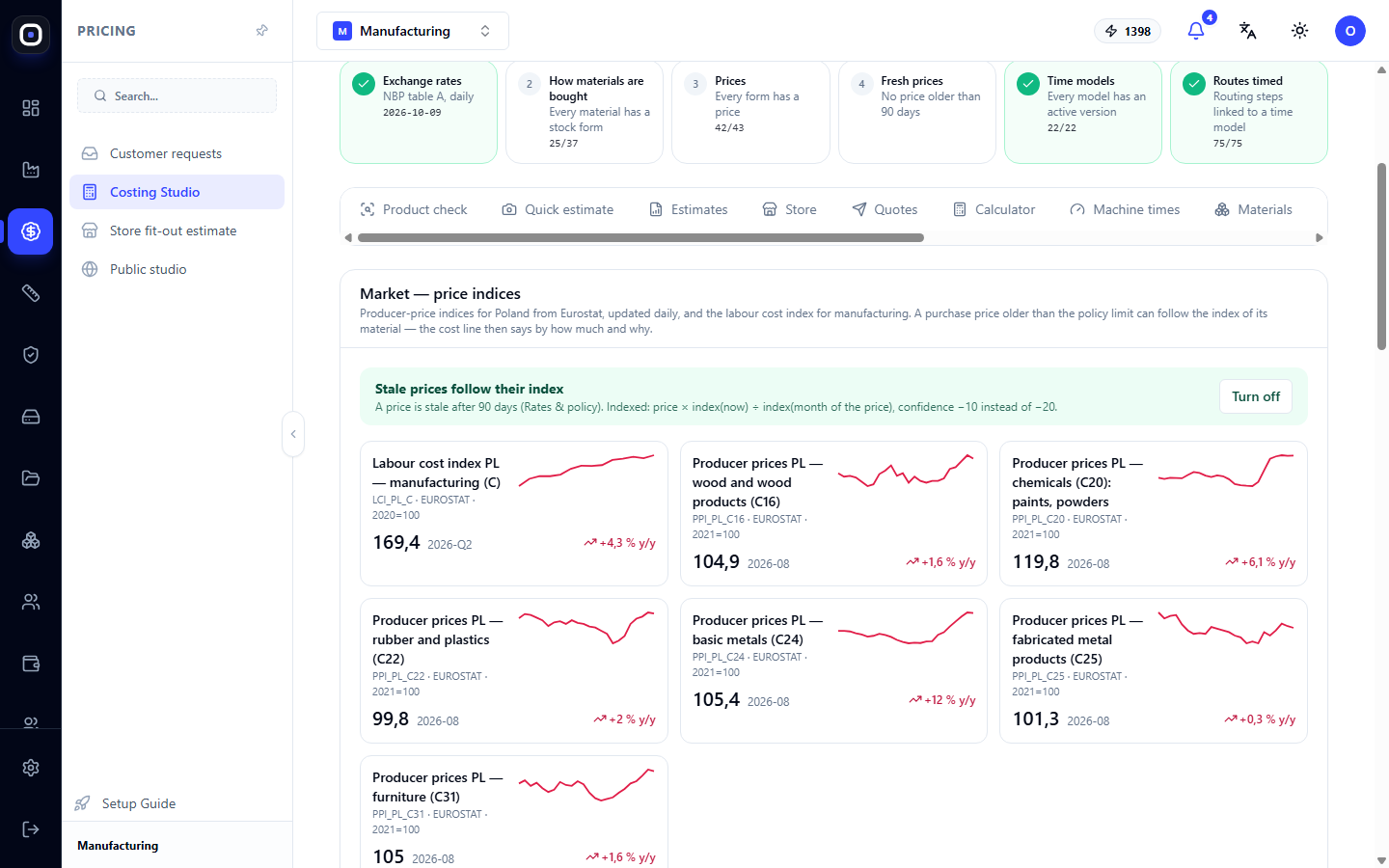
This section displays official price indexes: labor costs in manufacturing, producer prices for metals, wood products, chemicals and paints, rubber and plastics. For each, there's a graph and a year-over-year change.
Why this is important: If you recorded the price of a sheet six months ago, and the metal index has risen by eight percent since then, your price is most likely outdated. Indexes suggest which prices should be updated first.
Time Models
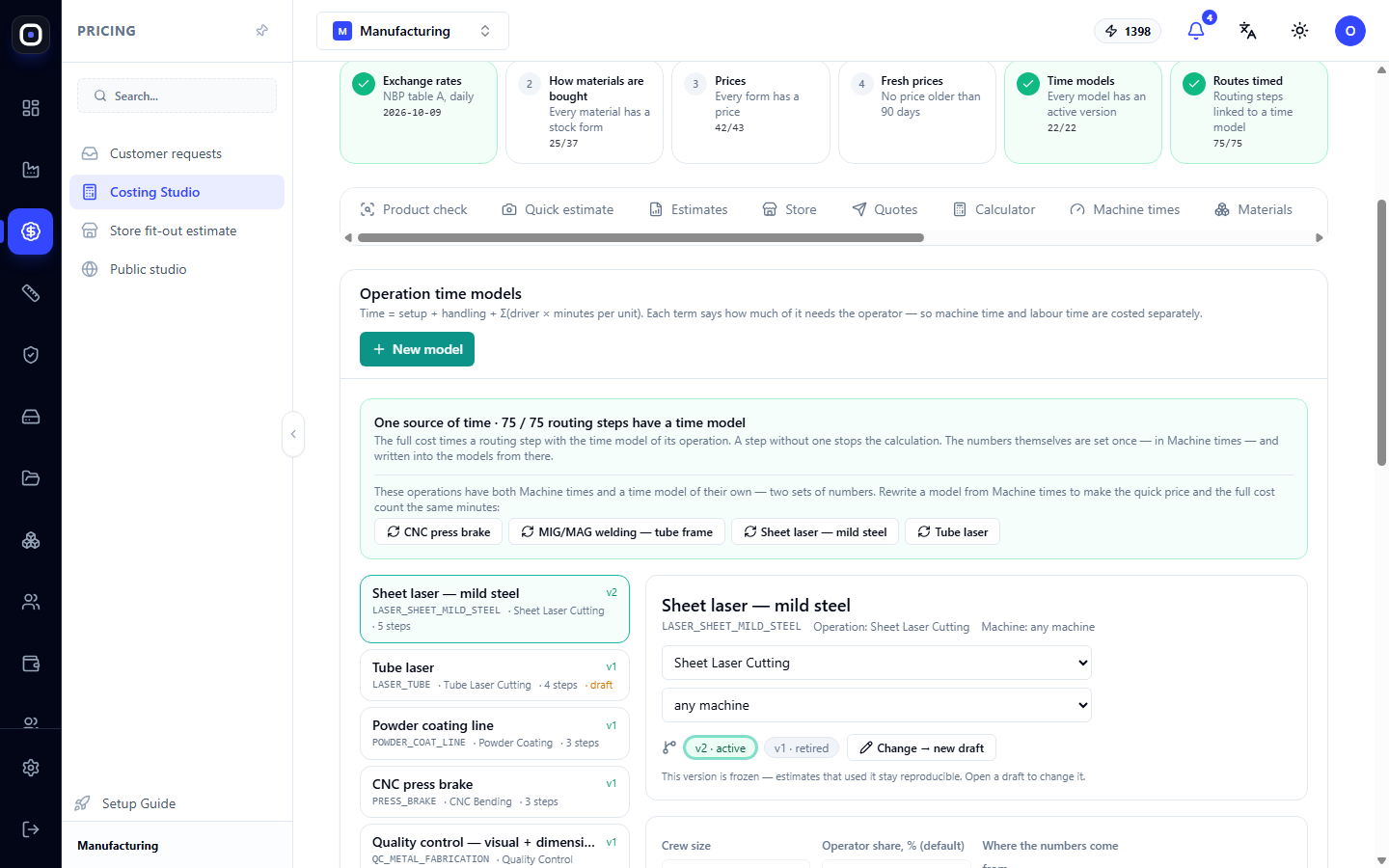
A time model answers the question "how many minutes will this operation take for this part." Instead of a single standard for everything, it calculates time based on geometry: a laser cuts longer if the contour is longer and the metal is thicker.
At the top of the section is a green block "Single Time Source". It shows how many routing steps have a time model. When all steps have one, both cost estimation, planning, and personnel loading take time from a single source and do not diverge.
Below are listed machine profiles: sheet laser, tube laser, powder coating line, press brake. The New Model button creates a model, and changes are saved as new versions.
Rates & Policy
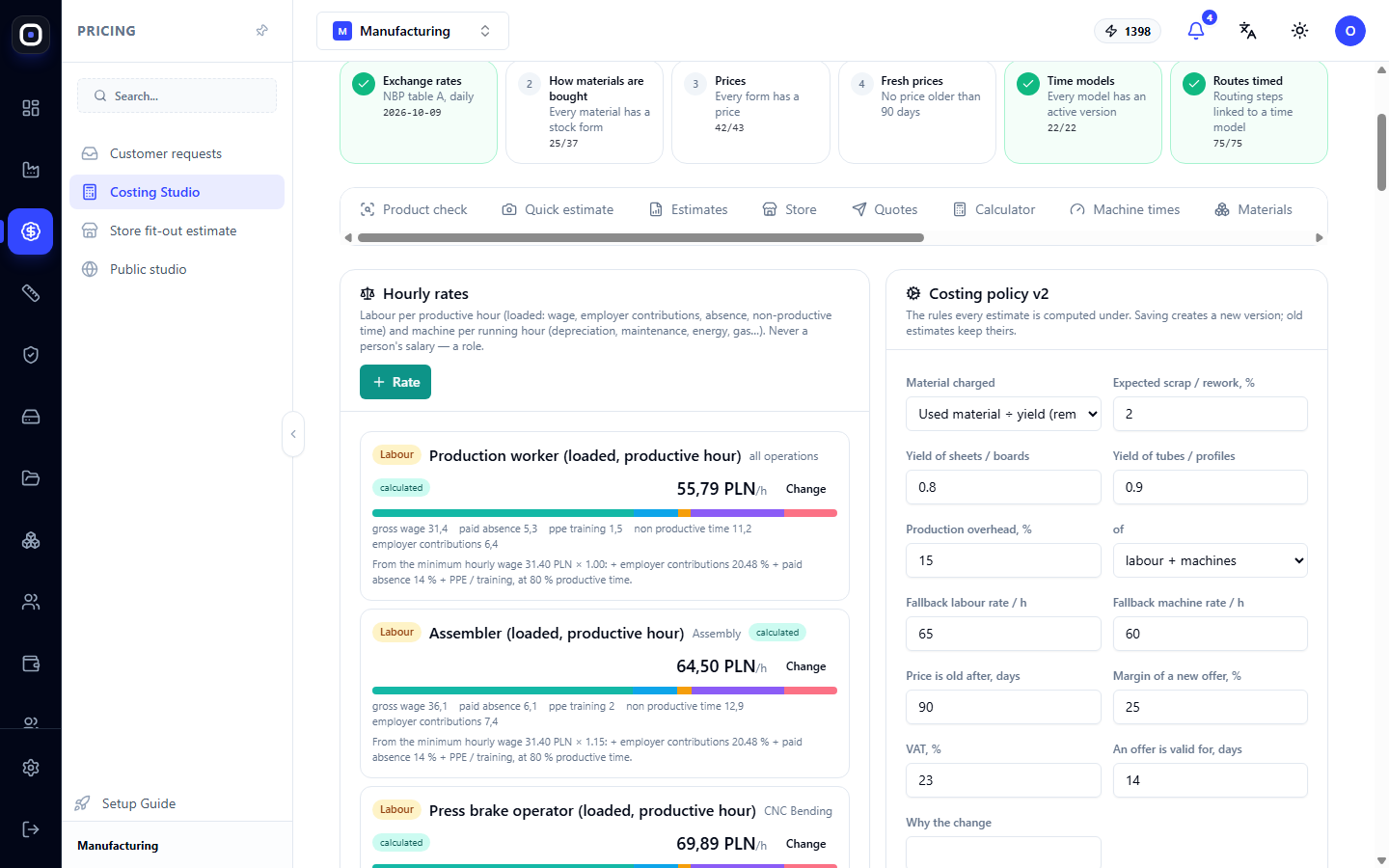
The section has two parts.
Hourly Rates — how much an hour of human or machine work costs. The rate here is "full": it includes not only salary, but also taxes, vacations, and unproductive time. Next to the rate, you can see what it consists of. The Rate button adds a new one.
Calculation Policy — general rules: how to calculate overheads, what percentage to allocate for scrap and rework, what are the minimum amounts, what is the markup. These are the parameters that convert direct costs into a price.
The policy is changed by the owner or administrator. Each change is saved as a version.
Estimates
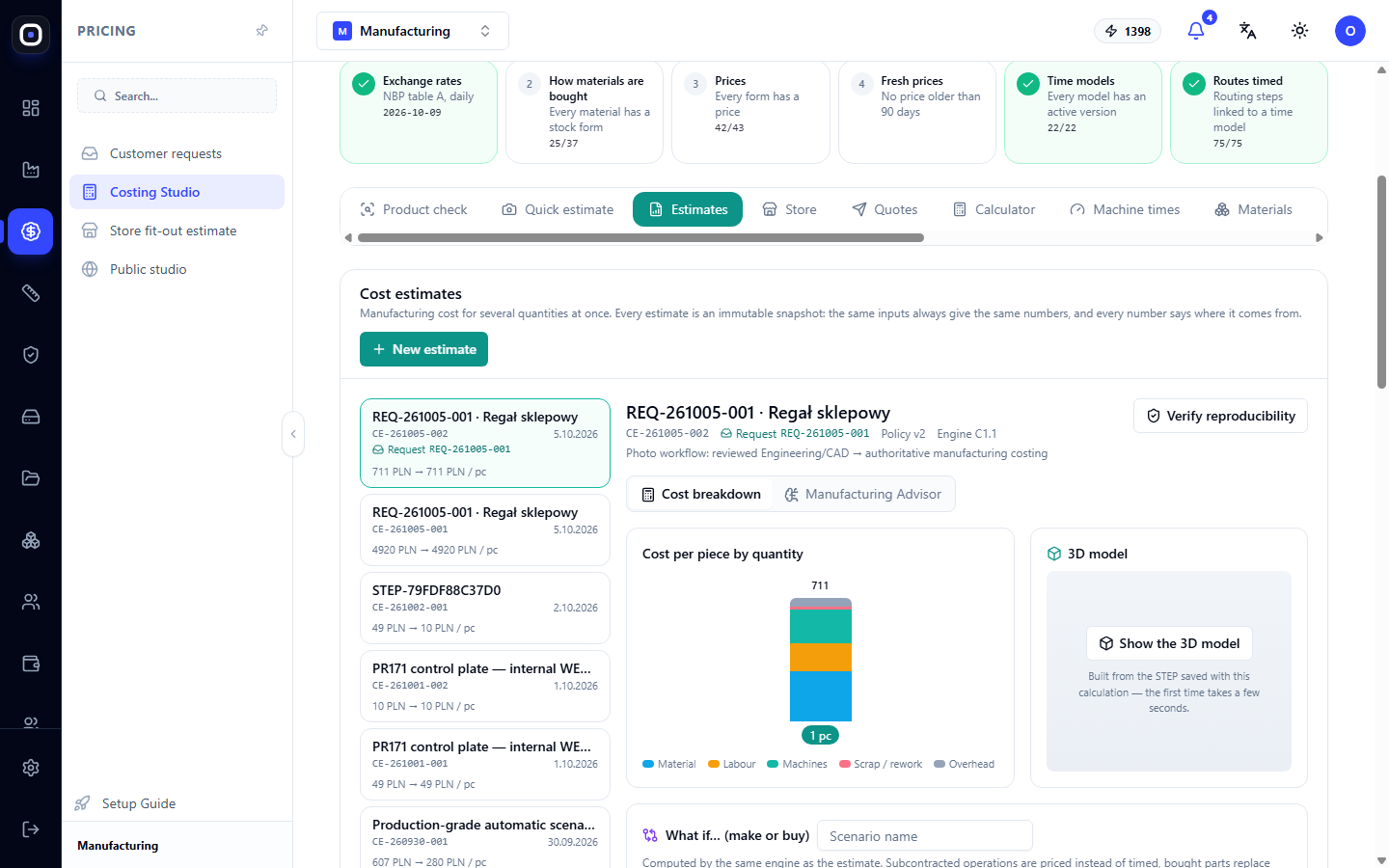
All calculated estimates are stored here. On the left is a list, on the right is a breakdown of the selected one: product, quantity, a column with the cost structure (material, machines, labor, overheads), and a 3D model.
The New Estimate button starts the calculation. From the estimate card, you can go to the Manufacturing Advisor, which explains the result in detail.
Quick Estimate
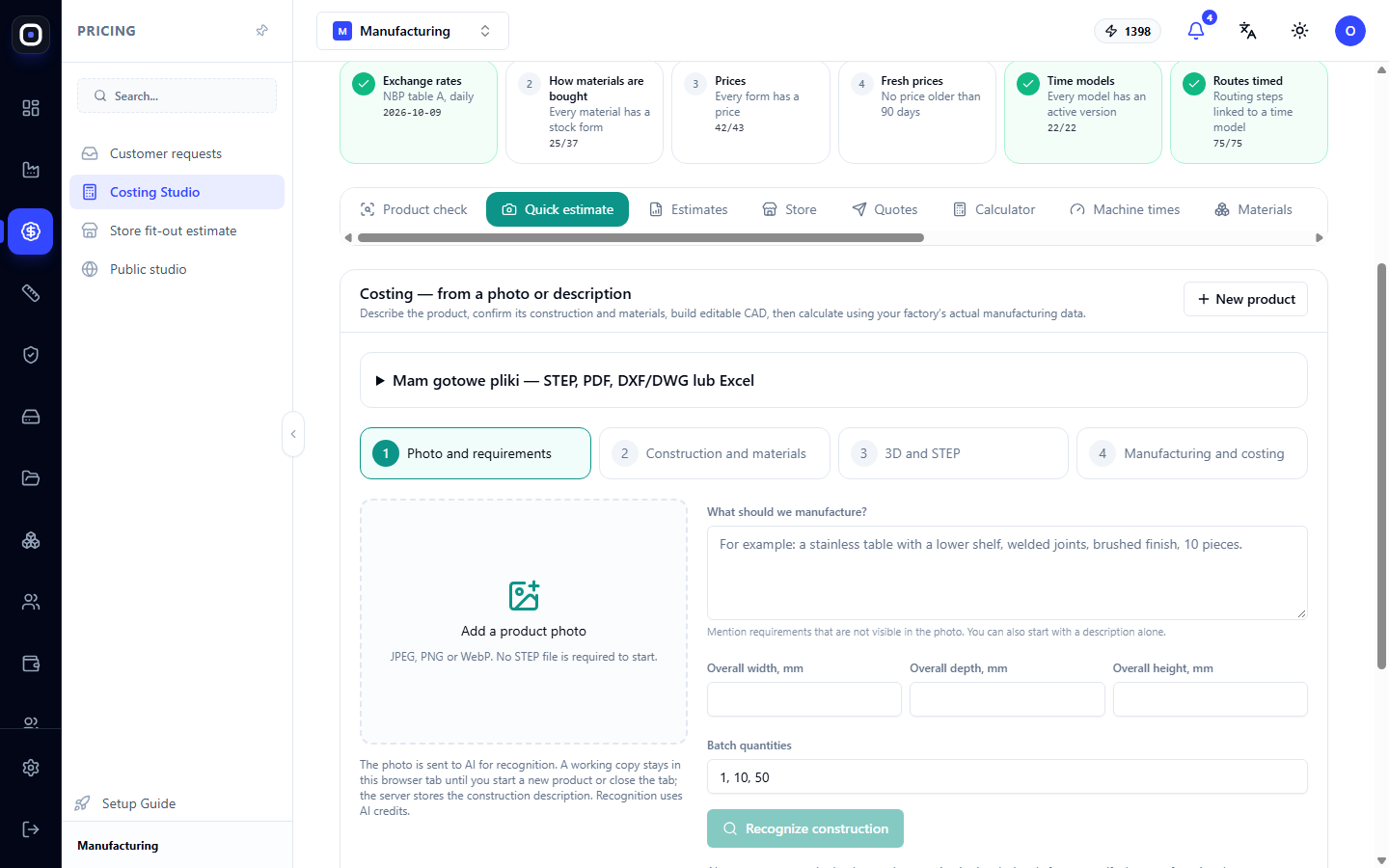
A client sent a photo of a shelf and asked for a price. No drawings. Quick Estimate is designed for this.
It guides you through four steps:
- Photo & Request — upload a photo or sketch and write what is needed;
- Design & Materials — the assistant suggests what the product consists of, and you correct it;
- 3D Model & STEP — the system builds a three-dimensional model;
- Production Estimate & Quote — the cost is calculated and a quote is prepared.
If you already have files (model, drawing, table), expand the row with ready files and upload them instead of a photo.
A quick estimate provides a preliminary price. It is sufficient to respond to the client on the same day, and an accurate calculation is made after the design is approved.
Calculator
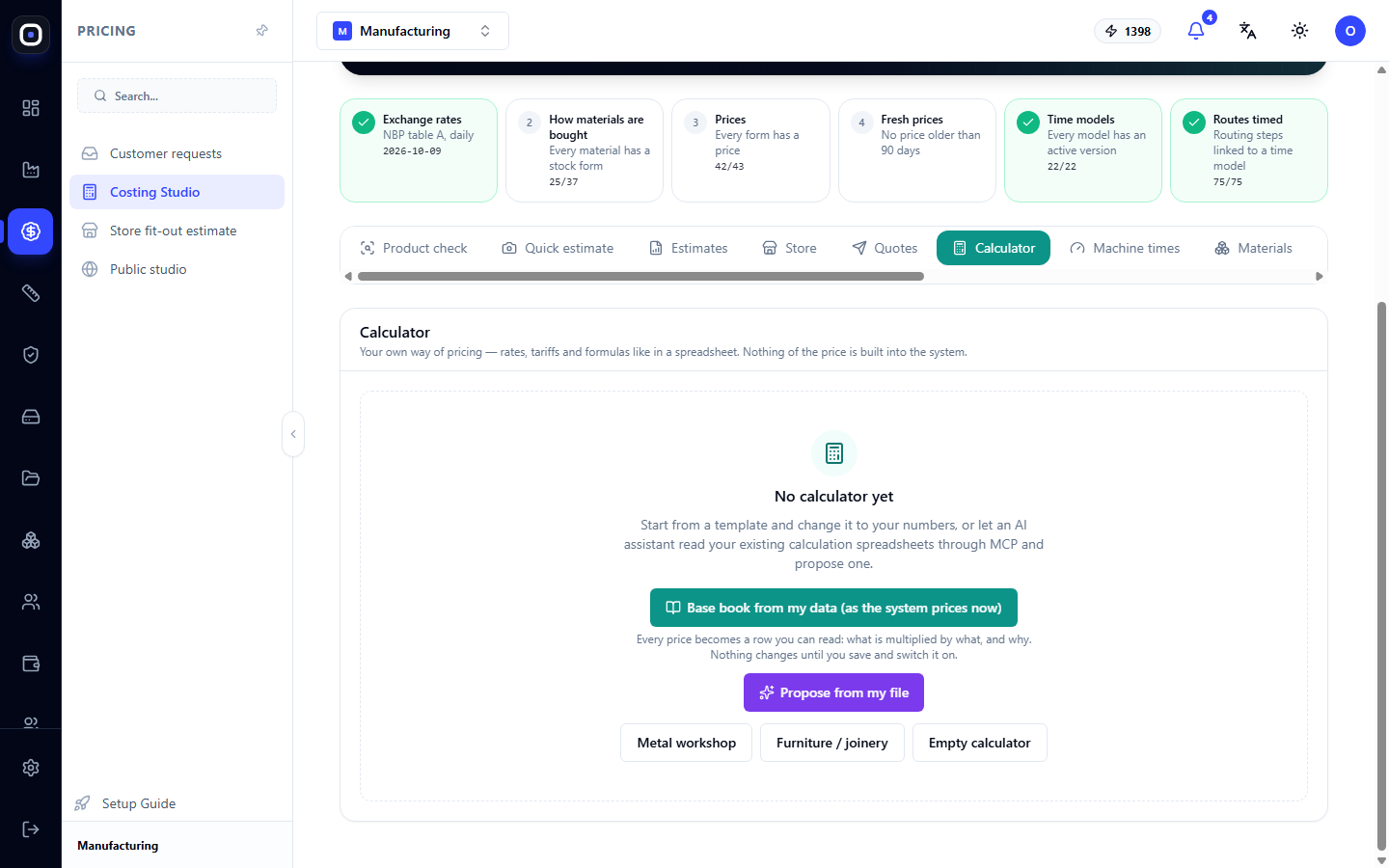
Many factories have been calculating prices in their own spreadsheets for years, and this spreadsheet reflects their experience. The Calculator allows you to transfer such logic into the system.
There are three ways: build a calculator from your data in the studio, suggest one from your file, or start with a ready-made template for metalworking or furniture.
After that, you choose whether to calculate the price using the standard studio mechanism or your own calculator.
Accuracy
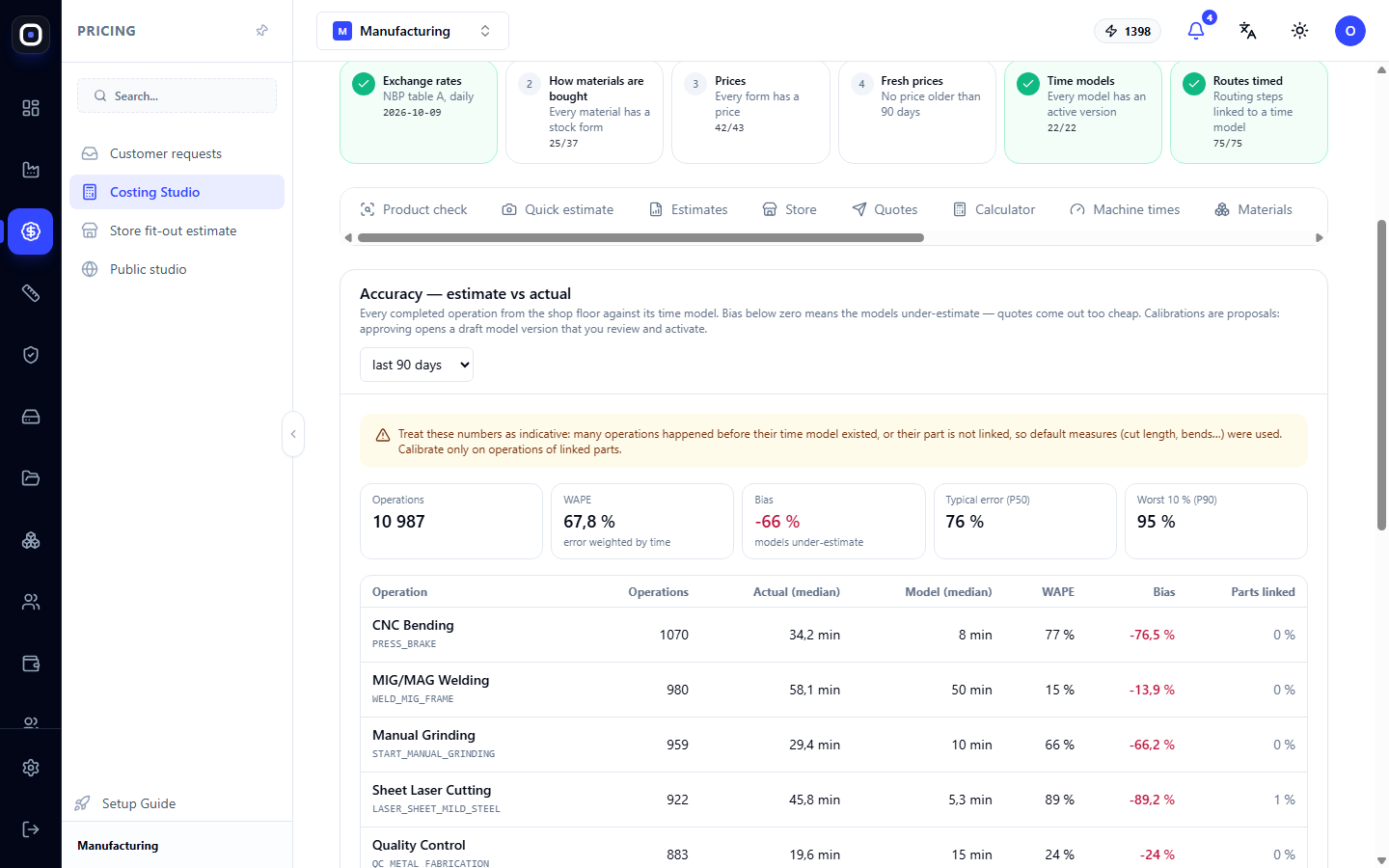
The most honest section of the studio. It compares what the system estimated with what actually happened.
At the top is a summary: how many operations were compared, what is the average error, and in which direction the estimates are biased. Below is a table by operations: number of executions, actual time, estimated time, error, and bias.
If the bias for bending is consistently minus thirty percent, the system underestimates bending by a third. This means that the bending time model needs to be calibrated. This is where the advisor gets the advice to "recalibrate biased time models."
This section only works when operators mark the start and end of operations. Without actual data, there's nothing to compare.
Typical First Setup Order
- Open Costing Studio and look at the readiness ring.
- In the Materials section, click Suggest Forms from Materials and review the suggestions.
- In the Prices section, import a price list or enter prices manually.
- In the Time Models section, ensure all routing steps have a model.
- In the Rates & Policy section, set hourly rates and rules.
- Make the first estimate in the Estimates section.
- After a month of work, open Accuracy and calibrate the models.
Frequently Asked Questions
Readiness shows 50%. Can I calculate already?
Yes, but the result will be inaccurate. The system will calculate with what is available and mark assumptions. For internal estimation, this is sufficient; for a client quote, it's better to bring readiness to one hundred.
Why a purchasing form if there's a price per kilogram?
Because you buy whole sheets and tubes. The form determines how much material will go to waste, which is part of the cost.
Prices are in euros, but I calculate in zlotys
Enter the price in the currency provided by the supplier. The system will convert it to the base currency using the daily exchange rate.
The "Fresh Prices" card is red
You have prices older than 90 days. Update them: the "Market" section will suggest which materials have increased in price the most.
The estimate differs significantly from the actual
Open the "Accuracy" section and find the operations with the largest bias. Their time models need to be calibrated.