Public Studio: Your Customers Design Products on Your Website
A product configurator for your customers: public address and website embedding, estimated price display, request submission, templates, accessories, panel furniture parameters, and limitations.
Most customers can't read blueprints and don't know how much a shelf twenty centimeters wider costs. They write "I want a shelf roughly like this" and wait a day for a response.
Public Studio allows customers to design products themselves, directly on your website. They change dimensions, choose materials, see the result in 3D, and, if desired, immediately see an estimated price. The main rule is written under the page title: you decide what customers see, what they can order, and how long they can use it.
Where to find the page
In the sidebar menu, open the Pricing section and select Public Studio. The page address ends with …/erp/pricing/public-studio.
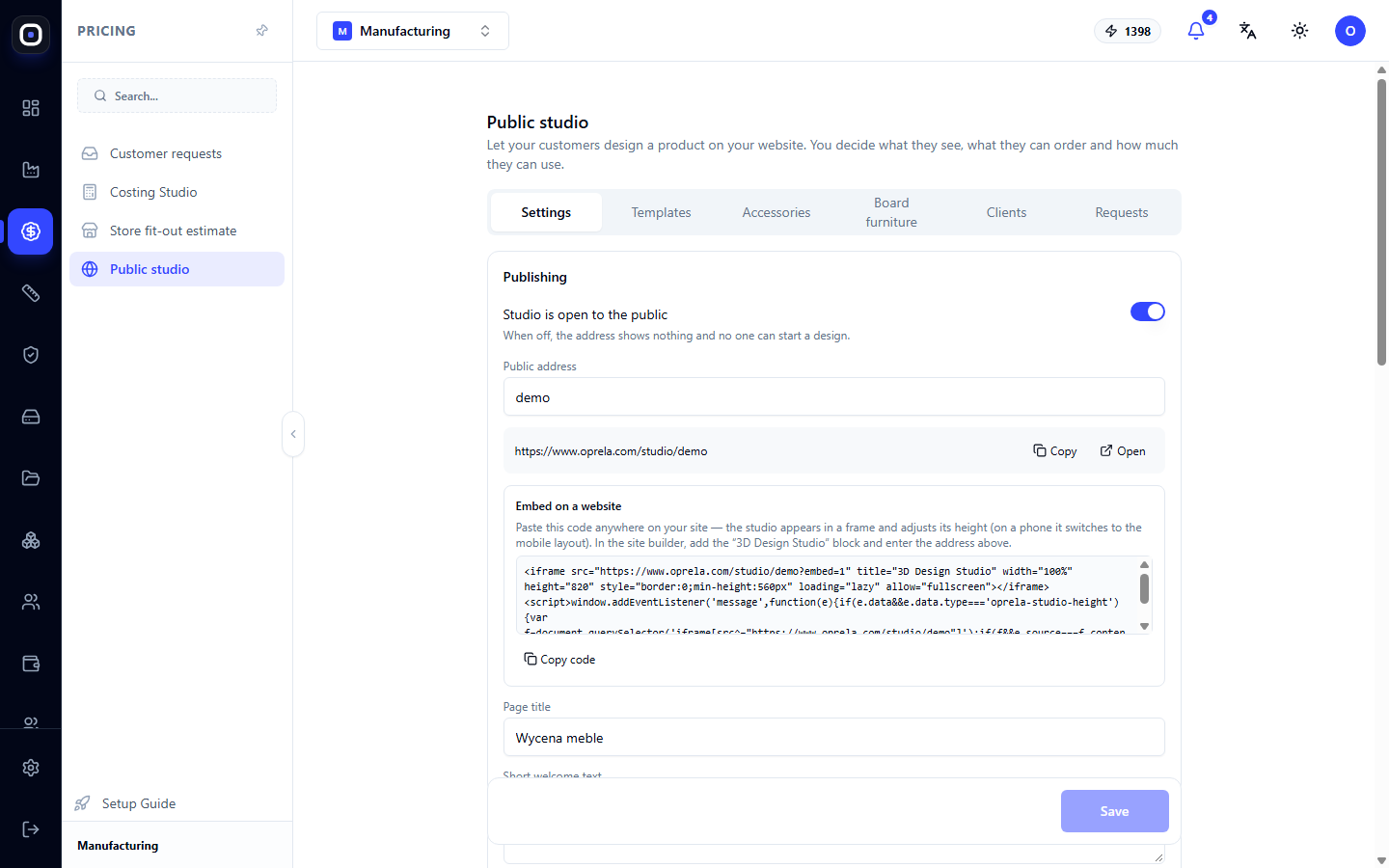
The page has six tabs: Settings, Templates, Accessories, Panel Furniture, Customers, Requests.
"Settings" tab
Publication
The "Studio open to all" toggle enables and disables the studio. If it's off, nothing is visible at the public address, and no one can start a project.
Keep it off until you've configured templates and prices. Turn it on when everything is ready.
Public address
The studio's address is shown below. You set its last part yourself, for example, with the factory's name. The Copy button copies the address, and Open shows the studio as the customer sees it.
Embed on website
The studio can be embedded on your own website. Copy the code using the Copy code button and paste it anywhere on the page. The studio will appear in a frame and automatically adjust its height, switching to a mobile view on phones.
If the website is built with the Oprela website builder, simply add a "3D Design Studio" block and enter the address.
Title and welcome text
Two fields: page title and a short welcome text. This is the first thing the customer will see. Write in simple words what can be done here.
Price and requests
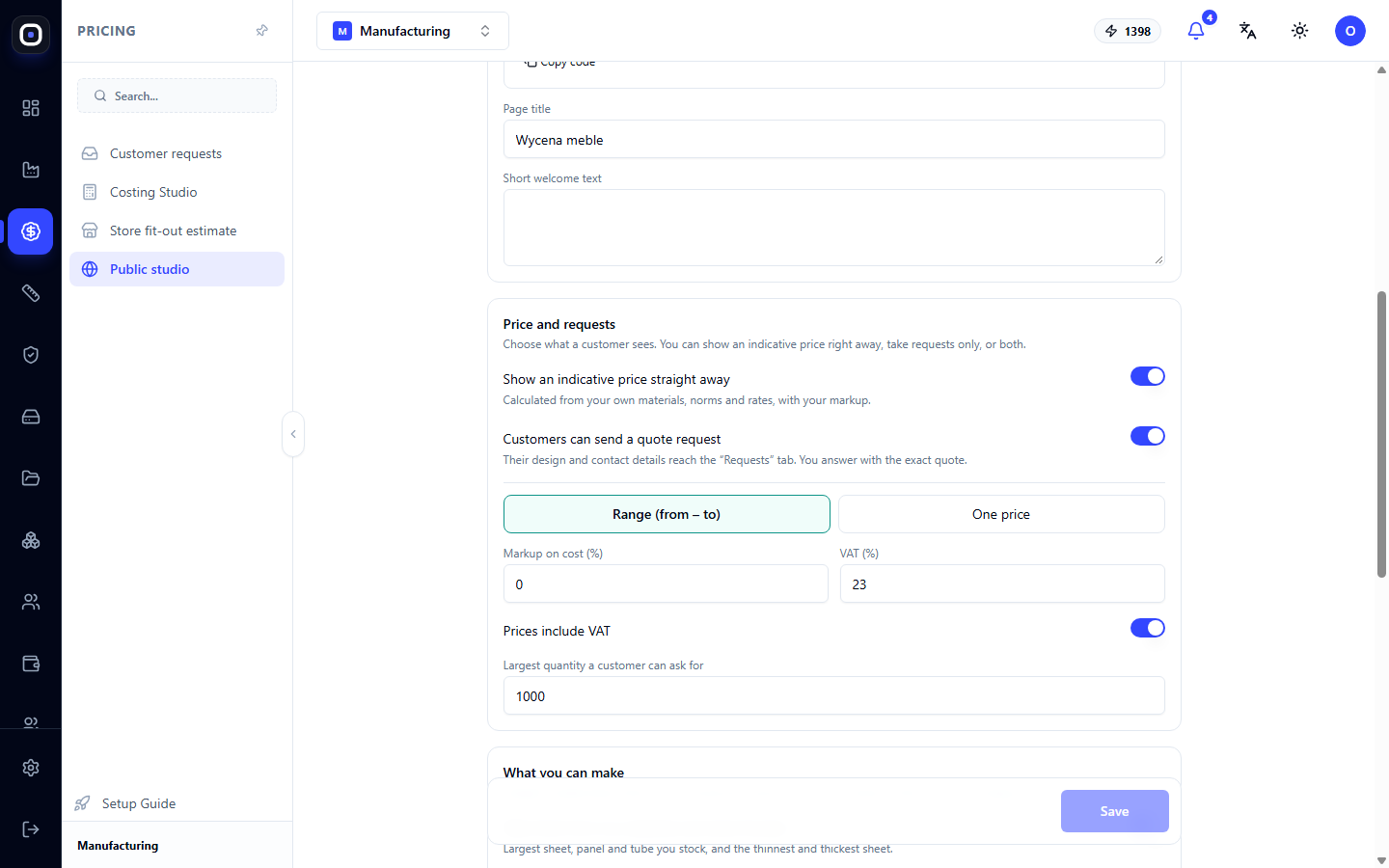
Here you decide what the customer sees. The two toggles can be enabled separately or together.
- Show estimated price immediately. The price is calculated based on your materials, norms, rates, and markup. The customer sees it as soon as they change the size.
- Customer can send a request for a quote. Their project and contact information appear on the "Requests" tab, and you respond with an exact price.
There are additional settings for price display:
- show a range ("from - to") or a single price. A range is more honest for an estimated price and leaves room for clarification;
- show prices with tax or without.
Limitations
The last block sets the limits of what the customer can design: minimum and maximum dimensions. The "Take limits from my materials and stock formats" toggle sets them automatically: the customer won't be able to draw a shelf longer than the sheet you purchase.
This way, the studio won't accept an order that you physically cannot produce.
Changes are saved by the Save button at the bottom.
"Templates" tab
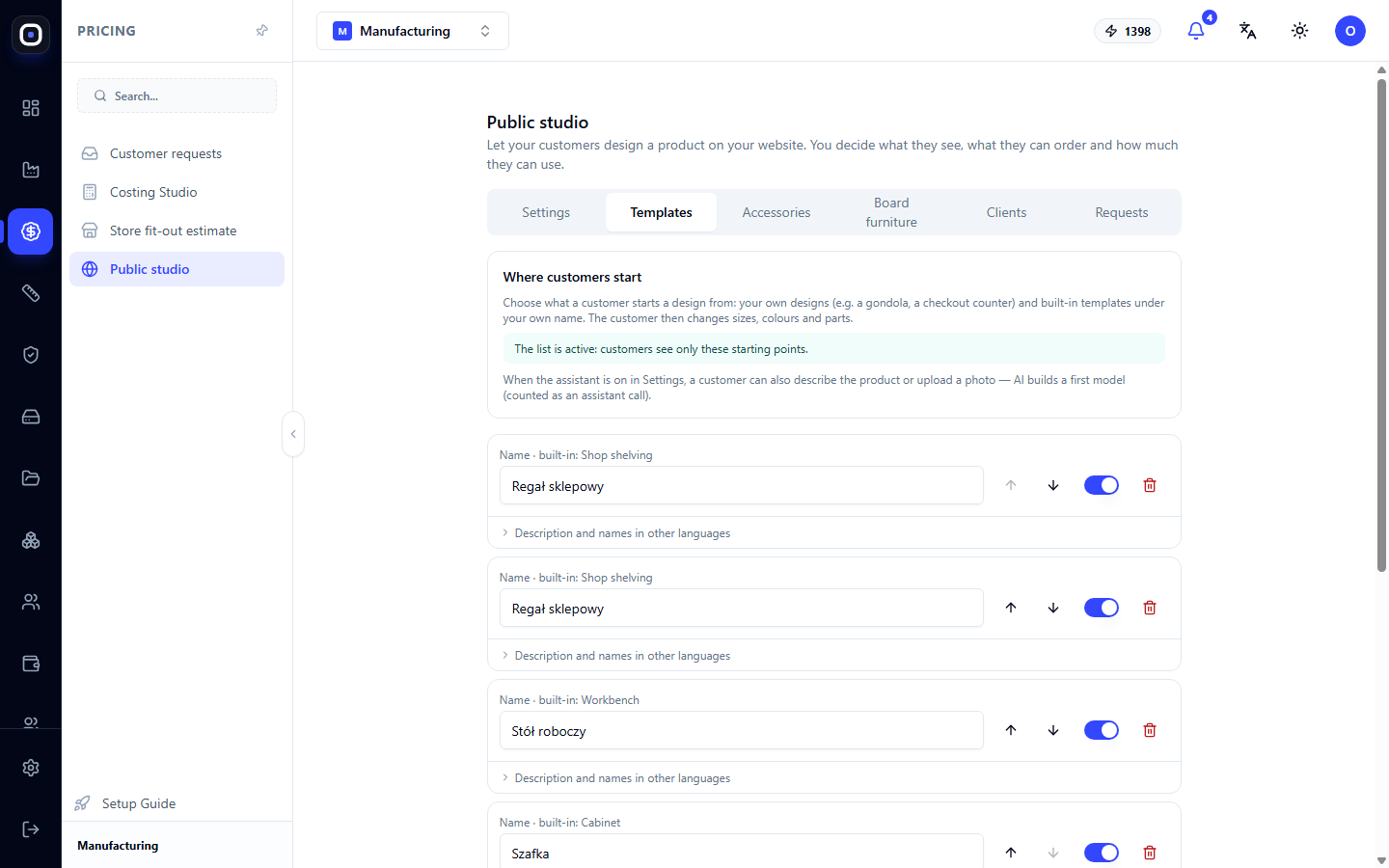
The customer doesn't start from a blank slate. They choose a template: a shelving unit, a cabinet, a table, a shelf, and then customize it.
All templates are visible on this tab. Each can be enabled or disabled with a toggle, moved up or down, and deleted. The order on this tab is the order in which the customer sees the products.
Show customers only what you truly do well and quickly. Five successful templates work better than thirty random ones.
"Accessories" tab
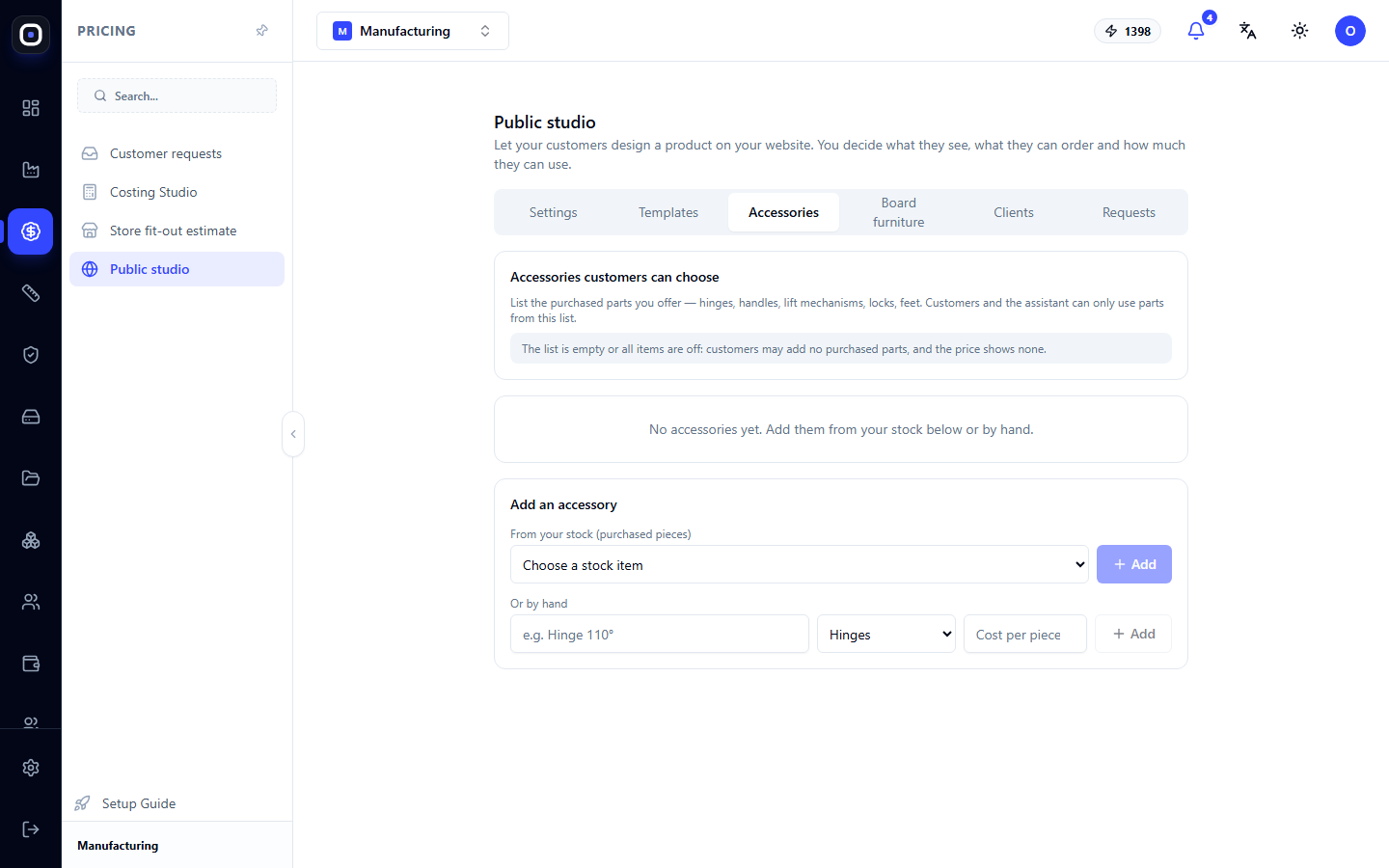
Accessories are what the customer adds to the product: legs, handles, wheels, shelf supports, hooks. Each has a name, price, and unit.
An accessory can be added from your stock or a new one can be created. The price of the accessory is added to the product's price.
"Panel Furniture" tab
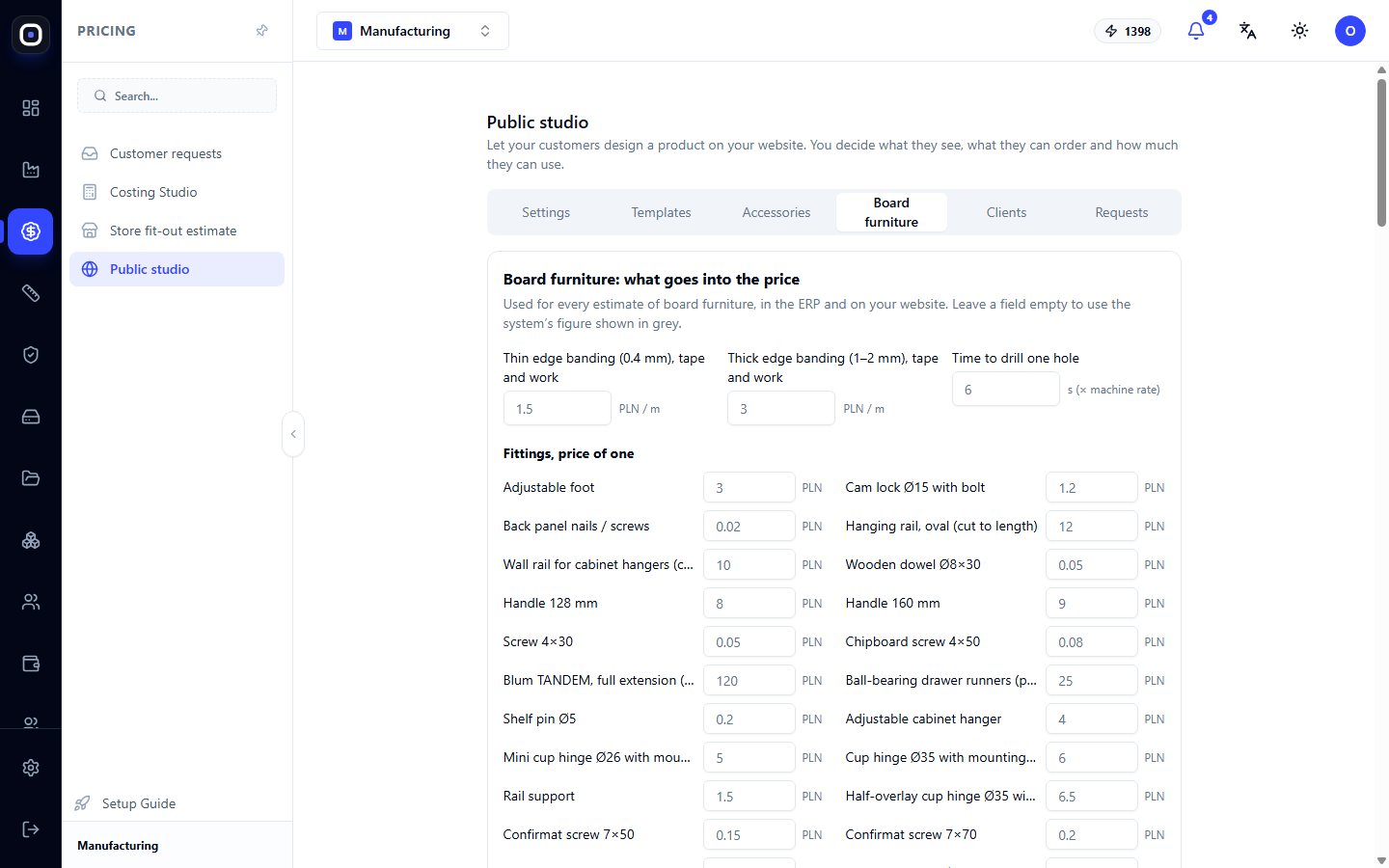
A separate tab for panel furniture, as they have their own pricing logic. Here you set:
- what is included in the price: cutting, edgebanding, drilling, assembly;
- prices per meter of edgebanding of different thicknesses;
- a list of fittings: hinges, slides, connectors, handles, legs, with a price per piece.
The system automatically calculates how much edgebanding and fittings are needed for the designed cabinet and adds this to the price.
"Customers" and "Requests" tabs
Customers shows who has used the studio. Here you also set how many projects or calculations one customer can make. The limit is needed to prevent abuse of the studio.
Requests shows projects that customers have submitted for a quote, along with their contact information. Each such request also goes to the "Customer Requests" page, where a manager works with it.
What it looks like for the customer
- The customer opens the studio on your website.
- Selects a template.
- Changes dimensions, material, and color. The model updates immediately.
- Adds accessories.
- Sees the estimated price, if you show it.
- Sends a request and leaves contact information.
You receive not "I want a shelf," but a finished model with dimensions, materials, and a list of parts.
Typical setup order
- Leave the publication toggle off.
- On the Templates tab, enable the products you want to offer.
- Add accessories and fill out the Panel Furniture tab if you make panel furniture.
- In Settings, decide whether to show the price and set limitations.
- Click Open and go through the customer's journey yourself.
- Turn on "Studio open to all".
- Embed the studio on your website.
Frequently Asked Questions
Is it safe to show the price immediately?
If material prices and rates are up-to-date, yes. For extra security, show a range: it doesn't commit you to an exact amount.
The customer designed a product we cannot make.
Set dimension limits or enable "Take limits from my materials and stock formats".
The studio address is empty.
The "Studio open to all" toggle is off.
Where does the price in the studio come from?
From the same data as in Costing Studio: material prices, time models, rates, and markup. There's no need to maintain a separate price list for the studio.
Someone made a hundred calculations in one day.
Set a limit on the "Customers" tab.