Scenario: From Order Launch to Finished Product
An end-to-end manufacturing example: order launch, nesting and materials, work dispatch, shop floor operations, scrap and replacement, assembly welding, quality control, and closing.
This scenario shows the journey of a single order through the shop floor. The client approved twenty racks. Each rack consists of four pipe uprights, five sheet metal shelves, and purchased fittings. The uprights are laser-cut, the shelves are cut and bent, the frame is welded, and everything is painted.
We will go through all the steps and see what to do when something goes wrong, because that always happens in manufacturing.
Who is involved
- Planner launches the order, plans nesting and materials.
- Foreman dispatches work and makes decisions on the shop floor.
- Operators perform operations.
- Controller checks quality.
In a small factory, these could be two people. The roles do not disappear.
Step 1. Launch the order
Open the Production Board, find the draft, and click Launch to Production.
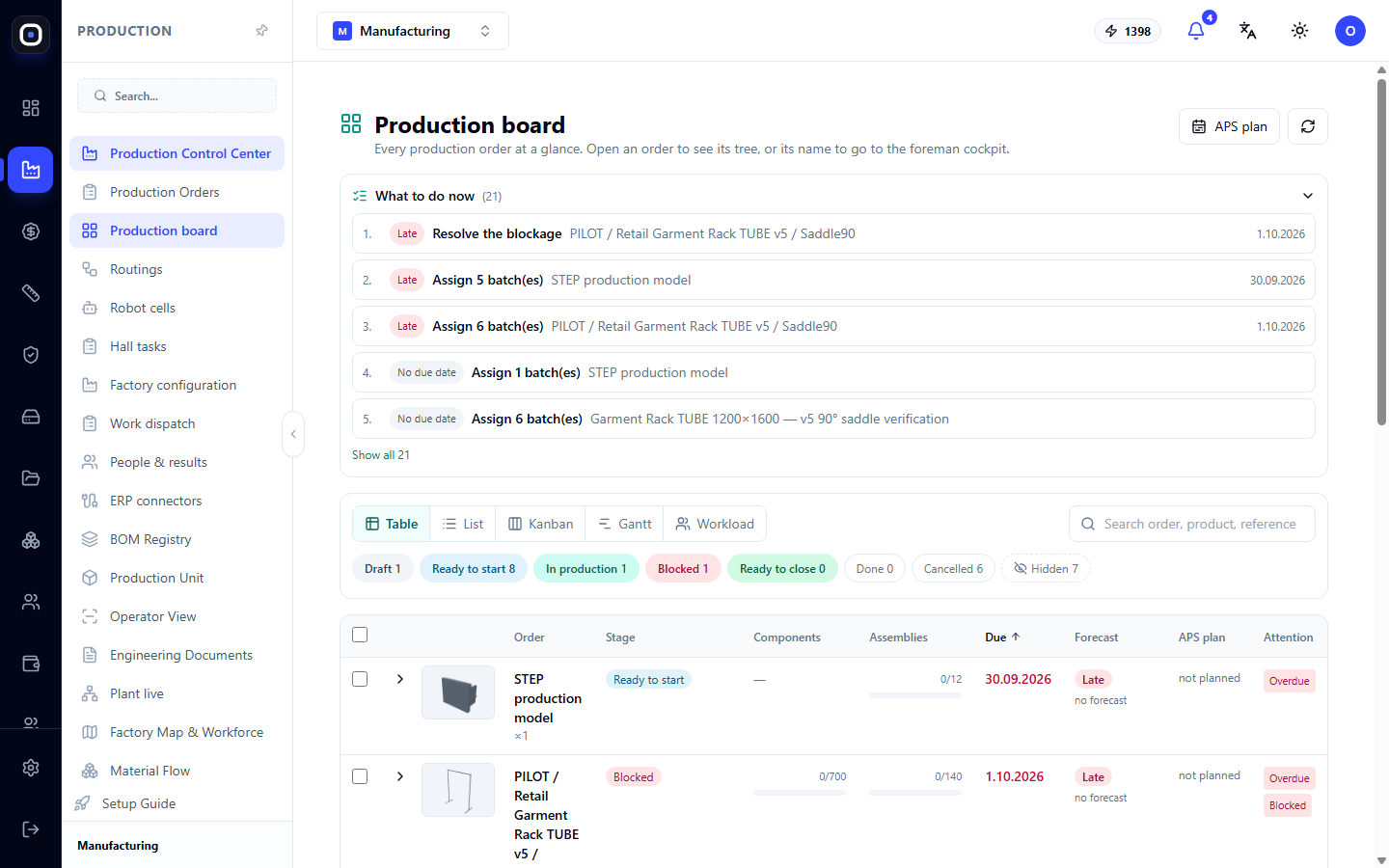
The system checks readiness, fixes the specification, and creates production batches: uprights, shelves, frames.
If it doesn't launch. The system will state the reason. Most often, there is no released routing for one of the part types. Open the routings, complete and release them.
Step 2. Plan nesting
Open Production Orders, expand the order, and click Plan Supply (nesting).
The system will compare demand with stock. If ten finished uprights remained from the previous order, it will plan to cut only seventy, not eighty. For the rest, it will create two tasks: one for pipe, one for sheet metal.
Review the list of missing items: it should only contain fittings.
Step 3. Check material
Open Material Flow and find the order card. Look at the Missing number.
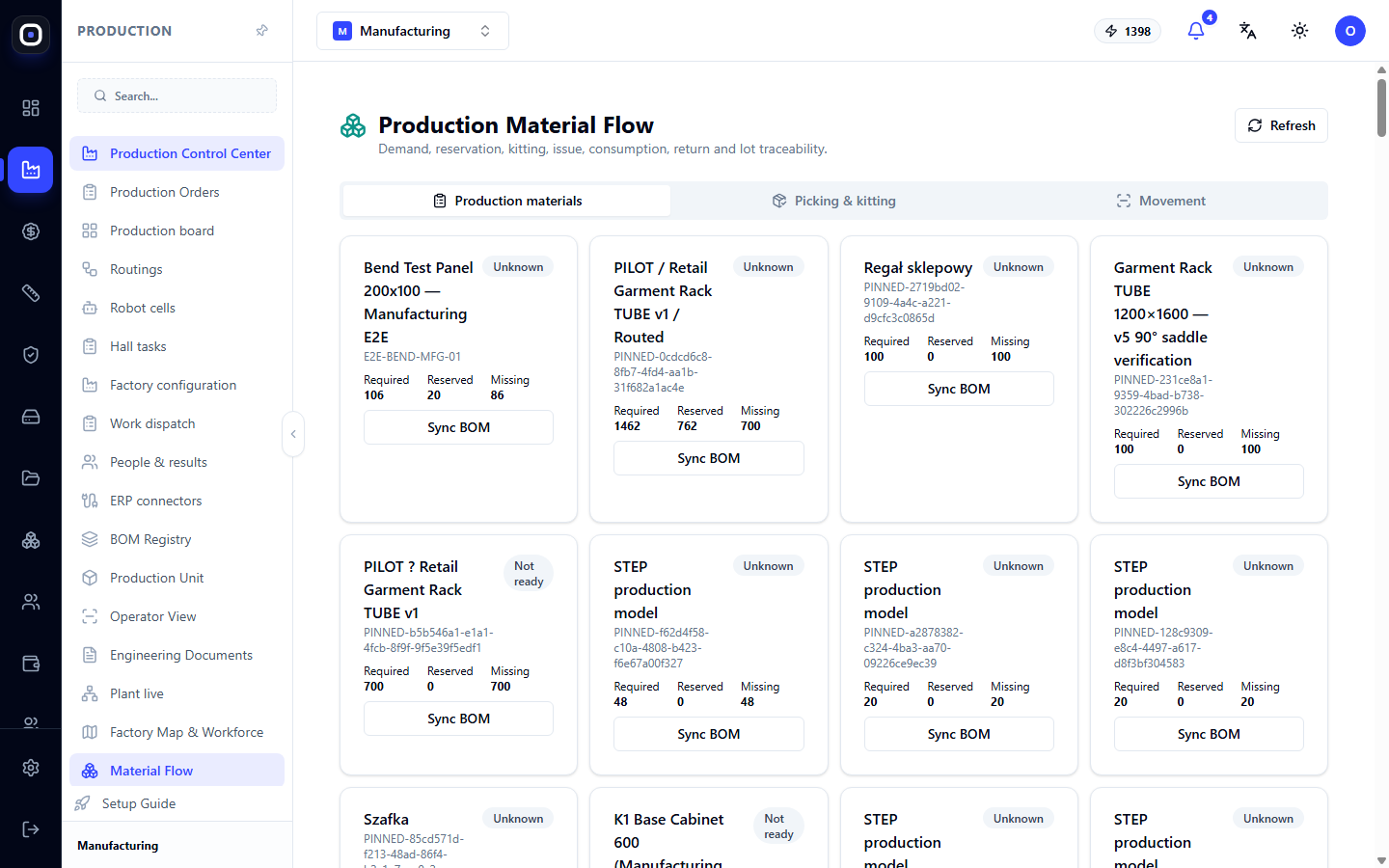
Reserve what is in stock. For what is missing, place a purchase order right now, not when the operator comes for the pipe.
If material is not available. Don't wait. Start with the parts for which material is available, and monitor the deadline on the board.
Step 4. Dispatch work
The foreman opens the Foreman Cockpit for this order. The 3D map shows which parts are ready to start.
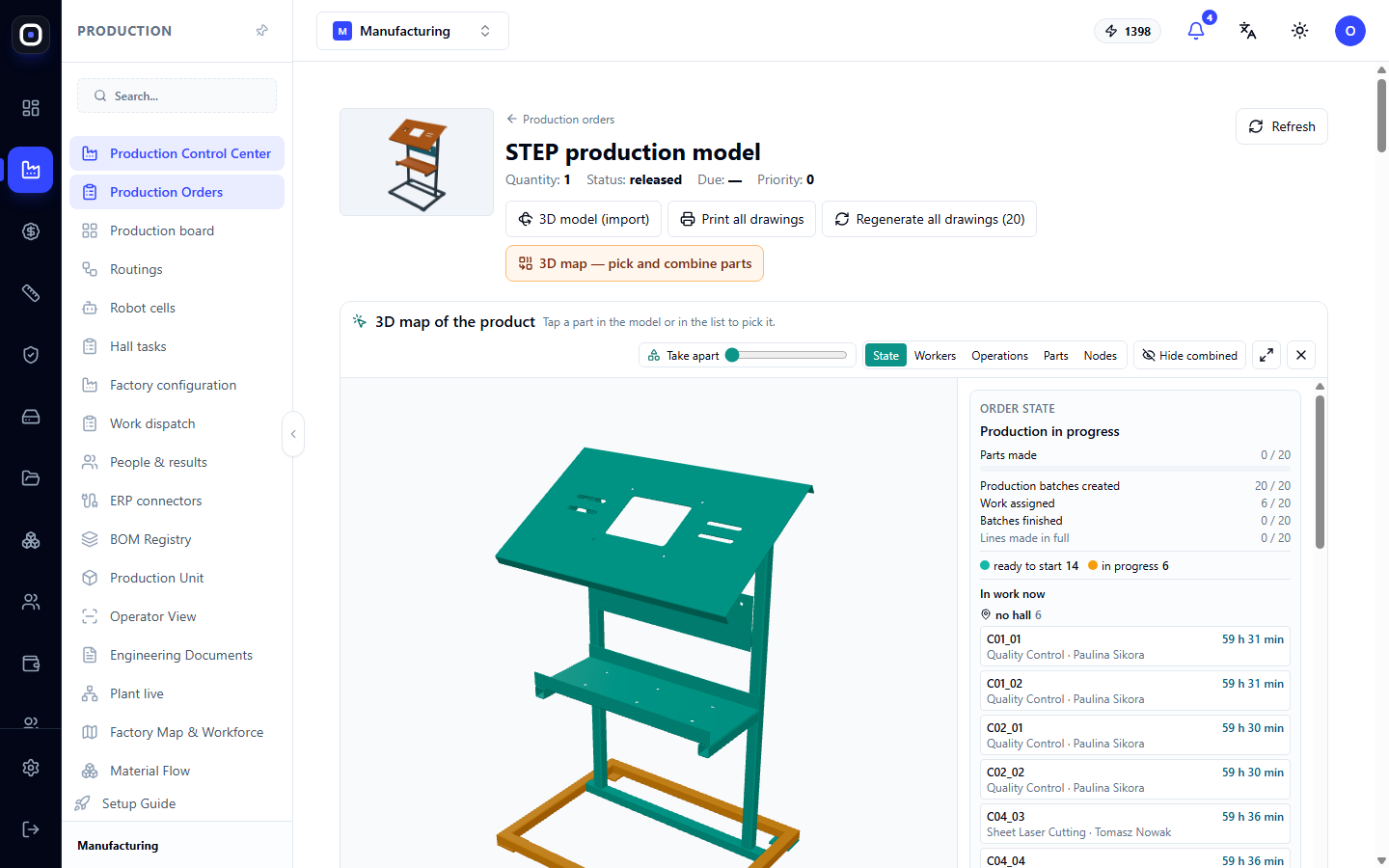
He marks ready parts and assigns performers. The same can be done on the Work Dispatch page for all orders at once: drag work from the pool to people or click Dispatch automatically.
If there's no one to assign. The system only shows people with the required skill. If the list is empty, either everyone is busy, or no one has the skill recorded.
Step 5. Cutting
The laser operator opens the Operator Workstation, scans the machine and batch, and clicks Start. Drawings and program files are available in the open batch.
After each cut blank, he reports on the Post-Nesting Acceptance page: which blank was cut, how many parts were obtained, and what the remnant is.
If the operator does not report. The next operation will not start, because the system does not yet have the parts. This is the most common reason for "stuck" orders.
Step 6. Bending
Shelves go to the press brake. The operator opens the Bending Operator Center, selects the part and machine, and performs bends in the recommended order, confirming each one.
Step 7. What happened: scrap
During bending, one out of twenty shelves is spoiled. The operator clicks Complete and indicates: nineteen good, one scrapped, reason — incorrect angle.
What happens next without any additional actions:
- a mark appears on the foreman's cockpit: one piece for replacement;
- the order on the board shows that something is missing.
The foreman clicks Replace Scrap. A new batch is created for exactly one shelf. It goes through the same routing: cutting, bending.
Orders are not restarted. Nineteen good shelves move on, and the twentieth catches up.
If there is stock in the warehouse. Instead of a new batch, a finished shelf can be taken from stock. The panel will show if any are available.
Step 8. Assembly welding
Uprights and crossbeams are ready. Now they need to be welded into frames. The welder does not decide what to weld with what.
The foreman marks the parts of one frame on the 3D map and clicks Combine. He selects welding, specifies the quantity. A W-1 assembly appears with its own batch, model, and assembly drawing.
When all parts of the assembly are ready, the welder sees it on his terminal, takes it, and starts work.
If the welder does not see the assembly. One of its parts is not yet ready. The assembly card indicates what it is waiting for.
Step 9. Quality control
In the frame's routing, after welding, there is a "Quality control required" mark. As soon as the welder completes the operation, a check appears on the Quality Management page.
The controller inspects the frame and records the result.
If the check fails. There are two paths. If the weld can be re-welded, the frame is sent for rework: the same batch returns to the welder. If not, scrap is proposed, approved by an authorized person, and the foreman initiates a replacement.
Step 10. Painting and assembly
Frames and shelves go through the remaining routing steps in the same way: assignment, start, completion. On the foreman's cockpit, progress grows in suitable pieces.
Step 11. Closing
When all items are fully manufactured, the "Ready to close" message appears on the foreman's cockpit, and the order on the board moves to the corresponding stage.
Before closing, check:
- if there is any unreplaced scrap;
- if all reworks are closed;
- if remaining material has been returned to stock.
Close the order.
What remains after the order
Even after closing, the system retains a complete history.
- Every part. Who made it, when, and on which machine.
- Every decision. Who replaced scrap, changed the routing, assigned a performer.
- Actual time. How long each operation actually took. The next estimate for such a product will be more accurate.
- Reasons for delays. What exactly took time.
If a client returns with a complaint six months later, you can instantly find out which batch of metal and by whom their rack was made.
Daily rhythm during execution
In the morning. The planner opens the production board and goes through the "What to do now" list. The foreman opens work dispatch and addresses alerts.
During the day. The foreman responds to scrap and delays on the order panel. Operators work from their workstations.
In the evening. The foreman dispatches work for tomorrow. The planner checks for any red forecast marks.
Most common reasons for delays
Operators do not mark work
The system only sees what is recorded. An incomplete operation or a missed nesting report stops everything that follows.
No routing or time standard
Without a routing, a part cannot be launched; without a standard, the deadline cannot be calculated.
Material ordered too late
Shortages are visible on the launch day. Look at them on the launch day.
Scrap not replaced
Unreplaced scrap prevents an order from being closed. It is immediately visible on the foreman's cockpit.
Assembly not created
Parts are ready and waiting, but the welder sees nothing because the foreman has not combined them into an assembly.