Quick Estimate: Product Price from Photo or Description in Four Steps
Did the client only send a photo? Describe the product, confirm the design and materials, get an editable 3D model, and calculate the cost using your company's data. Or start with ready-made files.
The most common sales request goes like this: a photo from a phone and the question "how much will twenty of these cost?". There are no drawings, no model, but an answer is needed today.
The Quick Estimate section was created precisely for this. The path is described under the heading: describe the product, confirm the design and materials, create an editable CAD, and calculate the cost based on the company's production data.
The keywords here are the last ones. The price is calculated not "approximately, as on average in the market," but using your materials, your rates, and your time standards.
Where to find it
Open Costing Studio and click on the Quick Estimate section. Buttons from the shop estimate and client request also lead to it.
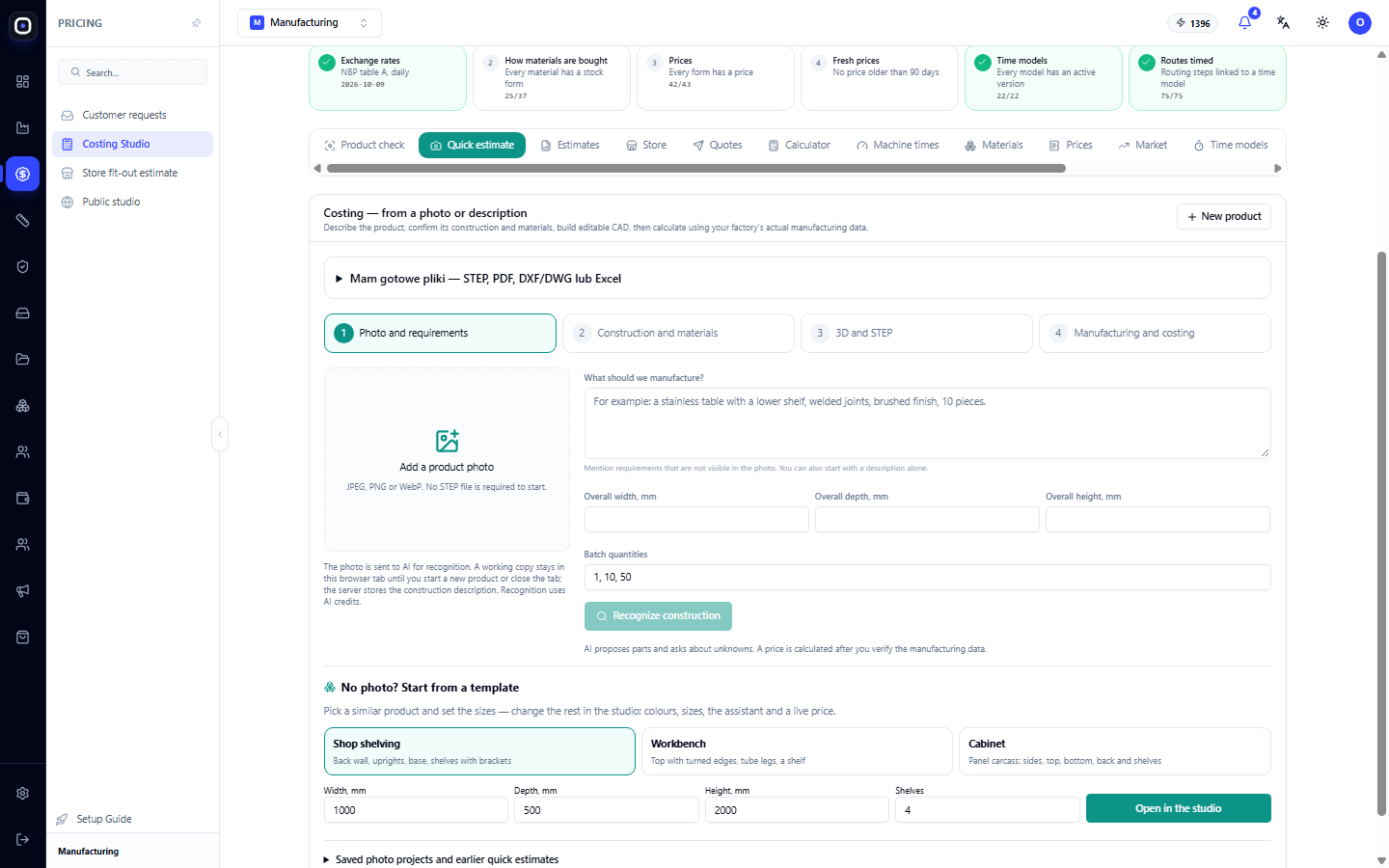
The New Product button in the top right corner starts a new estimate from scratch.
Four steps
At the top of the section, you can see four numbered steps. The current one is highlighted.
- Photo & Requirements
- Design & Materials
- 3D Model & STEP
- Production & Costing
Each subsequent step builds on the previous one, so you cannot skip ahead.
Step 1. Photo & Requirements
Add a photo
Click on the "Add product photo" field or drag a file there. JPEG, PNG, and WebP formats are supported. A STEP model is not needed to start.
Below the field, there is an important explanation of what happens with the photo:
- the photo is sent to the AI assistant for recognition;
- a working copy remains in this browser tab until you start a new product or close the tab;
- the design description is saved on the server;
- recognition consumes AI credits.
Describe what is needed
The "What needs to be manufactured?" field is for everything not visible in the photo: material, coating, load, special requirements. For example: "Shelf made of 30 × 30 square tube, laminated board shelves, powder coated black."
You can start with just a description, without a photo.
Specify dimensions
Three fields: overall width, depth, and height in millimeters.
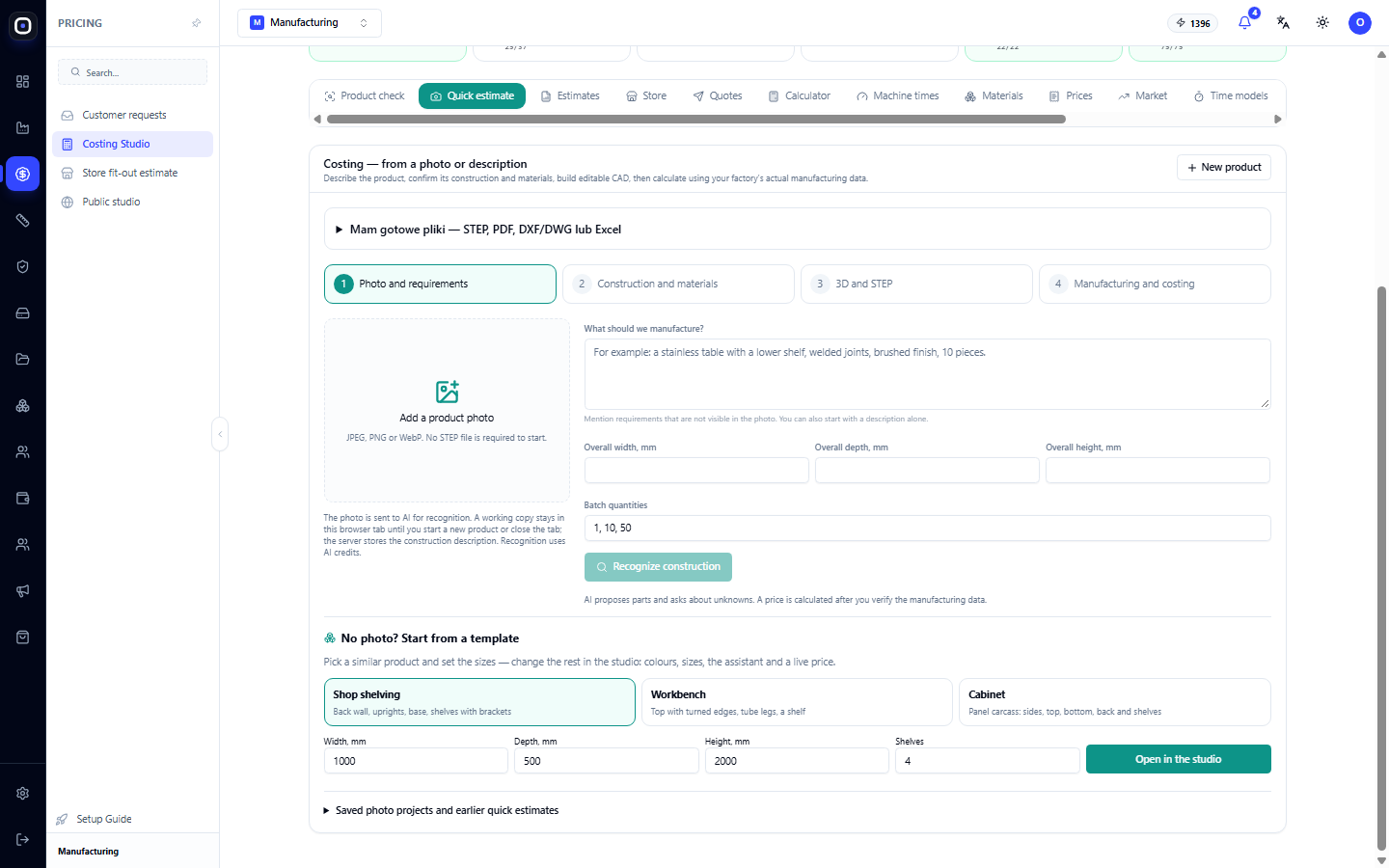
These are the most important numbers for this step. From a photo, the assistant understands the shape but not the scale: a one-meter-high shelf and a two-meter-high shelf look the same in a picture. Dimensions tie the shape to real sizes.
Specify batch sizes
List the quantities for which a price is needed, for example, 1, 10, 50. The price per piece for different batches varies, and it is useful for the client to see this immediately.
Click the recognition button to proceed.
Step 2. Design & Materials
The assistant suggests what the product consists of: a list of parts, their dimensions, the material of each, and the connection method.
This is the most critical step for you. The assistant proposes, and you check and correct:
- whether the number of parts is correct;
- whether the profile and thickness are correct;
- whether the material is what you actually use;
- whether anything is missing that is not visible in the photo: back wall, stiffeners, fasteners.
Choose materials from your directory. If you select a material for which you do not have a price, the estimate will not be calculated.
Do not spare time on this step. An error here carries over to the model and the price.
Step 3. 3D Model & STEP
From the confirmed design, the system builds a three-dimensional model. It can be rotated and visually checked: does it look like the photo?
The model is editable. It's not just an image, but real geometry from which a STEP file can be obtained and with which the designer and workshop will later work.
If something is wrong, go back one step, correct the design, and build the model again.
Step 4. Production & Costing
The system assigns routes to parts, calculates operation times based on time models, and compiles the cost: material, machine labor, human labor, overheads, scrap reserve.
The result is the price per piece for each batch size.
From here, the estimate can be:
- opened in Manufacturing Advisor to see the price structure and risks;
- converted into a client proposal;
- added as an item to the shop estimate.
If you already have files
Above the steps, there is a line for those who have ready-made materials: a STEP model, PDF, DXF or DWG drawing, or an Excel table. Expand it and upload the files.
This is a faster and more accurate path. Photo recognition is only needed when nothing else is available.
- STEP — the system takes geometry directly from the model.
- DXF or DWG — flat parts with a drawing.
- PDF — drawing for recognition.
- Excel — list of parts in a table.
How accurate is the quick estimate?
The honest answer: as accurate as your data and your corrections in the second step.
- Prices and rates are yours; there is no error here.
- The design is recognized from the photo and confirmed by you. If you checked carefully, it is close to the real one.
- Minor details not visible in the photo may be missed.
Therefore, a quick estimate is suitable for the first answer to a client and for deciding whether to take on an order. The final price should be confirmed after agreeing on the exact design.
Before sending the price, open the estimate in Manufacturing Advisor: it will show what proportion of the cost relies on assumptions.
Typical workflow
- Open Costing Studio → Quick Estimate and click New Product.
- Add a photo or upload ready-made files.
- Describe requirements, specify dimensions, and batch sizes.
- Start recognition.
- Carefully check and correct the design and materials.
- Build a 3D model and review it.
- Get the costing.
- Check it in Manufacturing Advisor.
- Generate a client proposal.
Frequently Asked Questions
The assistant recognized the wrong design
Correct it manually in the second step. If the discrepancy is large, add a more precise description in the requirements field and recognize again.
The dimensions in the model are incorrect
Check the dimensions in the first step. The system does not know the scale from a photo.
The estimate is not calculating
Most often, there is no price for the selected material or no route for the part type. The "Product Check" section will show which link is missing.
Does the client's photo remain in the system?
A working copy lives in the browser tab until a new product is started or the tab is closed. The design description is saved on the server.
How much does this cost in AI credits?
Recognition consumes workspace credits. The remaining balance is visible in the top bar of the screen. Model building and calculation using your data do not require recognition.
Can a product be estimated without a photo?
Yes. You can start with just a description and dimensions or with ready-made files.