Routing Designer: How to Assemble a Workflow from Steps
Visual routing designer: steps as a diagram, properties of each step, warnings before release, duplicating as a draft, and releasing a new version.
The Routings list shows which routings you have. The Routing Designer shows what one of them consists of and allows you to modify it. This is where the technologist describes the actual technological process: first cutting, then bending, then welding.
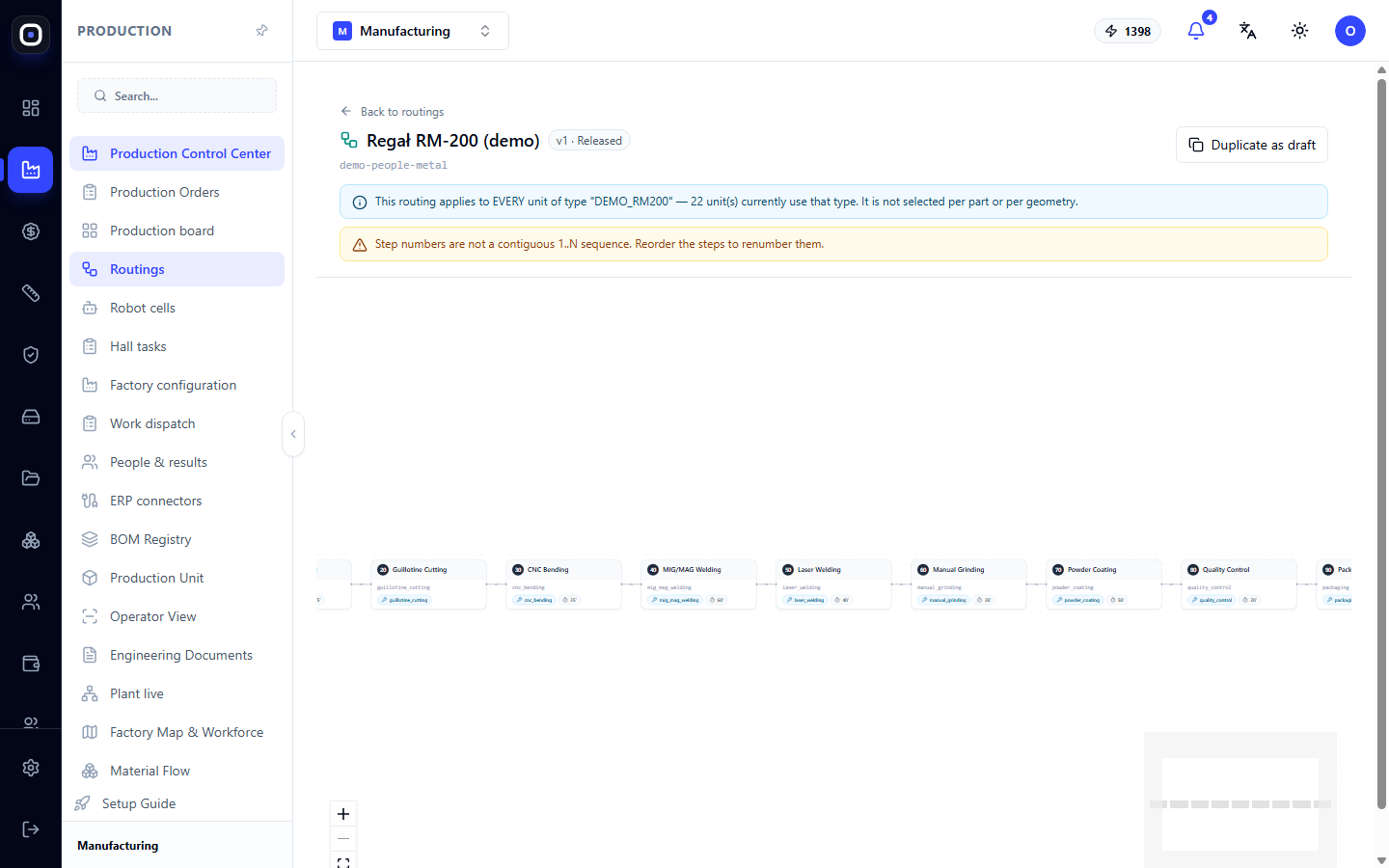
The routing here looks like a diagram: steps go from left to right and are connected by arrows. This immediately shows the entire path of the part.
How to open the designer
Open Production → Routings and click on the row of the desired routing. The Back to Routings link at the top returns to the list.
Routing Header
At the top, you see the routing name, its status (Draft, Released, or Replaced), key, and version.
On the right are action buttons. Which ones depend on the status:
- a draft has Add Step and Release;
- a released routing has Duplicate as Draft.
This reflects the main rule: a released routing cannot be changed directly.
Two Warnings
Below the header, there may be two colored lines. You should read them every time.
Blue line: who the routing will affect
It reminds you that the routing applies to all units of a certain type and states how many units are currently using this type. For example: the routing applies to all units of type DEMO_RM200, there are currently 32 of them.
Routings are not chosen for each part individually. By changing it, you change the path of all parts of that type. The number in the blue line shows the scale of the consequences.
If the unit type is not specified, the line will say that no units will follow this routing.
Yellow line: what's wrong
It appears when the system finds a problem. For example:
- step numbers do not form a continuous sequence 1, 2, 3 and so on;
- one number is used twice;
- a step refers to an operation type that no longer exists;
- all steps are conditional, and a part might be found without any operation.
With some warnings, the routing can be released; with others, it cannot. In any case, first understand what they mean.
Step Diagram
The main part of the screen is occupied by the diagram. Each step is a card with a number, operation name, and brief information: on which equipment, how many minutes.
Cards are connected in the order in which the part goes through operations. In the lower left corner are zoom buttons, and in the right corner is a minimap, useful for long routings.
If there are no steps in the routing yet, the diagram is empty, and the system prompts you to add the first operation.
Step Properties
Click on a step card, and the "Route Step Properties" panel will open on the side. Here you set everything related to this operation.
- Operation Type — what we are doing. The list is taken from the factory's directories.
- Required Workstation Capability — what the machine must be able to do. Based on this field, the system finds equipment on which the step can be performed.
- Required Document — what the operator needs to see: drawing, CNC program, work instruction, quality instruction.
- Estimated Minutes — standard time. If the step is tied to a time model, time is calculated from the part's geometry.
- Quality Control Required — a check is automatically created after the step.
- Previous Step Must Be Completed — whether this step can start before the previous one is completed.
- Required Evidence Tags — what the operator must add as confirmation, e.g., a photo of the finished part.
After making changes, click Save Step. The Delete Step button removes it from the routing, and Close collapses the panel.
Conditional Execution
In the same panel, there is a "Conditional Execution" block. It allows one routing to serve similar but not identical parts.
- Always execute this step.
- Only if the part uses a specific process.
- Only if the part uses one of several processes.
Example. In the sheet metal routing, there is a "bending" step. Flat parts do not need it. Instead of two routings, we make one, and make bending conditional: only for parts whose process profile includes bending. A flat part will simply skip this step.
A conditional step card shows a tag with the condition.
How to Add and Arrange Steps
- Click Add Step. It will appear last.
- Fill in its properties.
- To change the order, move the step. The system will renumber the steps itself so that the numbers are consecutive.
You can only add a step if there is at least one active operation type in the workspace. If there are none, the system will ask you to create an operation type in the directories first.
Releasing a Routing
When the steps are ready, click Release. The following will happen:
- The system will check the routing. If there are errors, it will show: "Fix the errors below before releasing."
- If there are no errors, a confirmation window will appear. It will again state how many units are currently using this type: after release, each of them will follow this routing.
- If there are remaining warnings, the window will mention them. You can release, but it's worth reviewing them first.
- After confirmation, the routing becomes released, and the previous released routing of this type is marked as replaced.
A routing without any steps cannot be released: nothing can be manufactured with it.
How to Change a Released Routing
- Open the released routing.
- Click Duplicate as Draft. A "Draft copy created" message will appear, and the copy will receive the next version number.
- Make changes to the copy.
- Release it.
The old version will remain in history with the "Replaced" status. You can always use it to find out how the part was made previously.
Practical Tips
- Start simple. Describe the main operations, and add evidence and conditions later.
- Always enter minutes. Without them, lead time forecasting, human load, and cost estimation do not work.
- Write capabilities consistently. If one step has
laser_cuttingand another haslaser-cutting, the system will consider them different things. - Place quality control where an error costs the most: after welding, before painting.
- Release changes between orders if the number of units in the blue line is large.
Typical Workflow
- Open the routing from the list.
- Read the blue line: how many units use this type.
- If the routing is released, click Duplicate as Draft.
- Add or modify steps.
- For each step, fill in the operation type, capability, and minutes.
- Eliminate the causes of the yellow warning.
- Click Release and confirm.
Frequently Asked Questions
No "Add Step" button
The routing is released. First, create a copy using the Duplicate as Draft button.
The yellow line says step numbers are not continuous
After deleting a step, there was a gap in the numbering. Rearrange the steps, and the system will renumber them.
After release, units followed the wrong routing
Check the unit type in the routing header. The routing applies to its type and only to it.
Can I delete a step that someone has already completed?
In a released routing, a step cannot be deleted. It may not be in the new version, but completed operations will remain in the unit's history.
How does the designer differ from the routings list?
The list shows all routings and allows you to create a new one. The designer shows one routing and allows you to change its steps.