AI Automation Builder
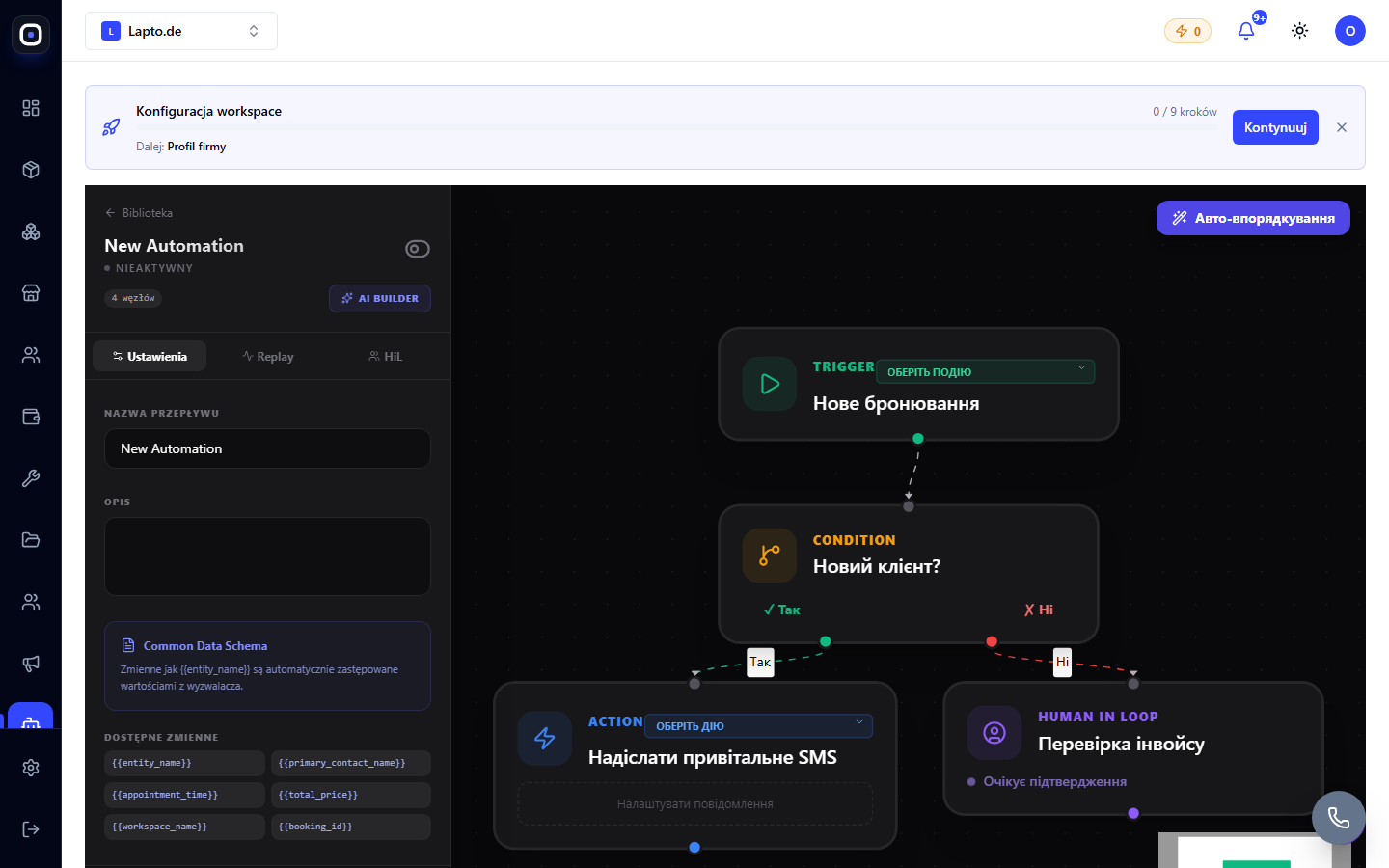
Describe your scenario in plain language — the AI Builder will assemble the trigger, conditions, and actions into a ready-made automation flow, including an AI agent as a separate step.
Instead of manually assembling a flow diagram node by node, you can describe the scenario in words — and the AI will build a draft automation.
Where to find it
In the automation editor (…/automation-editor), the "AI Builder" button (✨ icon) is in the top panel, next to the node counter.
How it works
The button opens a window with a text field: describe your scenario in words (for example, "when a new booking arrives from a new client, send a welcome SMS, and if the client is already in the database, forward it for manager review"). You can choose an AI model (Claude 3.5 Sonnet, Gemini Flash, GPT-4o, GPT-4o Mini) and several ready-made template prompts ("Smart complaint response," "Lead qualification," etc.) — you can use a template as a basis instead of describing from scratch.
The AI returns a ready-made diagram — trigger, conditions ("yes"/"no" branches), actions — which immediately appears on the canvas as a draft. You can refine it manually just like any other automation.
AI Agent as a scenario step
Among the nodes that AI Builder can add to the diagram (or that you can drag manually from the node palette) is the "AI Agent" node: a separate step that performs a task using AI directly within the scenario — classifying input data, writing text, analyzing, or routing further. In the node settings, you select the agent's role (Classifier, Copywriter, Data Extractor, Analyst, Router, Custom), the task itself in text, the model, and the type of expected result.
Credits
Each launch of AI Builder to generate a diagram, as well as each execution of an "AI Agent" node during automation operation, consumes workspace AI credits.