Scenario Editor: Triggers, Conditions, Actions
Visual automation builder: nodes on a canvas, connections, and test runs.
The Scenario Editor is a visual canvas: nodes are connected by arrows to form the process logic.
Where to find it
Automation Library → open a scenario, or New flow (…/automation-editor).
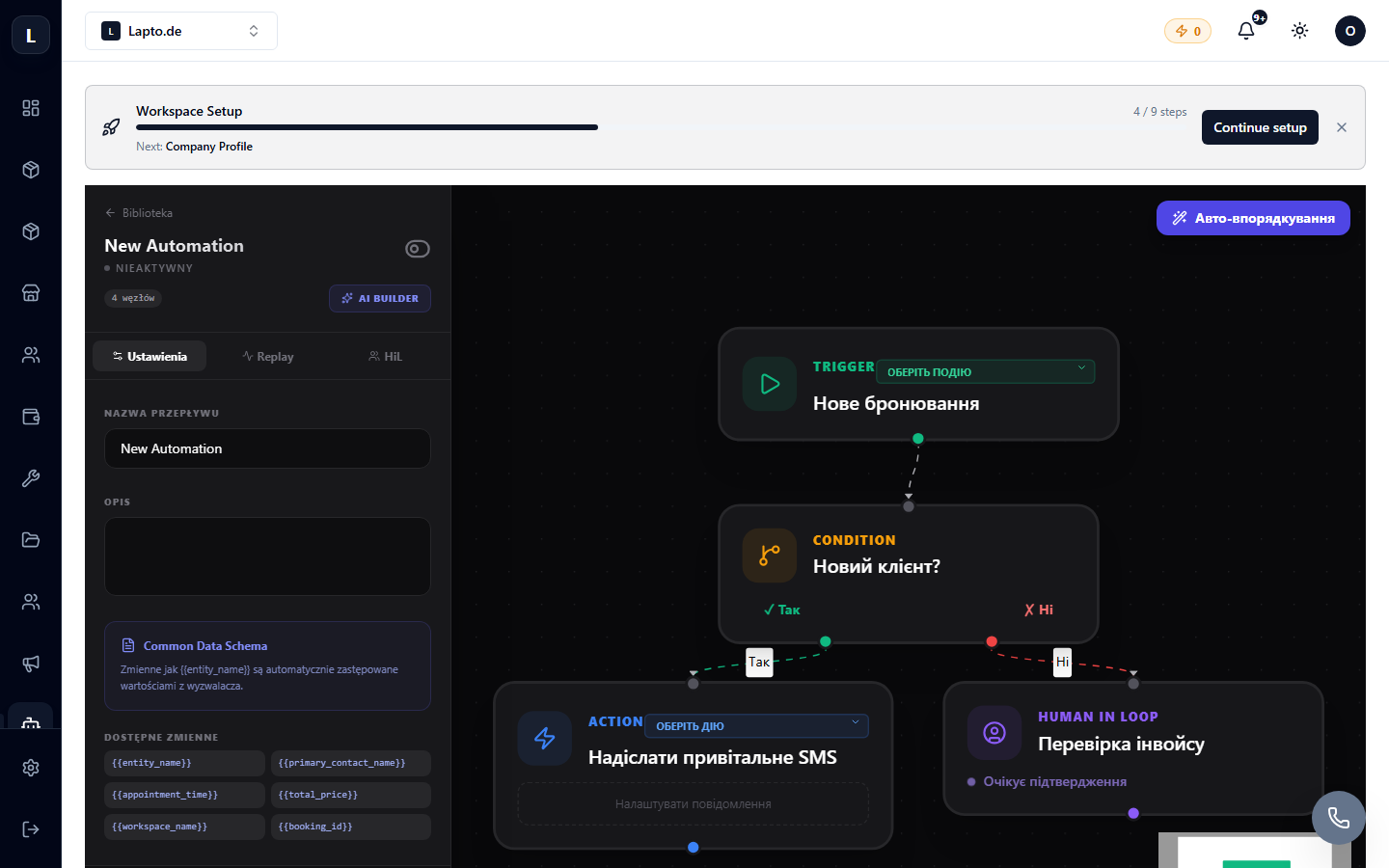
Building a Flow
- Trigger — the first node (event or schedule).
- Add nodes: conditions (Yes/No branches), actions (email, SMS, status, notification, webhook), AI steps (agent analyzes data and returns a decision).
- Connect nodes; condition branches have two outputs — true/false.
- Test run on real data will show the execution path through the nodes.
- Enable the scenario with the toggle switch.
AI Builder
Describe the desired automation in words ("when a lead with a budget over 5000 comes in, assign a manager and send a commercial proposal") — the AI will build a draft flow, and you just need to review it.
Execution Log
Every scenario run is visible in the history: when, what triggered it, which nodes were passed, where an error occurred (if any).