Factory Live: Who's at work and which machines are currently running
This page shows the factory's current status: how many people are on-site, who is producing, who is late, and which machines are running or idle—separately for each hall.
Factory Live answers the question a manager asks when entering the shop floor in the morning: what's happening right now? How many people have arrived, who is working, who is waiting, which machines are running, and which are idle.
The page updates automatically. You can display it on a large screen in your office or access it from your phone when you're away from the factory.
Where to find the page
In the left menu, open Production → Factory Live. The page address ends with …/erp/production/digital-twin.
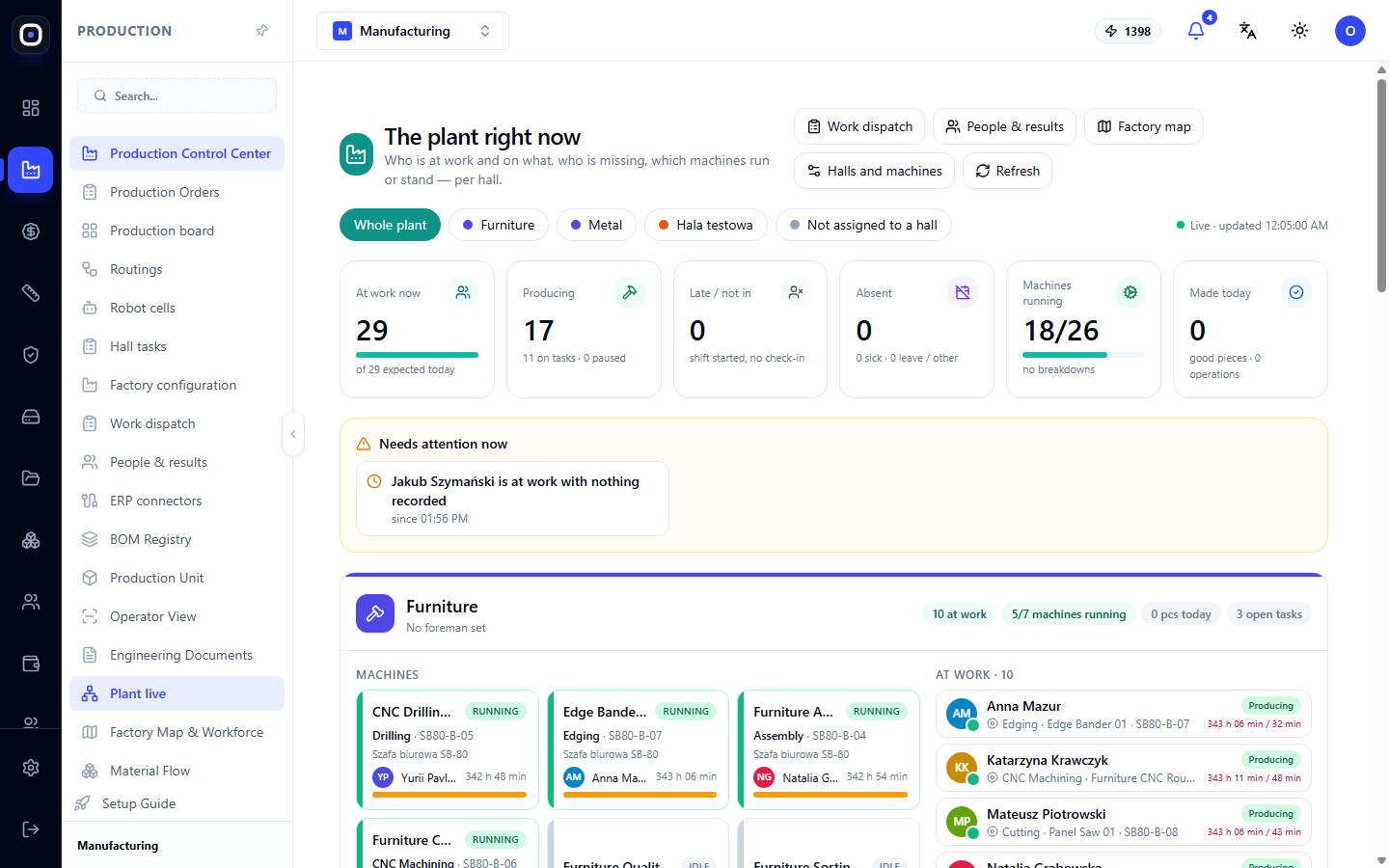
Top bar
To the right of the title are quick navigation buttons:
- Work Dispatch — assign work to people;
- People and Results — team performance metrics for a period;
- Factory map (Factory map) — factory layout;
- Halls and Machines — factory configuration;
- Refresh (Refresh) — update immediately, without waiting for automatic refresh.
Below is the hall selection: All Factory, hall names, and No Hall. To the right, it shows when the data was last updated, for example, "Live · updated 23:59:15". If the time hasn't changed for a while, check your connection.
Six indicators
- Currently at work — how many people have clocked in from those expected today. For example, "29 of 29 expected".
- Producing — how many of them are currently performing an operation. Below, it shows how many are on hall tasks and how many are on pause.
- Late / Not arrived — the shift has started, but there's no clock-in.
- Absent — on sick leave, vacation, or for another reason. The type of absence is only visible to those with permission.
- Machines running — for example, 18/26. Below, it indicates if there are any breakdowns.
- Made today — good pieces and number of operations.
The most useful comparison is between the first two numbers. If 29 are at work, but only 17 are producing, then twelve people are on-site but not on an operation. Some of them are on hall tasks, which is normal. If the rest are just waiting, it's worth opening the work dispatch.
"Requires immediate attention" block
The yellow block shows what needs immediate action:
- Machines in breakdown: reason, how long they've been idle, who stopped them;
- People who are late or haven't arrived;
- Long pauses, over 15 minutes;
- A person is at work, but nothing has been recorded. For example: "at work, but nothing recorded since 13:56".
Click on an item to open the machine or employee card.
The last type of signal is the most common. It means one of two things: the person wasn't assigned work, or they are working but not logging operations in the system. In the second case, all figures for that day will be understated.
Hall card
Below, there's a card for each hall.
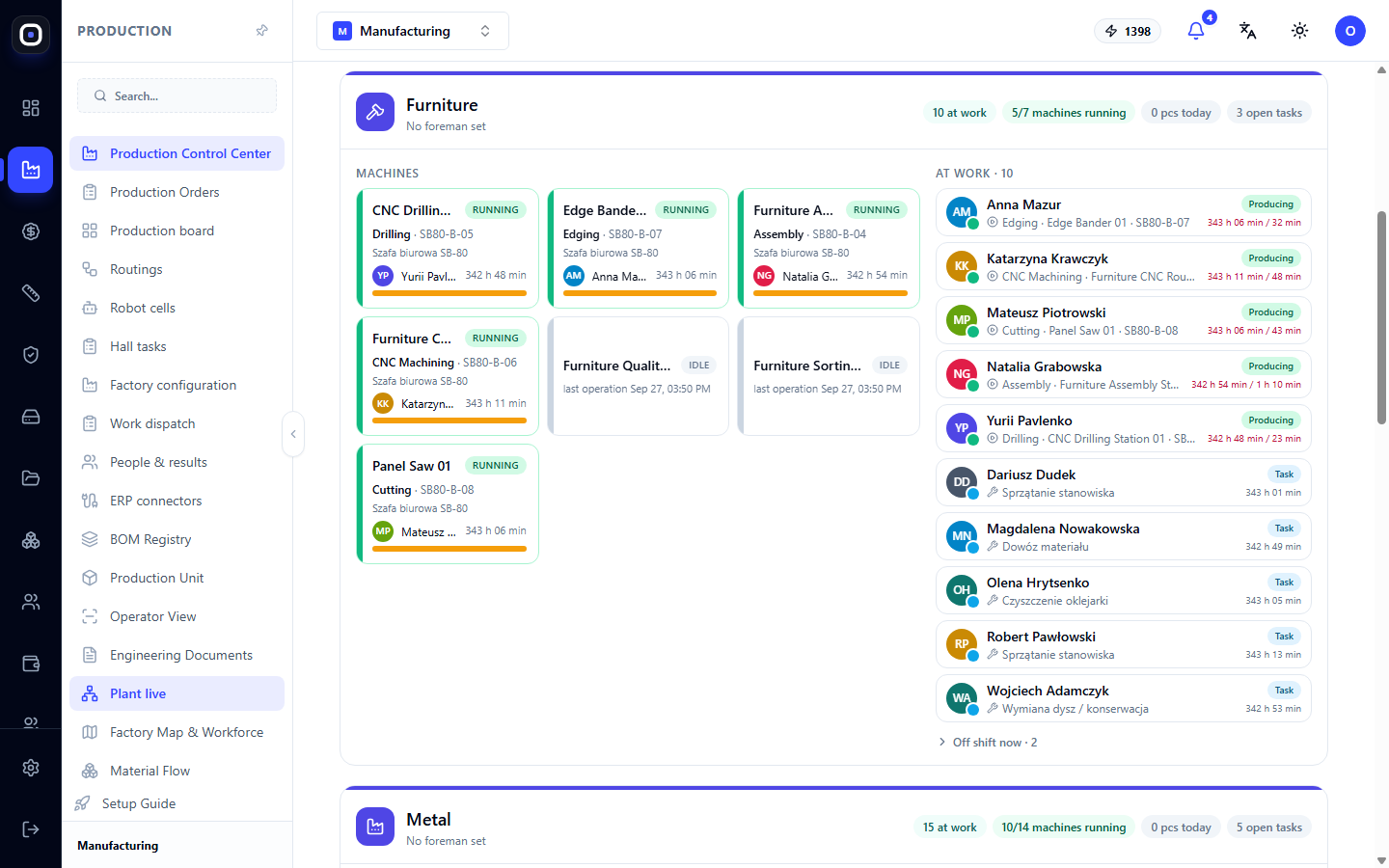
The card header shows the hall name, its master, and four numbers: how many people are at work, how many machines are running, how many pieces have been made today, and how many open hall tasks there are.
The card is divided into two parts.
Machines
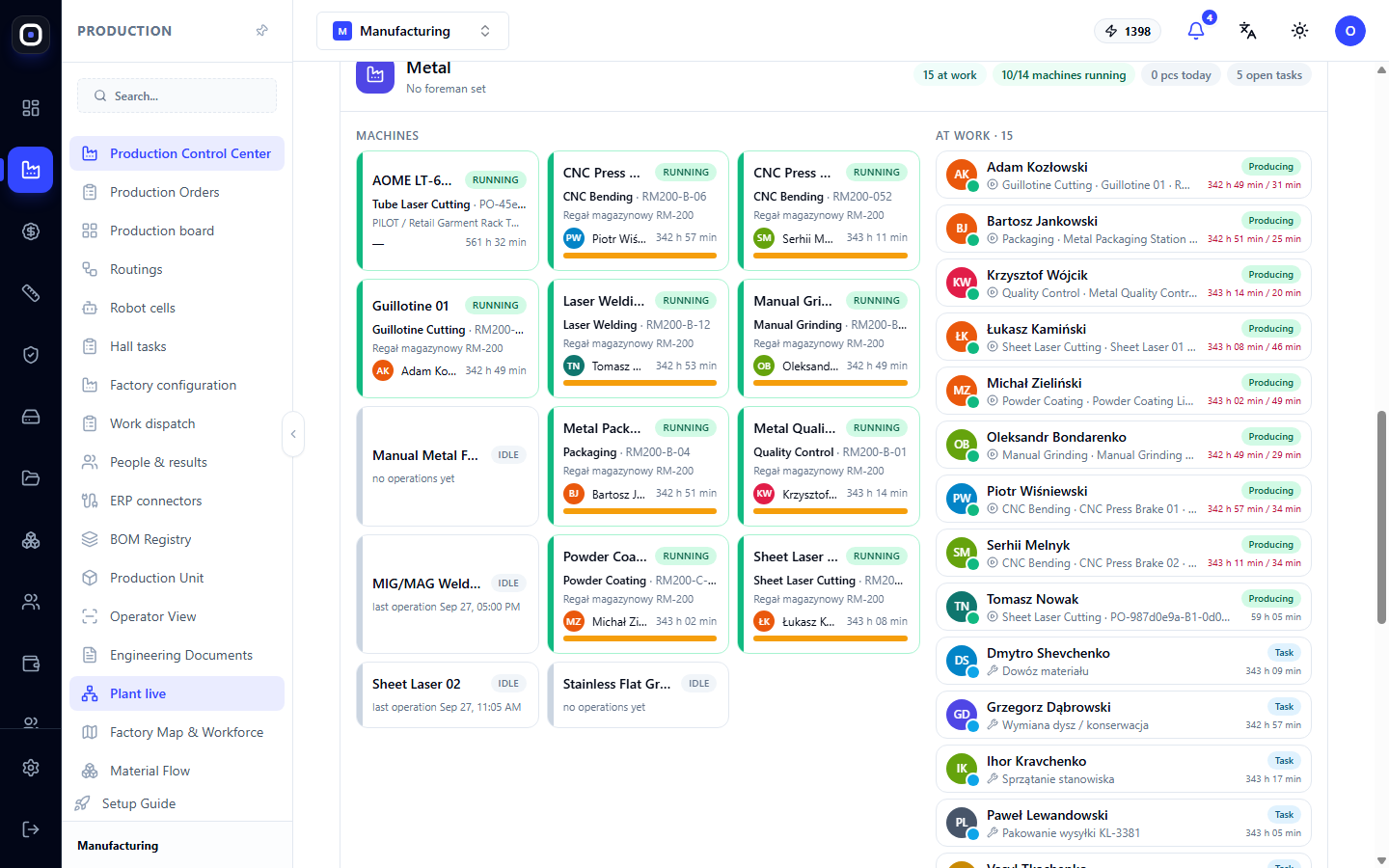
Each machine is shown as a separate tile with its status:
- Running — shows the operation, batch, product, operator, how long the work has been ongoing, and progress relative to the standard time;
- Pause or Breakdown — shows the reason;
- Free — shows when the last operation was.
If a machine has been "running" for several hundred hours, the operator forgot to complete the operation. This is not a breakdown, but it needs to be corrected because time on such operations skews statistics.
People
To the right is a list of people in the hall:
- Who is at work and what they are doing;
- Who is not on-site and why;
- Who is not on shift now. This list is collapsed and can be expanded by a button like "Not on shift now · 4".
Technical details
At the bottom of the page, a technical section is collapsed: equipment efficiency, maintenance, queues, and the digital twin of each machine. It's not needed for daily work but will be useful when you need to understand why a specific machine is idle.
The machine's digital twin is created automatically. As soon as you add a machine in the factory configuration, it appears on this page.
Where the data comes from
The page doesn't measure anything itself. It shows what is recorded in the system:
- Presence — from clock-ins at the terminal;
- Operations — from what operators start and complete at their workstations;
- Pauses and breakdowns — from the "Pause" and "Problem" buttons;
- Absences — from registered vacations and sick leaves.
Therefore, the accuracy of the page equals the discipline of record-keeping in the shop floor. If the numbers don't match what you see with your own eyes, look for where people are not logging their work.
Typical workflow
- Open Production → Factory Live at the beginning of the shift.
- Compare "Currently at work" with the expected number.
- Go through the Requires immediate attention block.
- Review the hall cards: check for machines in "Breakdown" status and idle people.
- If there are idle people and ready work, go to Work Dispatch.
Frequently Asked Questions
A machine is shown as "Free", even though it's being used
The operator has not started the operation in the system. Ask them to scan the machine and batch and click "Start".
A person is at work, but the page says "not arrived"
They did not clock in at the terminal. The page only sees clock-ins.
Why can't I see who is on sick leave?
The type of absence is only visible to users with the appropriate permission. Others simply see "absent".
A new machine hasn't appeared on the page
Check if it's added in the factory configuration and if it's assigned to a hall. If a specific hall is selected, and the machine is without a hall, look for it under the "No Hall" button.