Manufacturing Drawing Recognition: From Drawing Photo to Machine Data
Upload a photo of a dimensioned drawing, and the assistant will recognize the profile, cutting length, holes, and slots. You review and confirm the result, after which the data can be used in production.
Not every client has a 3D model. Many still send paper drawings, scans, or phone photos: a pipe of a certain cross-section, a certain length, three holes at certain distances.
The "Manufacturing Drawing Recognition" page converts such a photo into data. The heading describes what it can do: upload a photo of a dimensioned drawing — the assistant will recognize the profile, cut, holes, and slots.
Where to find the page
In the side menu, open the Engineering section and the Drawing Recognition item. The page address ends with …/erp/engineering/drawing-import.
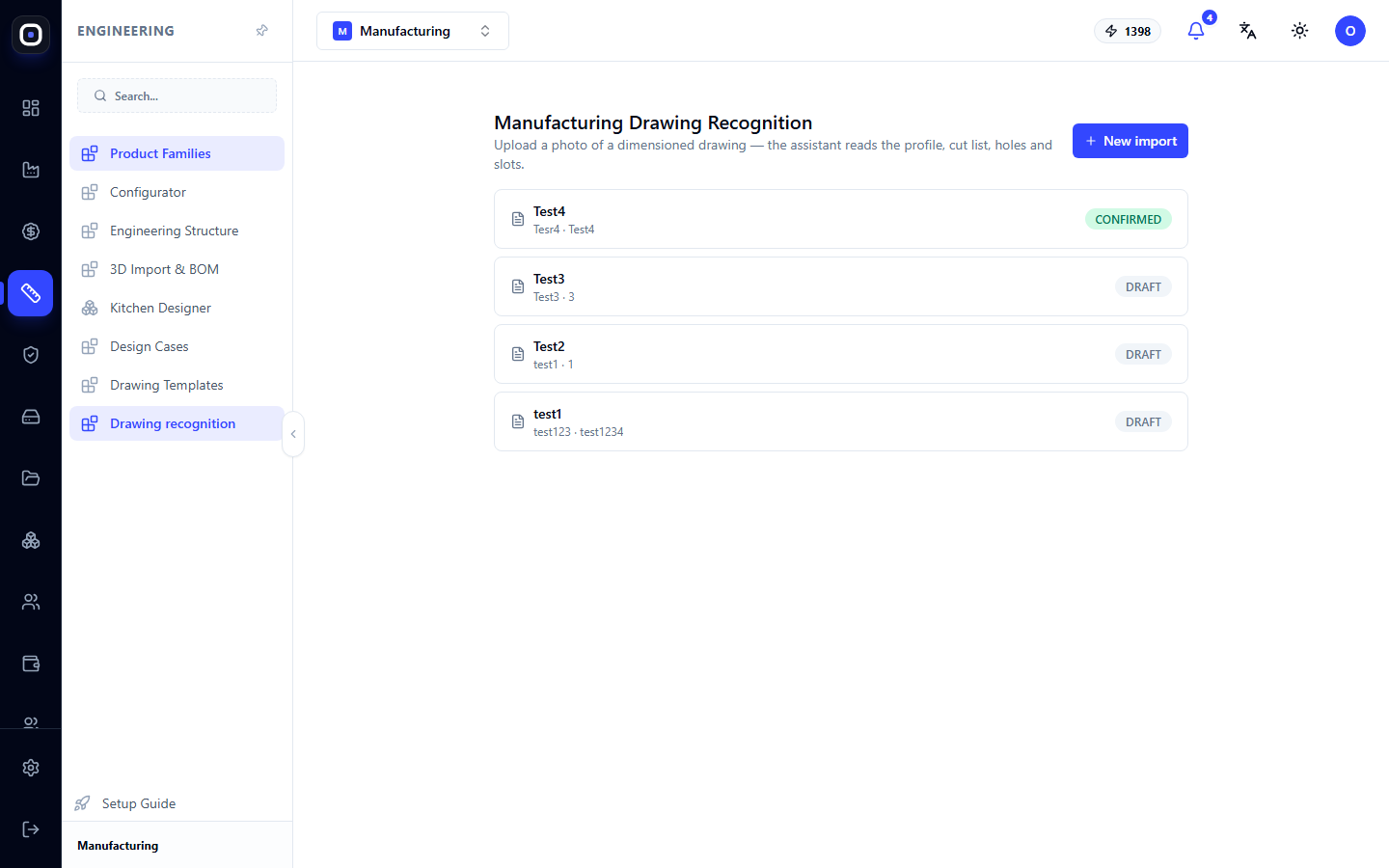
List of Imports
The page displays all imports as rows. Each shows the name, a brief description, and status:
- DRAFT — draft. The drawing has been recognized, but a person has not yet confirmed the result;
- CONFIRMED — confirmed. The data has been verified and can be used.
The New Import button in the top right corner starts a new recognition. Clicking on a row opens the import.
The difference between the two statuses is the boundary of responsibility. The assistant suggests, the person confirms. As long as it's DRAFT, nothing goes into production.
How to create an import
- Click New Import.
- Give the import a name by which you'll find it later.
- Upload a photo or scan of the drawing.
- Wait for recognition.
What the assistant recognizes
The page is designed for parts made from profiles and pipes: posts, crossbars, frames.
- Profile — workpiece cross-section: square tube 40 × 40, rectangular 60 × 30, angle, wall thickness.
- Cut — part length and end angles. Straight cut or at forty-five degrees.
- Holes — diameter of each and distance from the edge.
- Slots — dimensions and location.
Review and Verification
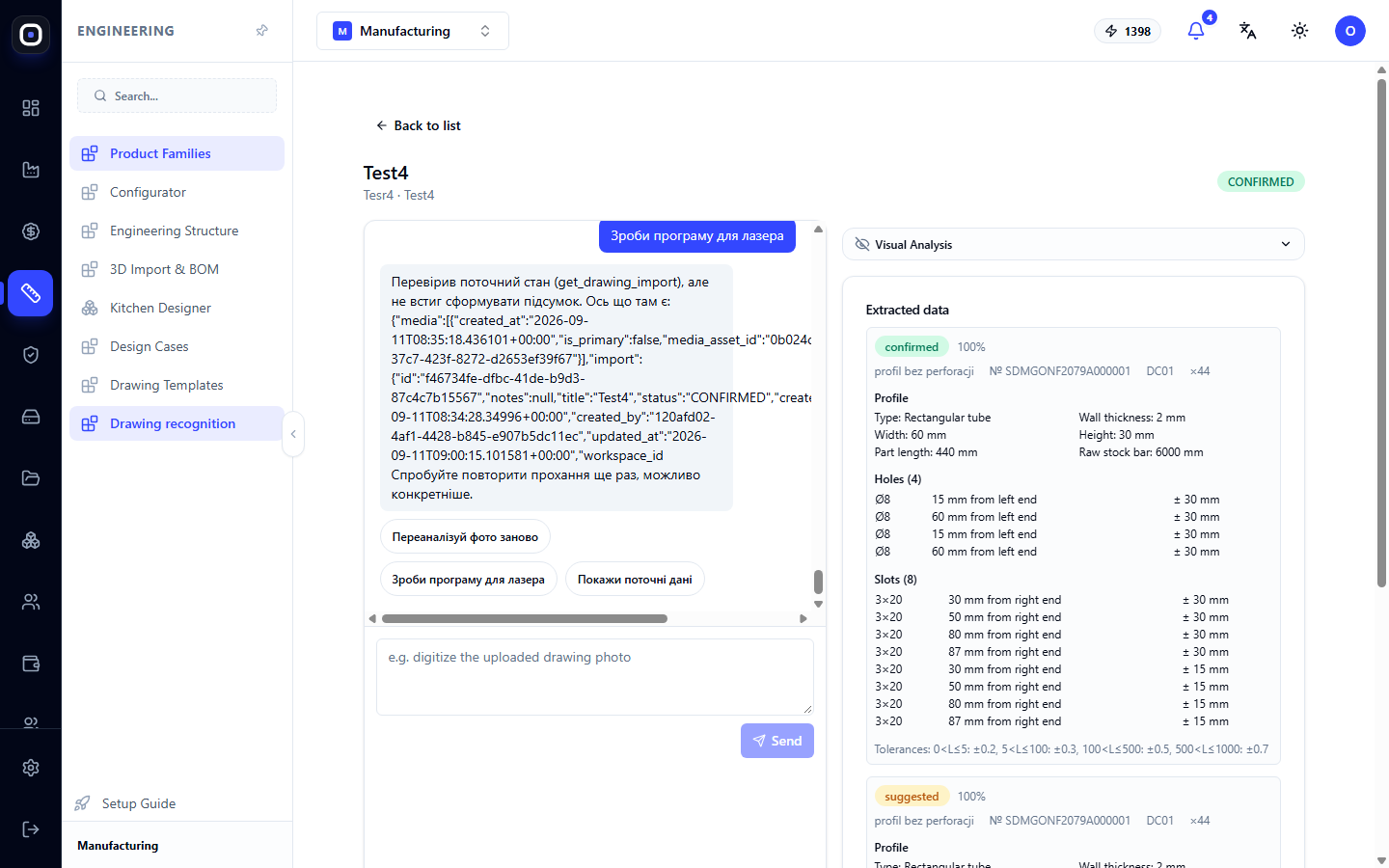
An open import is divided into two parts. On the left is the conversation with the assistant and the original drawing. On the right are the recognized data: profile, cutting parameters, and a table of holes with diameters and coordinates.
Each recognized element has a confidence score. What the assistant is unsure about is marked separately for you to check first.
Check in this order:
- profile. If it's incorrect, the rest doesn't matter;
- total length;
- number of holes. Count them on the drawing and compare with the table;
- distances. Especially from which edge they are measured. This is the most common mistake, and not just for the assistant.
How to correct
If something is recognized incorrectly, there are two ways.
- Write to the assistant in the chat: "the third hole is at 250 mm, not 205". It will correct the data.
- Correct the values in the table manually.
Confirmation
Once everything is checked, confirm the import. The status will change to CONFIRMED, and the recognized part will become available for further work: cutting, routing, cost estimation.
How to take a recognizable photo
The quality of the result depends more on the quality of the photo than anything else.
- Shoot straight, not at an angle. Distorted perspective changes proportions.
- The entire drawing must be in the frame, including the title block, which indicates the material and profile.
- Dimensions must be readable. If you can't read a number in the photo yourself, the assistant won't be able to either.
- No glare or shadows. Shoot in even light.
- One drawing — one import. Don't try to fit three parts into one photo.
A scan is always better than a photo. If you have the option to scan, use it.
When this tool is suitable and when it is not
Suitable when the part is simple, made from a profile or pipe, and the drawing has dimensions.
Not suitable for complex spatial parts, assembly drawings with dozens of items, and sketches without dimensions. For these, a 3D model and the 3D import page are needed.
If the client sent only a photo of the finished product without a drawing, use the quick estimate from a photo in Costing Studio.
Typical workflow
- Open Engineering → Drawing Recognition.
- Click New Import and upload the photo.
- Wait for recognition.
- Check the profile, length, number of holes, and distances.
- Correct errors via chat or in the table.
- Confirm the import.
- Use the part in cutting or estimation.
Frequently Asked Questions
The assistant recognized the wrong profile
Write the correct one in the chat or correct it manually. If this happens often, check if the drawing's title block is in the frame.
There are fewer holes in the table than on the drawing
Some were not recognized, most often due to poor contrast. Add them manually or re-photograph the drawing.
The import remained in DRAFT status
No one confirmed it. Open it, check the data, and confirm.
Can I upload a PDF?
A drawing as an image is recognized most reliably. If you have a PDF, save the desired page as an image.
Can I trust the result without verification?
No. Recognition facilitates work but does not remove responsibility. One incorrect number means a batch of defects, so human verification is mandatory.