Product Import (CSV/Excel/JSON/XML)
Upload a file with products from Excel, another system, or a marketplace feed – with column mapping, template saving, and duplicate SKU handling.
Instead of manually adding products one by one, you can upload a ready-made file – from Excel, from an export of an old system, or even directly from a marketplace's XML feed.
Where to find it
Two entry points lead to the same import wizard:
- Products & Inventory → Inventory Master (
…/erp/inventory) – the import button in the top bar; - Directly from the site editor – on the Products panel, the Import button in the header, and if there are no products in the workspace yet – the same action is available among the three empty state hints (next to manual addition and Baselinker connection).
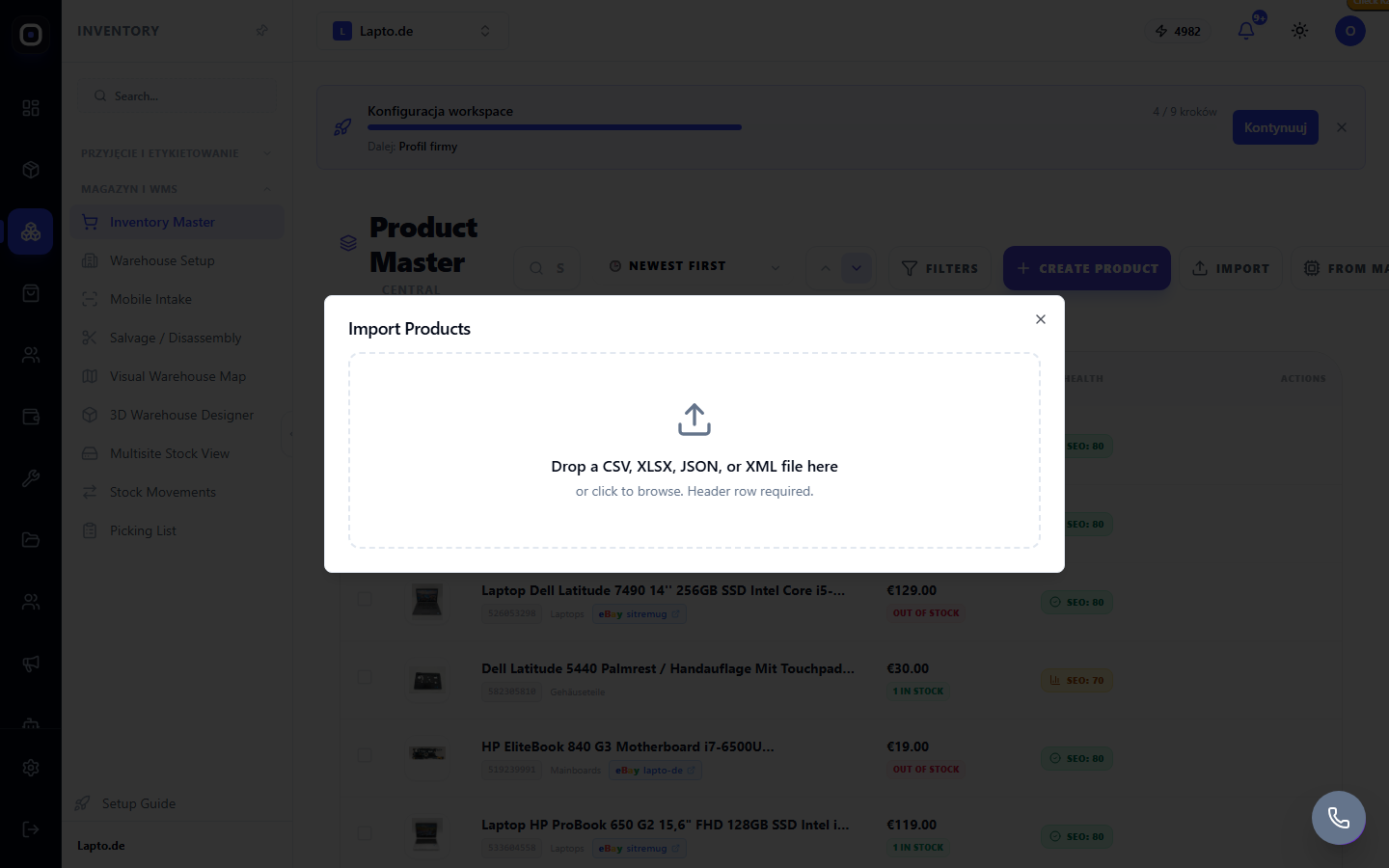
Supported formats
CSV, XLSX/XLS, JSON, and XML – the latter format also recognizes typical feeds like Google Merchant or Baselinker exports (
Wizard steps
- Upload – drag and drop the file or select it manually. The first row should contain column headers.
- Column mapping – the system tries to guess the correspondence (e.g., column "Nazwa" → field "Name"), but each field can be reassigned manually. The only required field is SKU.
- If you have previously saved a mapping for the same source (e.g., "My Baselinker Export") – select it from the preset list instead of reconfiguring. To save the current mapping for the future, enter a name and click Save mapping.
- Preview – the first 5 rows are shown after applying the mapping to check the result before running.
- Choose a duplicate SKU strategy:
- Import – the file is processed in batches on the server; upon completion, the number of successful and failed rows is visible, and failed ones can be viewed and retried (Retry failed rows).
Public visibility of new products
Products that were not previously in the catalog are immediately marked as public after import – meaning they appear in the store without an additional "show on site" step. Products that already existed retain their current visibility – import does not change it.
Product variants via import
If a row in the file contains parent_sku, it is treated as a variant (e.g., size or color) of a product with the corresponding SKU in the same file or already existing in the catalog.