Interface Overview: Menus, Modules, and Quick Search
How the Oprela interface is structured: global module menu, contextual menu, main dashboard, and Ctrl+K search.
The Oprela interface is built around modules — large functional blocks (Orders, Products, Finance, HR, etc.).
Global Menu (Left Dark Panel)
The narrow dark panel on the left is a list of your workspace's modules. Hover over an icon to see its name. The set of modules depends on your business type and subscription plan.
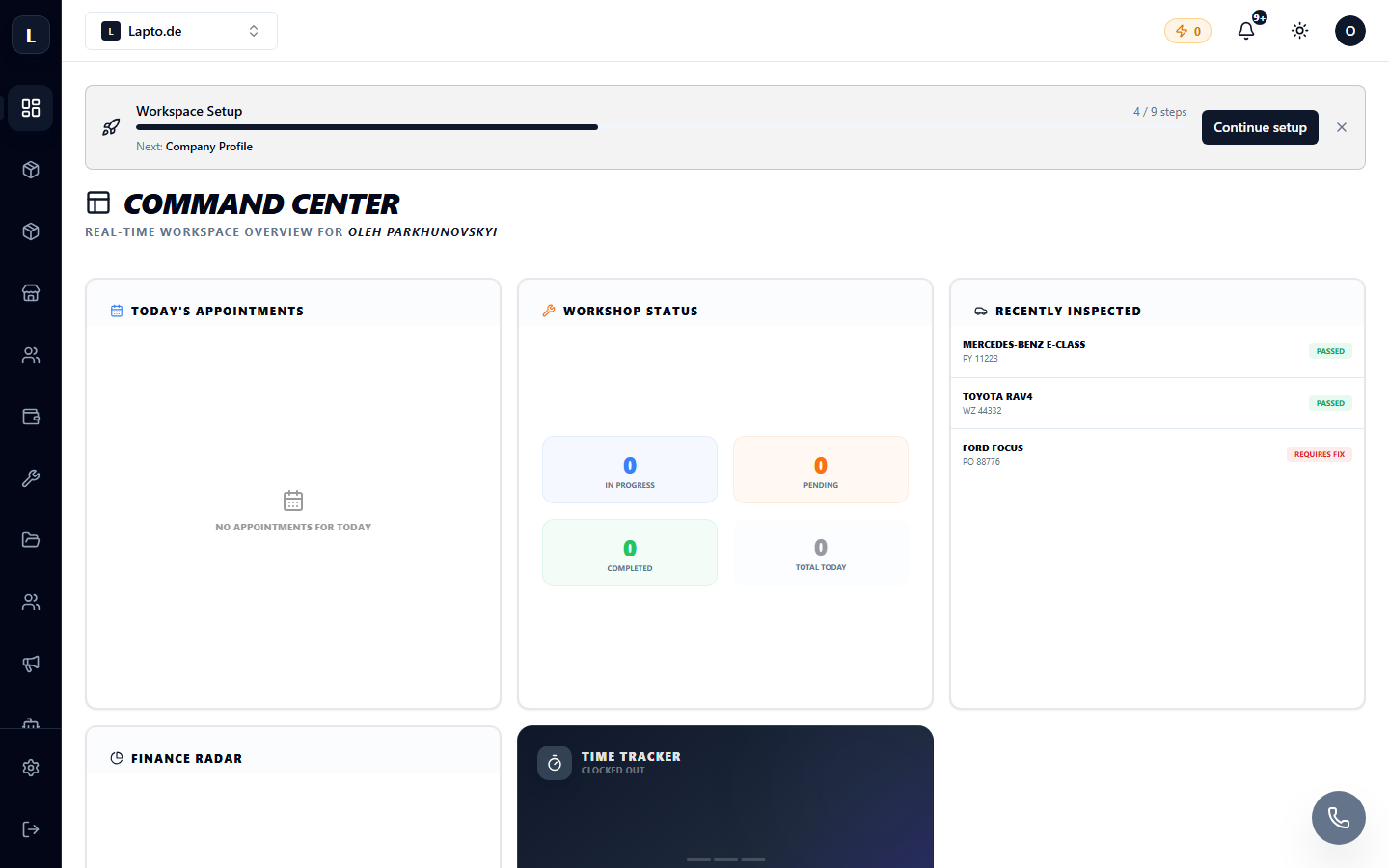
At the bottom of the panel are Settings (workspace settings) and the logout button.
Module Contextual Menu
Clicking on a module expands a second, lighter menu next to it, showing the sections within that module. For example, in the Products & Inventory module: Inventory Master, Incoming Goods, Warehouse Setup, etc.
The menu can be pinned (pin icon) or collapsed using the arrow at the edge of the panel.
Main Dashboard (Home)
The first menu item is the dashboard with key metrics: sales, orders, active repairs. This is the starting point for daily work.
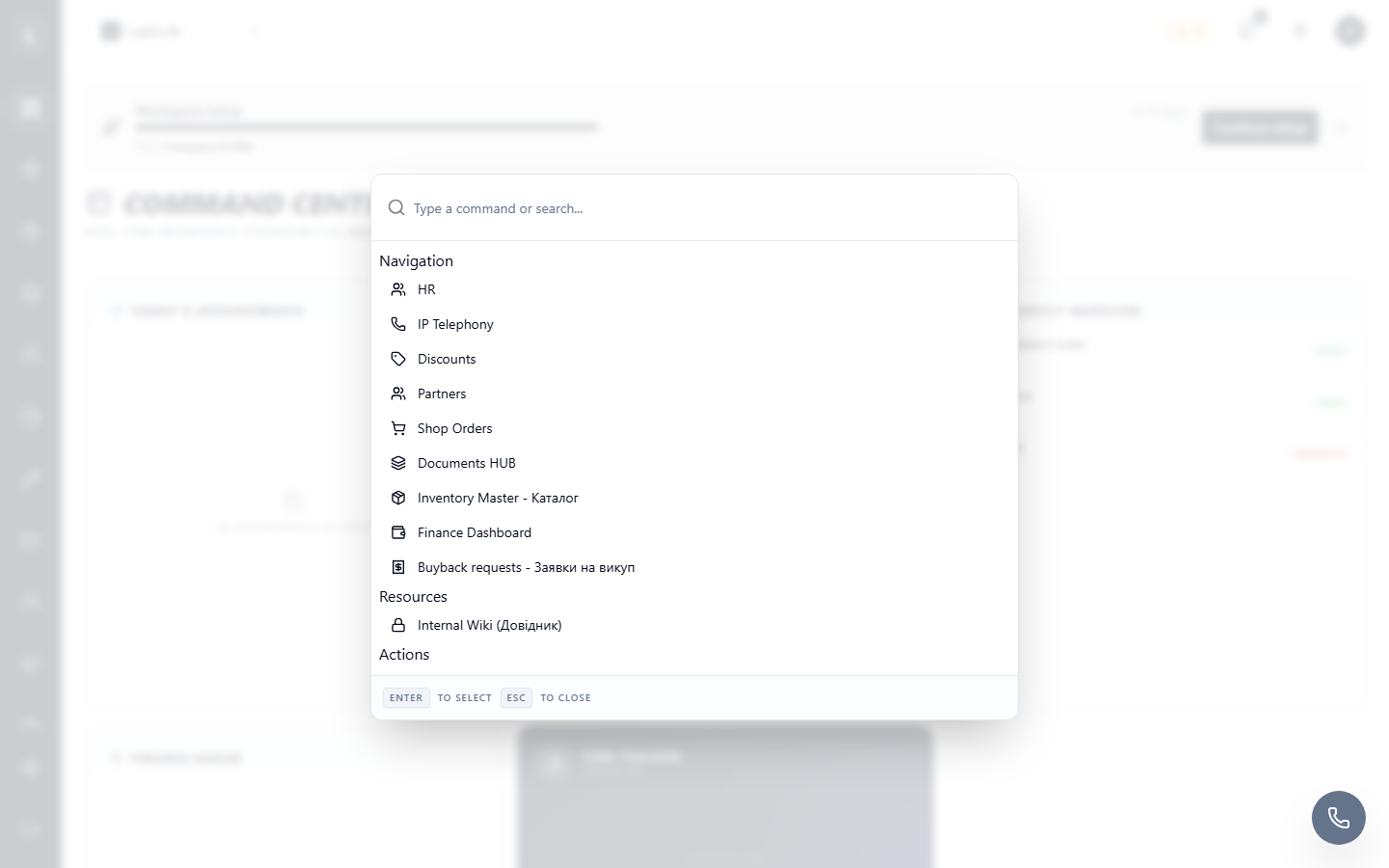
Quick Search — Ctrl+K
Press Ctrl+K (or the Search… button in the contextual menu) — this will open the command palette. Search for pages, orders, products, and customers without taking your hands off the keyboard.
Help Buttons
Many pages feature a ? icon — it opens a help article specifically about that function.