Blends and Packaging: Recipes, Raw Material Batches, and Traceability
For manufacturing operations that blend and package: raw materials and packaging in batches, recipes with versions, packaging with its own batch number and expiry date, quick screen for the workshop.
Not every manufacturing operation cuts metal. Tea blends, spice mixes, dry building mixes, cosmetics, feed — all of these are made according to recipes: several types of raw materials are taken in specific proportions, mixed, and packaged.
The "Blends and Packaging" page is designed for such manufacturing. Its main task is traceability: by the number on the package, you can always tell which raw material batches it was made from.
Where to find the page
The page opens at an address ending in …/erp/production/blends. In the menu, it appears in workspaces where this type of production is enabled.
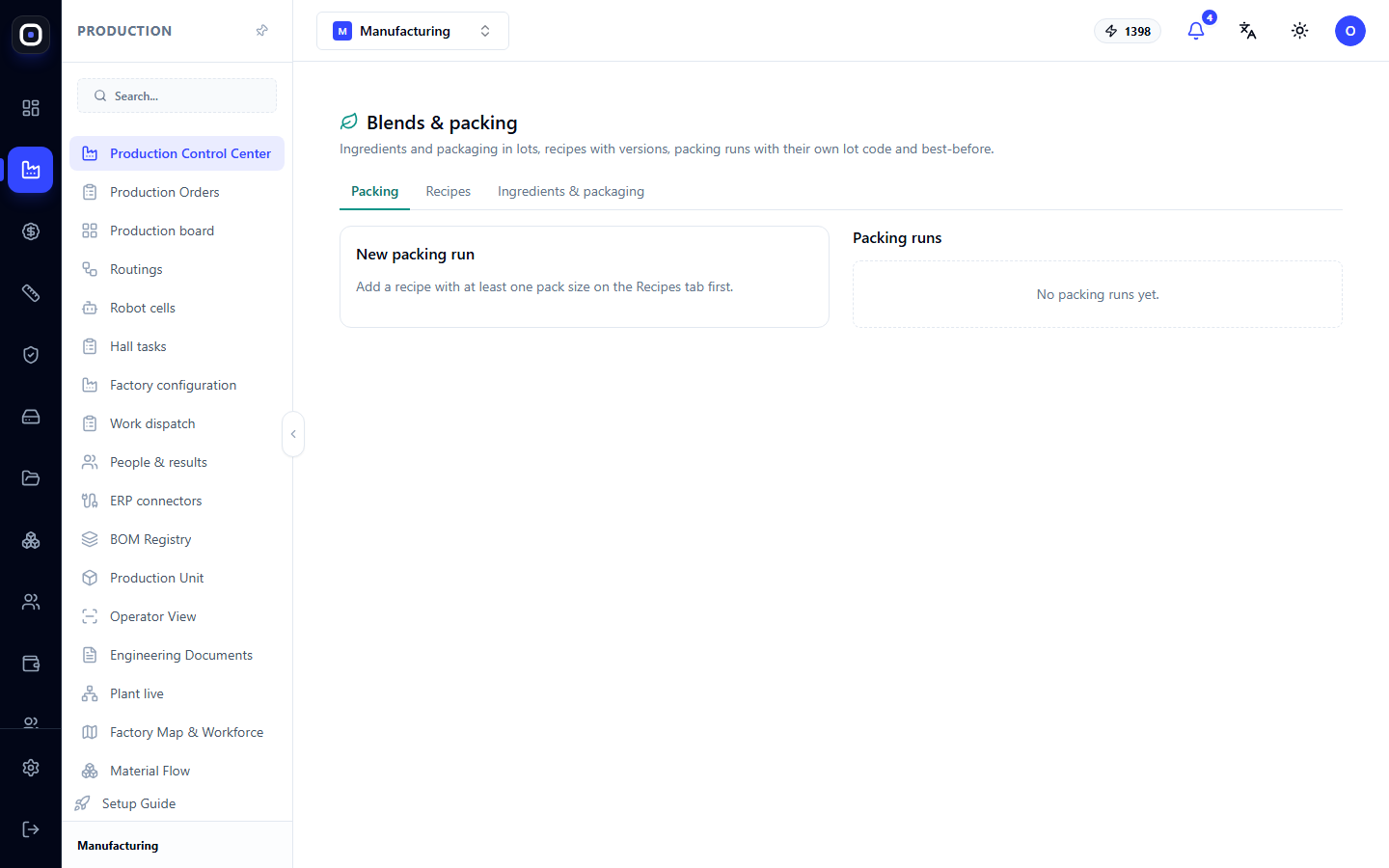
Below the title, a single sentence describes everything the page can do: raw materials and packaging in batches, recipes with versions, packaging with its own batch number and expiry date.
Three tabs and their workflow
There are three tabs: Packaging, Recipes, Raw Materials and Packaging. The first one opens, but you need to set them up in reverse order:
- first, raw materials and packaging;
- then, recipes;
- and only then, packaging.
The page itself reminds you of this. If there are no recipes yet, the "Packaging" tab says: first, add a recipe with at least one package size.
"Raw Materials and Packaging" tab
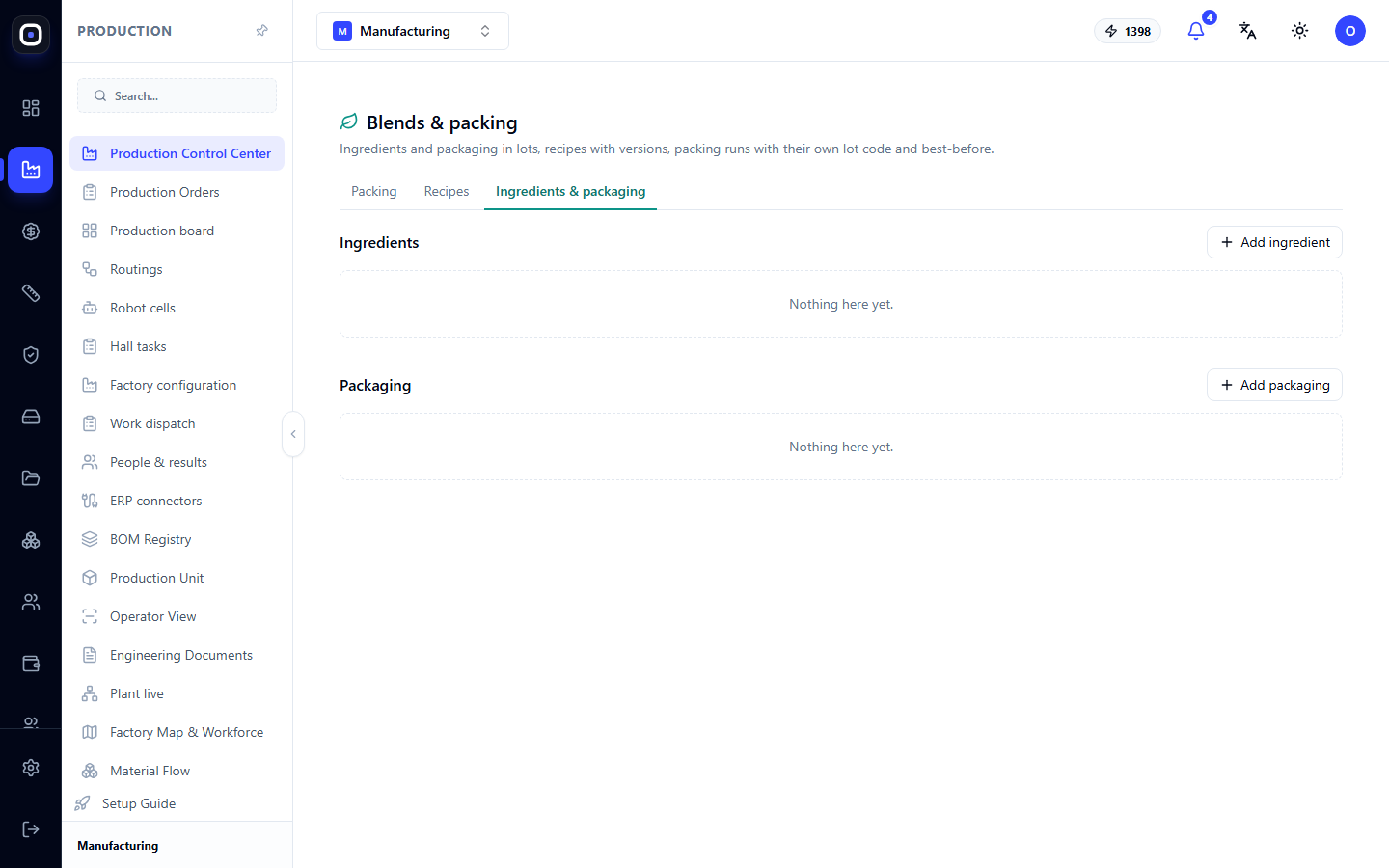
There are two lists here, each with its own add button.
Raw Materials — everything that goes into the mix: tea, herbs, spices, fillers. Add Raw Material button.
Packaging — packs, jars, bags, labels. Add Packaging button.
Batch accounting
The key here is the word "batches." Raw materials are accounted for not just as "black tea, 50 kg," but as "black tea, batch from supplier X, received on Y date, best before Z date, 50 kg."
This is necessary for two reasons.
- Expiry date. A finished package cannot be valid longer than the raw material with the shortest expiry date in it.
- Recall. If a supplier reports a problem with a batch, you can instantly find all packaging that contained it.
"Recipes" tab
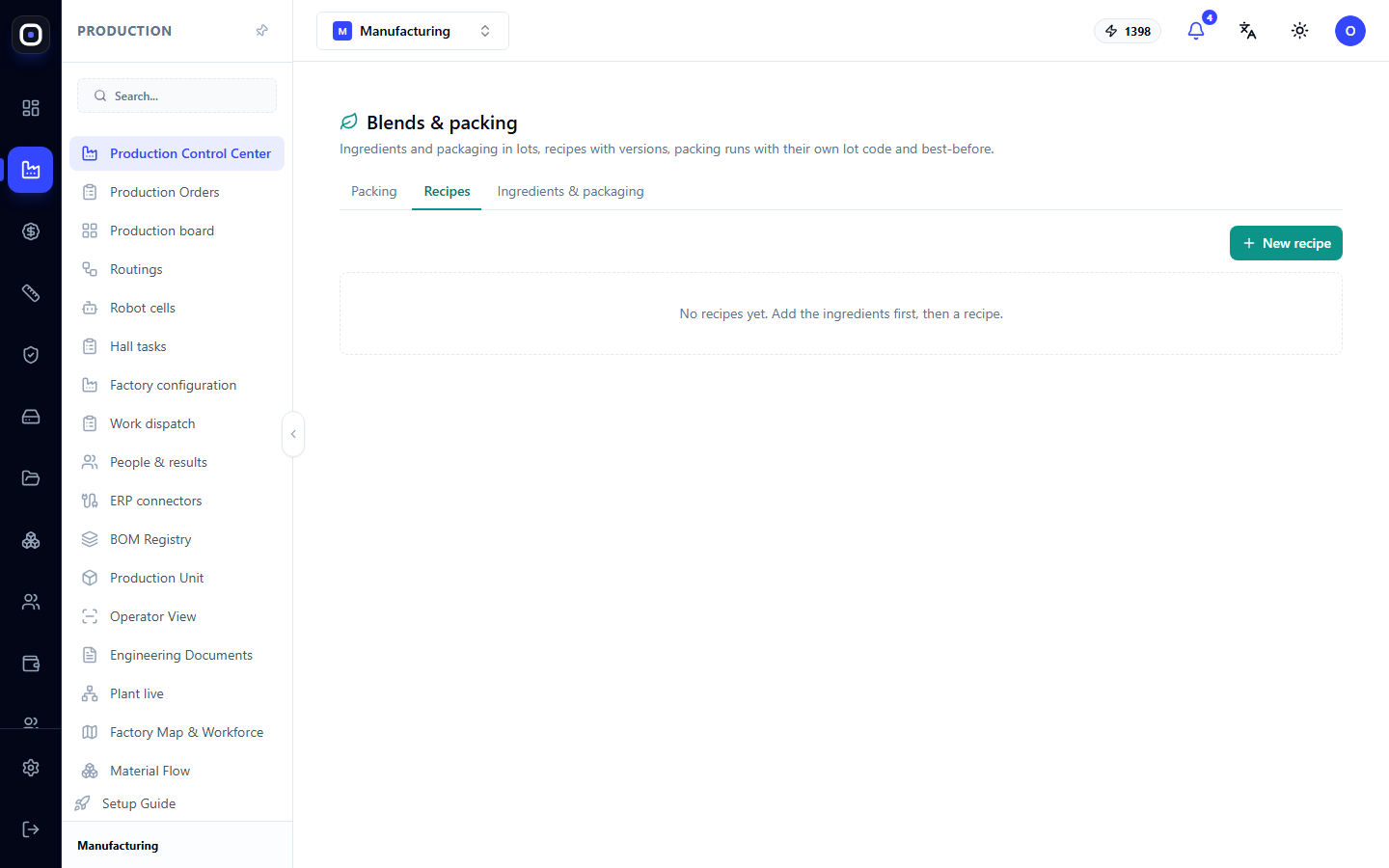
A recipe describes what a mix consists of, in what proportions, and into which packages it is packed. A new one is created by the New Recipe button. If there are no recipes yet, the page will prompt you to add raw materials first.
In a recipe, you specify:
- ingredients — which raw materials and how much to use;
- package sizes — for example, 50 g, 100 g, 250 g. Without any size, there's nothing to package into;
- packaging for each size.
Versions
A recipe has versions. If you change the proportions, the old version does not disappear. Everything that was packaged earlier remains linked to the version it was actually made with.
This is important for accurate accounting. A customer who bought a package six months ago received a mix according to the recipe at that time, not the current one.
"Packaging" tab
The tab consists of two parts.
New Packaging — this is where packaging is initiated: select a recipe, package size, quantity, and raw material batches from which ingredients are taken.
Each packaging receives its own batch number and expiry date. This number is printed on the package.
Packaging History — all previous packaging operations. If there haven't been any yet, it says so.
Releasing a batch
A packaged batch does not immediately go on sale. First, it is released: confirmed that it has passed inspection and is suitable for shipment. Until then, it is considered unreleased.
This is the same principle as in pharmaceuticals and food industries: manufactured and approved for sale are two different states.
Quick screen for the workshop
For daily work in the workshop, there is a simplified "Quick Production" screen. Its address ends in …/erp/production/quick.
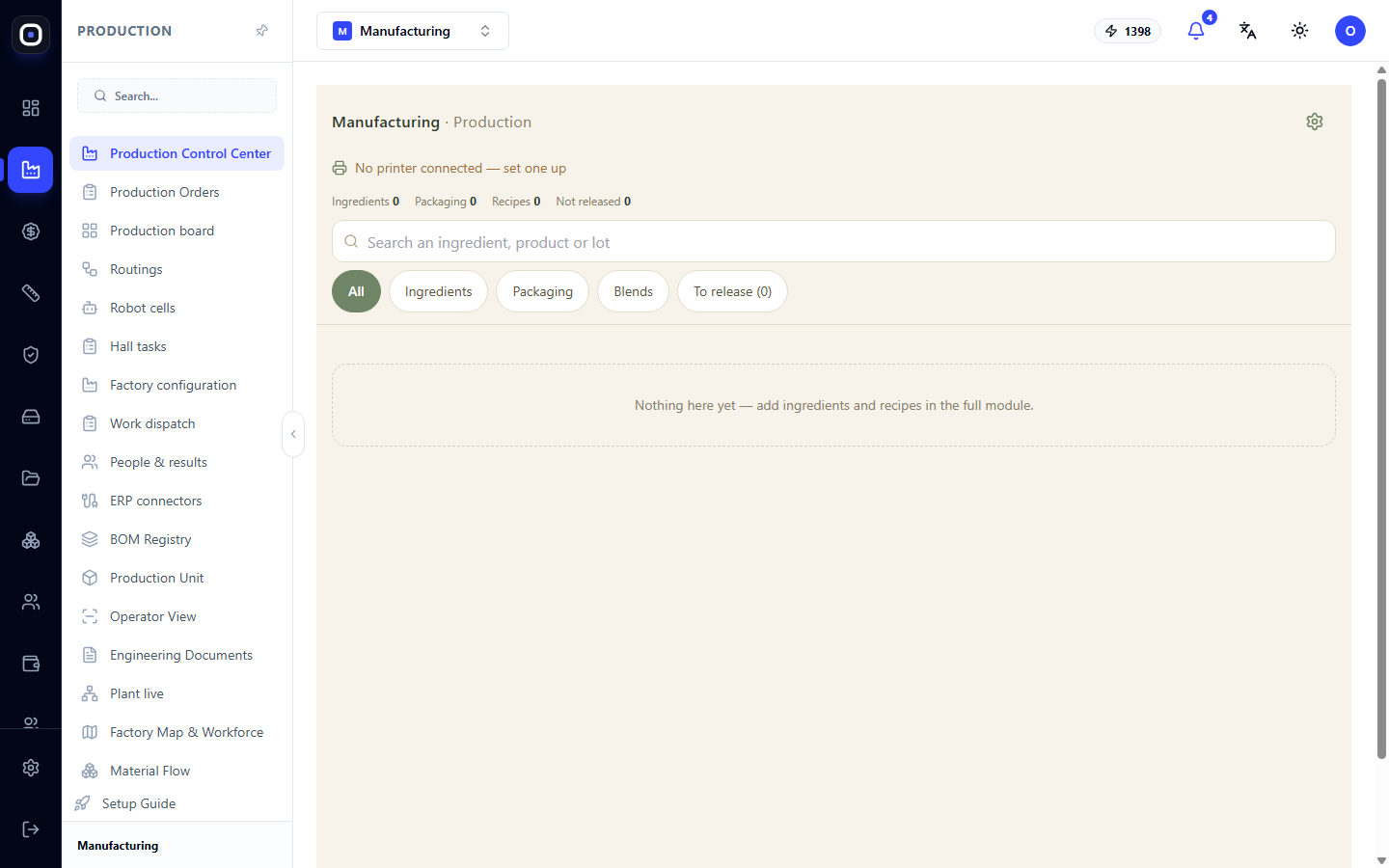
It shows the same information, but with large elements, convenient for a tablet near the packaging table.
- At the top, the status of the label printer. If it says "Printer not connected - configure", click on the text and connect the printer, otherwise labels with the batch number will not be printed.
- Four counters: Raw Materials, Packaging, Recipes, Unreleased.
- Search field "Search raw materials, products, batches".
- Filters: All, Raw Materials, Packaging, Blends, To Be Released.
The last filter is most useful for the quality manager: it shows all batches awaiting release.
If there are no raw materials and recipes yet, the screen is empty and advises to add them in the full module, i.e., on the "Blends and Packaging" page.
Typical workflow
- Open the Raw Materials and Packaging tab and add raw materials and packages.
- Receive raw material batches with expiry dates.
- On the Recipes tab, create a recipe and add package sizes.
- Connect the label printer on the quick screen.
- On the Packaging tab, start a new packaging operation.
- Print labels with the batch number and expiry date.
- After inspection, release the batch.
Frequently Asked Questions
I can't start packaging
There is no recipe or the recipe has no package sizes. Add a recipe on the "Recipes" tab.
How do I find out which raw materials a specific package was made from?
Find the packaging operation by the batch number from the package. It records which raw material batches were used.
I changed the recipe. What will happen to the old batches?
Nothing. They will remain linked to the version they were made with.
Why aren't labels printing?
The printer is not connected. The text at the top of the quick screen reminds you of this.
Can an unreleased batch be sold?
No, it must be released first. This way, an incomplete inspection will prevent unsuitable goods from being shipped.